
An effect is anything around the layout with an on and an off: building lights, a string of LEDs, a street lamp, a relay switching something with its own power, a frog juicer, power to a section of track, or a plain output pin. Each one is wired to a pin on a board — your EX-CommandStation or a DEJA IO board — and Throttle gives it a button.
Only the layout owner adds and edits effects. Everyone else in the layout sees the same cards and can switch them.
The Effects page
WhereMenu → Effects /effects
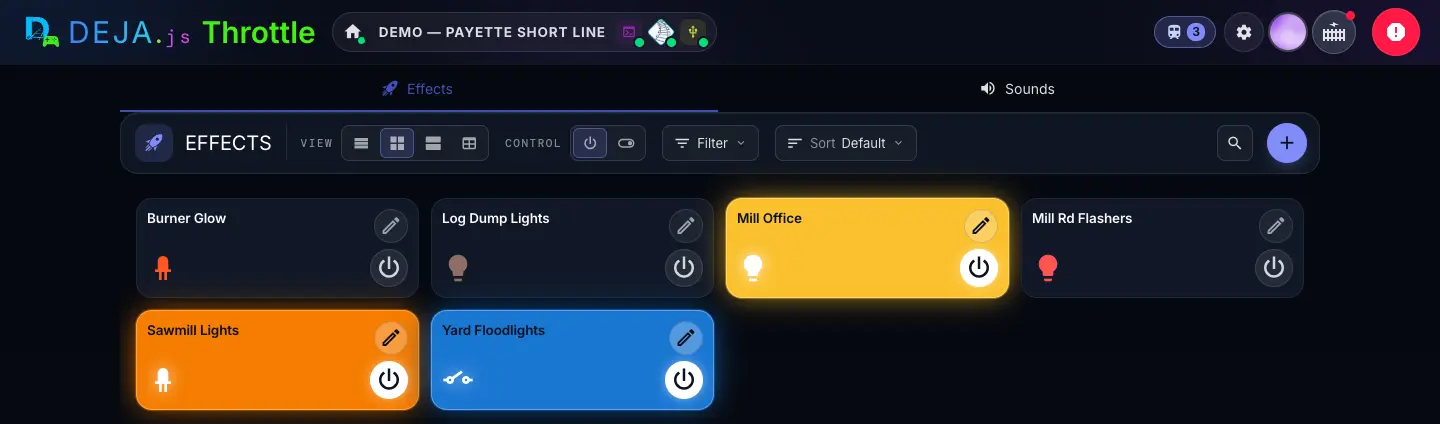
Tabs
The tab bar only appears when there's more than one tab to show.
- Marker 1EffectsTab
- Your effects — the cards below.
- WLEDTab
- One card per WLED strip, each running the compact WLED studio — power, brightness, your saved looks, the strip map and the selected band's quick controls. Owners and members both get it, once the layout has a WLED strip; the full studio — animations, signal zones, lamp colours — lives on the strip's own page under Devices.
- Marker 2SoundsTab
- The sound library. Sounds aren't effects either — see the Sounds guide.
Toolbar
On a narrow screen each control folds into an icon menu. Your choices are remembered on this device.
- Marker 3ViewSegmented buttons
- How dense the list is.Options: List · Compact · Comfy · TableDefault: Compact
- Marker 4ControlSegmented buttons
- What each card's on/off control looks like.Options: Button (a round power button) · SwitchDefault: Button
- Marker 5FilterMenu
- Narrow the list by Devices, Types or Tags. Picks in one group widen the list (this or that); picks across groups narrow it. Active filters show as chips you can clear.
- Marker 6SortMenu
- The order of the cards.Options: Default (your own order) · Name · Device · TypeDefault: Default
- SearchButton → text field
- The magnifier opens “Search effects...”. It matches effect names only.
- Marker 7Add effectButton (+)
- Opens New Effect. Owner only.
Each effect card
- Type icon and nameDisplay
- The icon shows the effect type; the name is the one you gave it. Comfy view adds the device and pin.
- Power buttonButton or switch
- Switches the effect on or off. It lights in the effect's colour when it's on, and shows a short pending state while the command travels to the board.
- Marker 8EditPencil button
- Opens the effect's editor. You can also long-press a card. Owner only.
- guestChip
- Shown when guests are allowed to switch this effect from the guest app.
See No effects when you know you have some? A filter is hiding them — the empty state shows whenever the filtered list is empty. Clear the chips under the toolbar.
New Effect
WhereEffects → + /effects/new
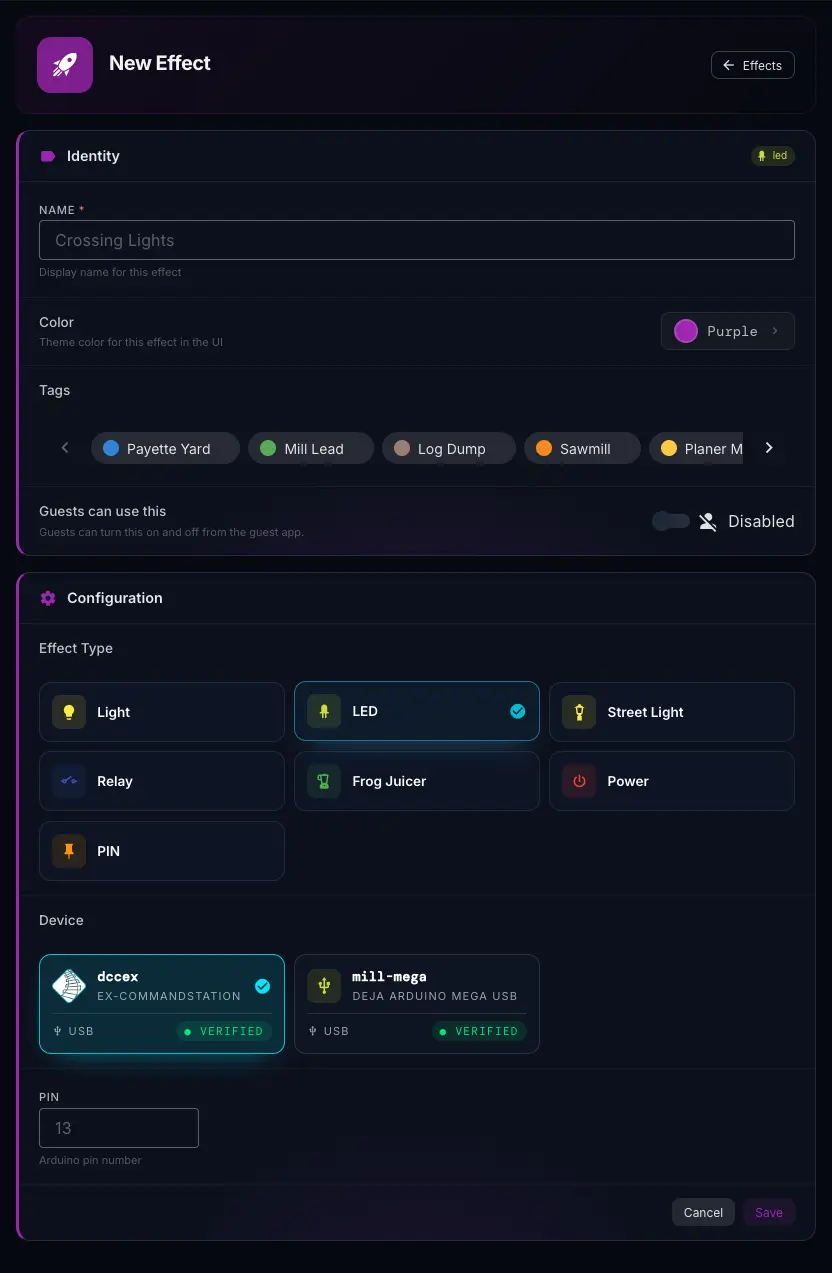
Identity
- Marker 1NameText field · required
- What the card and every picker call it, e.g. “Crossing Lights”.
- Marker 2ColorColour picker
- The effect's colour on its card and power button. Tap it for 20 named presets, your tag colours, and a custom colour.Default: Purple
- Marker 3TagsChips · multi-select
- Group effects by area or purpose so you can filter by them. Tags are created in Settings → Layout → Tags, not here.
- Marker 4Guests can use thisSwitch
- Lets guests switch this effect on and off from the guest app. Only shown when Guest Mode is on, and never for Power or Frog Juicer — those can move trains, so guests never get them.Default: Disabled
Configuration
- Marker 5Effect TypeTiles · pick one
- What the effect is. Every type is an on/off output on one pin — the type sets the icon, the default colour and how DEJA groups it. You choose it once: it can't be changed after you save.Options: Light (building and scene lights) · LED (a single LED or string) · Street Light · Relay (switches anything with its own power) · Frog Juicer (powers a turnout frog) · Power (power to a section of track) · PIN (a plain output pin)
- Marker 6DeviceDevice tiles · pick one
- The board the effect is wired to: your EX-CommandStation or a DEJA IO board. Each tile shows the board's type and whether it's connected. No tiles? Add a board under Devices first.
- Marker 7PinNumber field
- The pin on that board, e.g.
13. For a DEJA IO board, use the pin your accessory is wired to — the board's pinout is on its device page. - Marker 8Cancel · SaveButtons
- Save adds the effect, switched off, and returns you to Effects.
Wired the effect to a DEJA IO board? Deploy that board's firmware again after adding effects, so it knows about the new pin — from the board's page under Devices, or with deja deploy. There's no code to write.
Edit Effect
WhereEffects → ✏️ on a card, or long-press /effects/<id>/edit
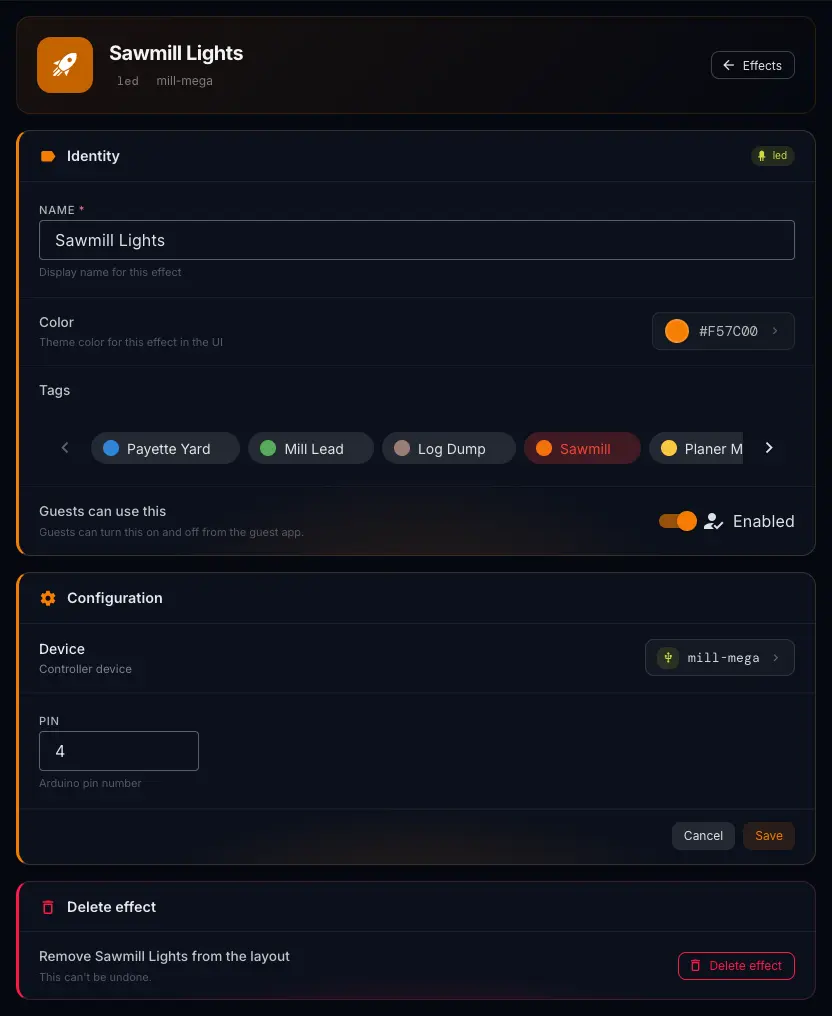
Name (1), Color (2), Tags (3) and Guests can use this (4) work exactly as in New Effect. The header shows the effect's type and device.
- Marker 5DeviceChip → dialog
- Shows the board it's wired to. Tap it to open Select Device and move the effect to another board, then Save.
- Marker 6PinNumber field
- The pin on that board.
- Marker 7Cancel · SaveButtons
- Save writes your changes and returns to Effects.
- Marker 8Delete effectButton → confirm
- Removes the effect from the layout. It asks once, right there — Cancel or Delete. This can't be undone.
Picked the wrong type? Delete the effect and add it again — the type can't be changed in the editor.
Effects also show up elsewhere: link one to a turnout so it fires on every throw (in the turnout's Effect row), switch it from a sensor or an automation, or let guests switch it from a stop.