
Your roster is every loco on the layout: its DCC address, name, railroad, colour, photo and function map. Every throttle in the room reads the same roster, so a loco you add on your phone shows up on everyone's screen straight away.
Anyone in the layout can add and edit locos. Only the layout owner gets the Sync menu, which talks to the EX-CommandStation's own roster.
DejaBot, Throttle's AI, can identify a loco from a photo or a few words and fill in the editor for you. It only ever suggests: you accept or dismiss each suggestion, and nothing is saved until you press Save.
The Roster
WhereDock → Roster, or Menu → Roster /locos
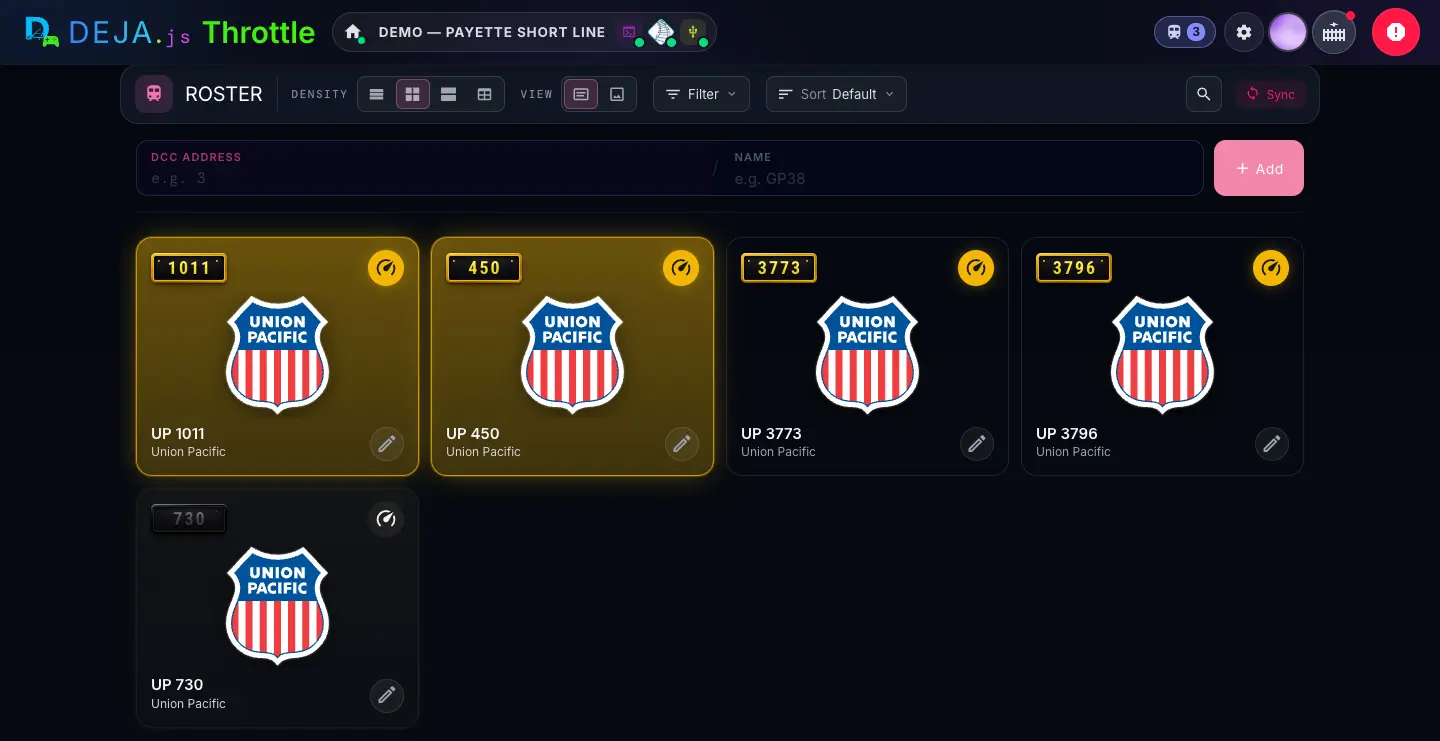
Toolbar
On a narrow screen each control folds into an icon menu. Your choices are remembered on this device.
- Marker 1DensitySegmented buttons
- How much room each loco gets.Options: List (one row each) · Compact (tiles) · Comfy (bigger tiles with the road logo) · Table (Name, Road, Addr and Consist columns; tap a row to drive)Default: Compact
- Marker 2ViewSegmented buttons
- What fills the middle of each tile. Plate shows the railroad's logo when the loco has a roadname with one; Photo shows the loco's photo when it has one. Without either you get a line drawing of a steam, diesel or electric loco.Options: Plate · PhotoDefault: Plate
- Marker 3FilterMenu
- Narrow the roster by Roads: the railroads your locos actually carry, A to Z. Pick several to see any of them. The Filter button only appears once at least one loco has a roadname.
- SortMenu
- The order of the tiles.Options: Default (your own order) · Name · AddressDefault: Default
- SearchButton → text field
- The magnifier opens “Search roster...”. It matches loco names only, not addresses.
- Marker 4SyncButton → menu
- Sends your roster to the EX-CommandStation, or reads its roster in. Owner only — see The Sync menu below.
Quick-add bar
The fastest way to add a loco: an address, an optional name, and you're done. After you add one, the bar slides on to offer a photo, DejaBot or the full editor — see the next section.
- Marker 5DCC ADDRESSNumber field
- The loco's decoder address, a whole number from 1 to 9999. Press Enter or Tab to jump to the name.
- Marker 6NAMEText field
- What the roster and throttle call it, e.g. “GP38”. Leave it blank and it becomes
Loco 3(with your address). Press Enter to add; Backspace in an empty name takes you back to the address. - AddButton (+)
- Adds the loco to the roster right away, as a diesel with onboard sound and the standard sound-loco functions (headlight, bell, horn and so on). You can change any of that in the editor. Stays grey until the address is valid.
Each loco tile
- Number plateDisplay
- The loco's address. DC locos are marked on the plate.
- DriveSpeedometer button
- Opens a throttle for this loco, ready to drive. Locos you already have a throttle open for show their tile filled with the loco's colour; the rest stay dark.
- Name and roadnameDisplay
- The name you gave it and its railroad, under the art.
- EditPencil button
- Opens the loco editor. You can also long-press a tile.
Tapping the middle of a tile does nothing on purpose — so a stray tap never grabs a loco. Use the speedometer to drive and the pencil to edit.
Quick-add doesn't look up the address first. Use an address that isn't in your roster yet; to change an existing loco, use its pencil instead.
Quick-add, step by step
WhereRoster → the bar at the top /locos
Finish setting it up
Three choices in one box, plus Skip.
- Photo · UploadButton
- Add a photo of the loco next. Opens the photo step.
- Identify · Ask DejaBotButton
- Describe the loco in a few words and let DejaBot fill in the editor. Opens the Identify step.
- Details · EditButton
- Go straight to the full loco editor and fill it in yourself.
- SkipButton
- Leave it as it is. The bar shows the Added step.
Photo step
- ‹Back button
- Back to the three choices.
- Photo · <name>Button → file picker
- “Tap to choose a photo”, then it shows “Uploading…”. Photos over 10 MB are turned away — pick a smaller one.
- UploadButton
- Same as tapping the field. Once the photo is saved on the loco, you land in the editor with DejaBot already looking at it.
Identify step
- ‹Back button
- Back to the three choices.
- Identify · tell DejaBot about itText field
- A few words about the loco, e.g. “Kato SD70ACe, UP, LokSound”: the maker, model, railroad and decoder are all useful. Press Enter to ask.
- AskButton (↑)
- Opens the editor and asks DejaBot once with your words. Reloading or going Back won't ask again.
Added
- ✓ AddedDisplay
- The new loco's plate and name.
- +Button
- Add another loco — the bar goes back to the address.
- EditButton
- Opens the loco editor.
- ThrottleButton
- Opens a throttle for the new loco, ready to drive.
Nothing DejaBot comes up with is written to your roster from here. It all lands in the editor as suggestions for you to check.
The Sync menu
WhereRoster → Sync (owner only) /locos
Sync is greyed out (“Requires a connected EX-CommandStation”) until your DEJA Server is running and your EX-CommandStation is connected. A spinner shows while it works, and the result arrives as a message at the bottom of the screen.
- Sync roster to EX-CommandStationMenu item
- Sends every loco in your roster to the EX-CommandStation. The line under it counts them. Greyed out while the roster is empty.
- Import roster from EX-CommandStationMenu item
- Asks the EX-CommandStation for its roster and brings those locos into DEJA.
Renaming a loco in the editor also updates its entry on the EX-CommandStation when it's connected — no Sync needed for that.
Edit loco: Identity
WhereRoster → ✏️ on a tile, or long-press /locos/<address>/edit
DCC # chip and its railroad, tinted in the loco's colour. You also reach it from quick-add's Details and Edit, and from the ✏️ on a throttle.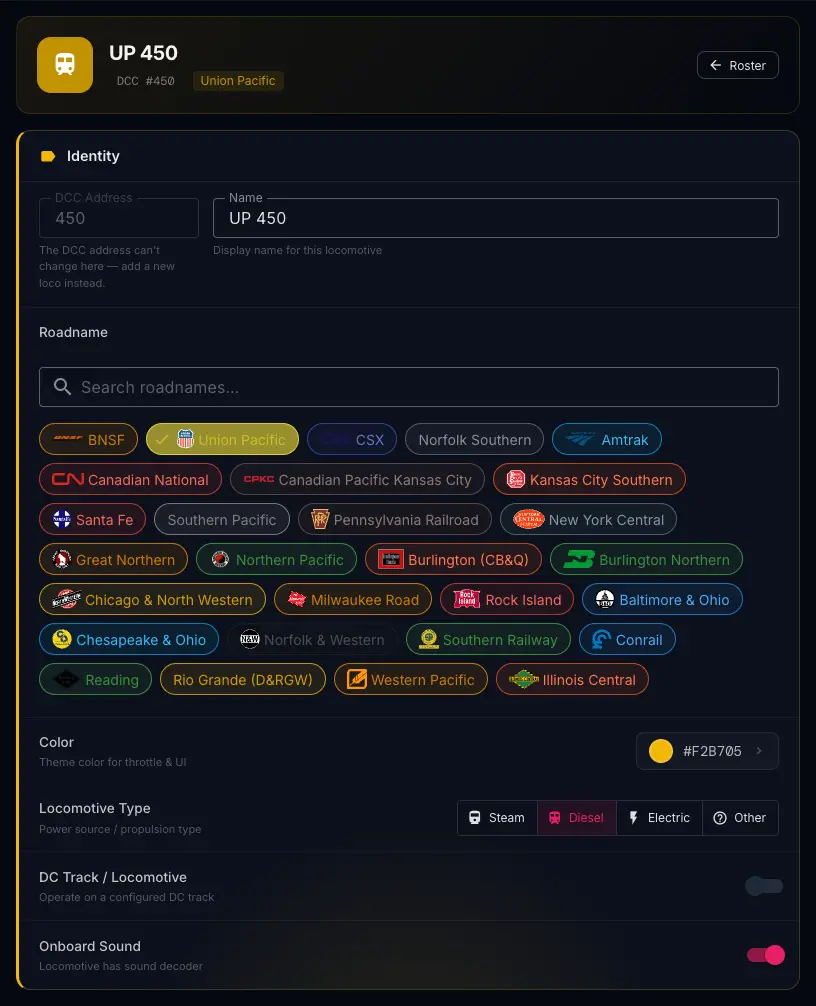
Identity
- Marker 1DCC AddressNumber field · locked
- The decoder address, 1 to 9999. It's fixed once a loco exists: “The DCC address can't change here — add a new loco instead.” When DC Track / Locomotive is on, the label reads DC Address and means the address of your DC track in DCC-EX.
- Marker 2NameText field
- The display name for the roster and the throttle, e.g. “GP38”.
- Marker 3RoadnameSearch + chips · pick one
- The railroad the loco is painted for. Type in “Search roadnames…” to narrow the 77 railroads, then tap a chip. Tap the chosen chip again to clear it. The road's logo shows on the loco's tile in Plate view and in the Roads filter.
- Marker 4ColorColour picker
- The loco's colour on its throttle and tile. Tap it for the named presets, your tag colours and a custom colour.Default: Pink on a new loco
- Marker 5Locomotive TypeSegmented buttons
- What powers it. Sets the line drawing on its tile when there's no photo or logo.Options: Steam · Diesel · Electric · OtherDefault: Diesel, if you leave it unpicked
- Marker 6DC Track / LocomotiveSwitch
- Turn on for a DC loco run on a track your EX-CommandStation is set up to drive as DC. The address above then means that track.Default: Off
- Marker 7Onboard SoundSwitch
- Whether the loco has a sound decoder. On a new loco, the function map follows this switch until you edit the functions yourself: sound-loco defaults when it's on, headlight only when it's off. A loco without onboard sound also gets DEJA's system sounds on its throttle pad, from its sound profile (see the Sounds guide).
New Locomotive
Adding a loco with the full form uses this same editor, titled New Locomotive — “Add a loco to your roster”. The differences:
- DCC AddressNumber field · required
- Open to type in (hint “2 or 4-digit decoder address”). If the address is already in your roster it stops you: “Address 3 is already in your roster — edit that loco instead.”
- Onboard SoundSwitch
- Starts off, so the function map starts as headlight only.
- Add LocomotiveButton
- Takes the place of Save. There's no EZ Consist or Delete until the loco exists.
DejaBot
WhereBeside the loco editor (a pill at the bottom on a phone) /locos/<address>/edit
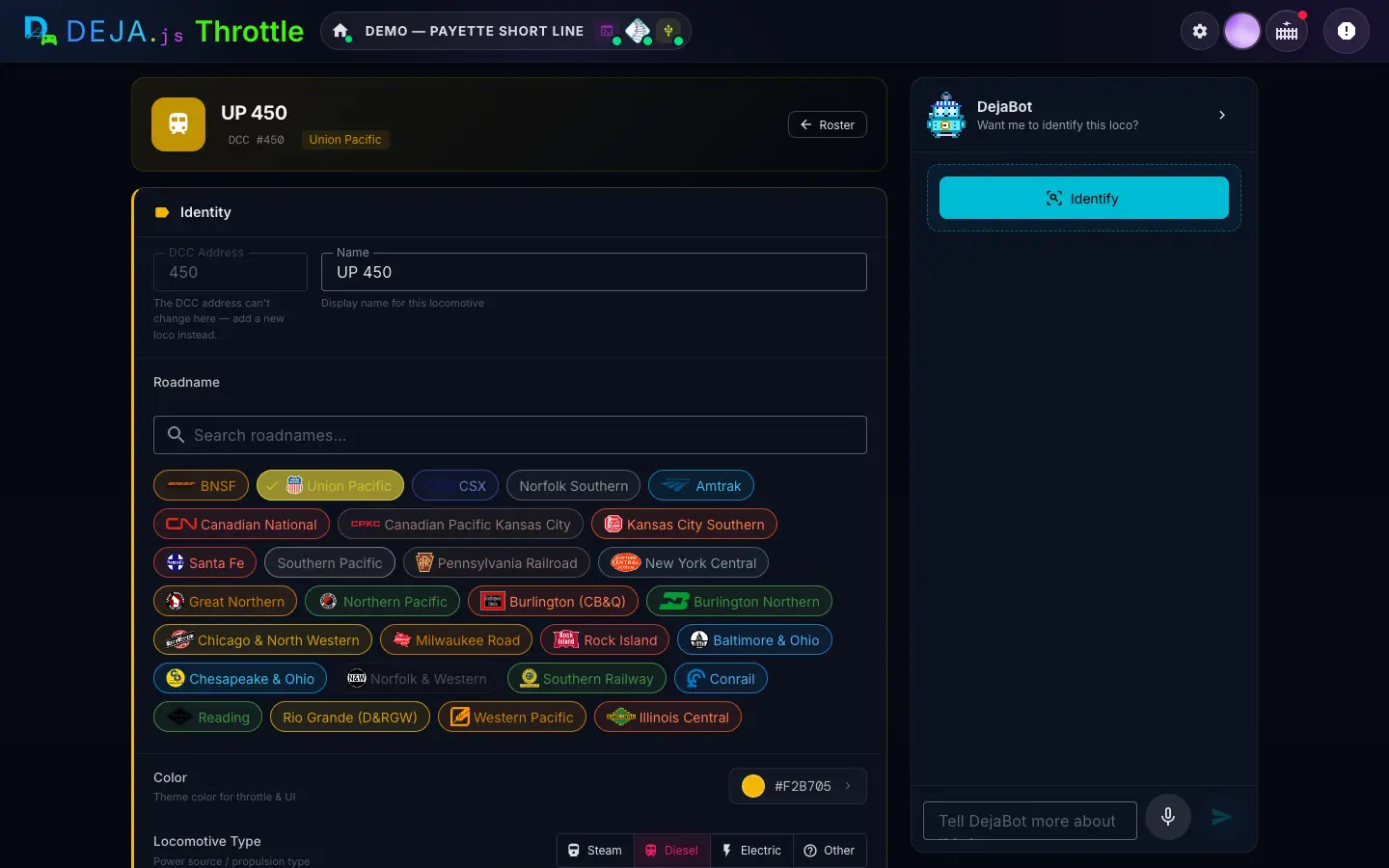
The panel
On a wide screen DejaBot sits in a panel on the right; the arrow in its header folds it away, and it remembers. On a phone it's a pill pinned to the bottom of the editor — tap it to open the same panel as a sheet, ✕ to close it.
- DejaBotHeader + status line
- Says what it's doing: “Add a photo or a few details and I'll identify this loco.”, then “Want me to identify this loco?” once it has something to go on, a rotating “Taking a close look…” while it thinks, and “Identified · high confidence” (or medium, or low) when it answers. Offline, it says “I need a connection to identify.” On a phone, the pill shows “3 suggestions · tap to chat” while suggestions are waiting.
- IdentifyButton
- Asks DejaBot to identify the loco from whatever the form has: the photo, the name, the roadname, the details. It needs at least one of those. Uploading a new photo makes DejaBot offer — it never calls the AI by itself.
- Does it have onboard sound?Buttons
- If you haven't said yet, DejaBot asks first — “It helps me map the functions.” Answer Yes, No or Not sure.
The answer
- Result cardDisplay
- A confidence chip and a short summary of what DejaBot thinks the loco is. Show assumptions lists the guesses it made along the way. If something went wrong you'll see a warning with Retry.
- suggestions on the form · Accept allBar + button
- Counts the suggestions waiting on the form. Accept all takes every one in a single tap. On a phone, Accept all sits on the pill.
- Function mapCard + Accept
- A suggested F0–F31 map for the decoder DejaBot found, e.g. “LokSound 5 · 12 functions”. Accept puts it in the Functions section. If you've already set up your own map it says “replaces your custom map” — and Accept all leaves your map alone.
- DejaBot asksChips
- Up to three follow-up questions when it wants to be surer. Tap one to copy it into the message box, then answer it.
Suggestions on the fields
Each field DejaBot has a value for turns into a dashed cyan row until you decide. When it would replace something you typed, the old value is struck through beside the new one.
- ✓Accept button
- Puts the suggested value in the field.
- ✕Dismiss button
- Throws the suggestion away and keeps what was there.
- The suggested valueTap
- Accepts it and puts your cursor in the field so you can tweak it.
- Fields DejaBot can fillReference
- Name, Roadname, Color, Locomotive Type, Onboard Sound, Manufacturer, Model, Decoder, Description, About the Prototype and About the Model — and the DCC Address on a new loco.
Talk to DejaBot
- Tell DejaBot more about this loco…Text box
- Add anything that helps: “it's the Kato one”, “ESU decoder”, “Union Pacific, 1970s”. DejaBot answers with updated suggestions.
- Voice inputMicrophone button
- Speak instead of typing, where your browser supports it. Your words appear in the box; nothing is sent until you tap Send.
- SendButton
- Sends your message.
Accepting a suggestion only fills in the form. Read it over, change what you like, then press Save (or Add Locomotive). Leave with Cancel and none of it is kept.
“Couldn't make this one out — tell me more?” means DejaBot needs a better clue: a clearer photo, or the maker and model in the message box. “DejaBot is busy right now” clears up if you try again in a moment.
Edit loco: Photo and Details
WhereLoco editor, below Identity /locos/<address>/edit
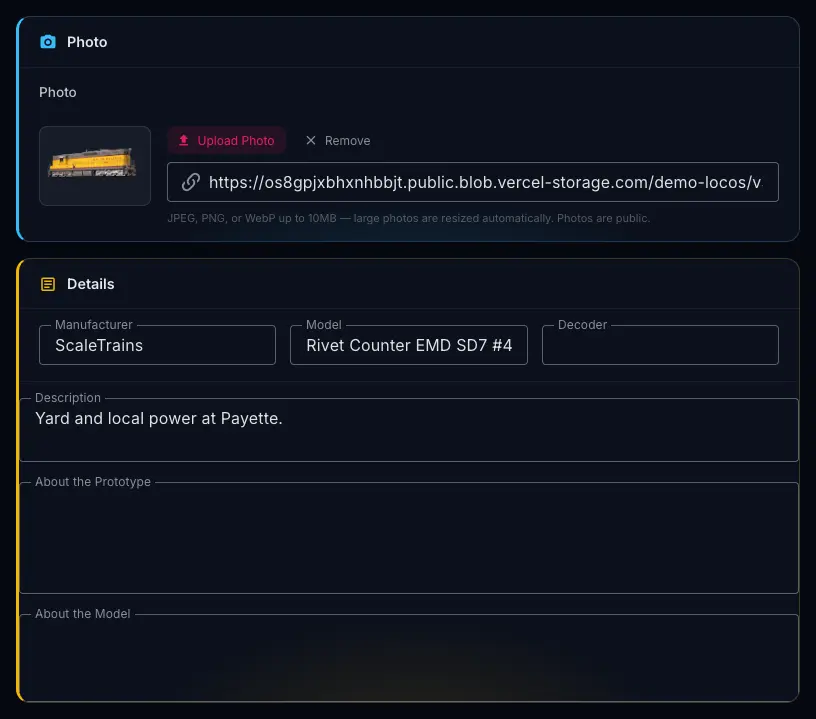
Photo
- Marker 1Upload PhotoButton → file picker
- A JPEG, PNG or WebP up to 10 MB; big photos are resized for you. It shows on the loco's tile in Photo view and on its throttle. Photos are public, so don't upload anything private.
- RemoveButton
- Takes the photo off the loco. Shown once there is one.
- …or paste an https:// image URLText field
- Use a picture that's already online instead of uploading one. It must start with https://.
Details
DejaBot can fill all of these. They're for you and your crew; they don't change how the loco runs.
- Marker 2ManufacturerText field
- Who made the model, e.g. “ScaleTrains”.
- Marker 3ModelText field
- The model or product line.
- Marker 4DecoderText field
- The decoder fitted, e.g. “LokSound 5”.
- Marker 5DescriptionText box
- A line or two about this loco on your layout.
- Marker 6About the PrototypeText box
- Notes on the real locomotive it's modelled on.
- Marker 7About the ModelText box
- Notes on the model itself: weathering, upgrades, quirks.
A good side-on photo is the best clue DejaBot can get. After an upload, DejaBot offers to identify the loco — tap Identify when you're ready.
Edit loco: Functions F0–F31
WhereLoco editor, below Details /locos/<address>/edit
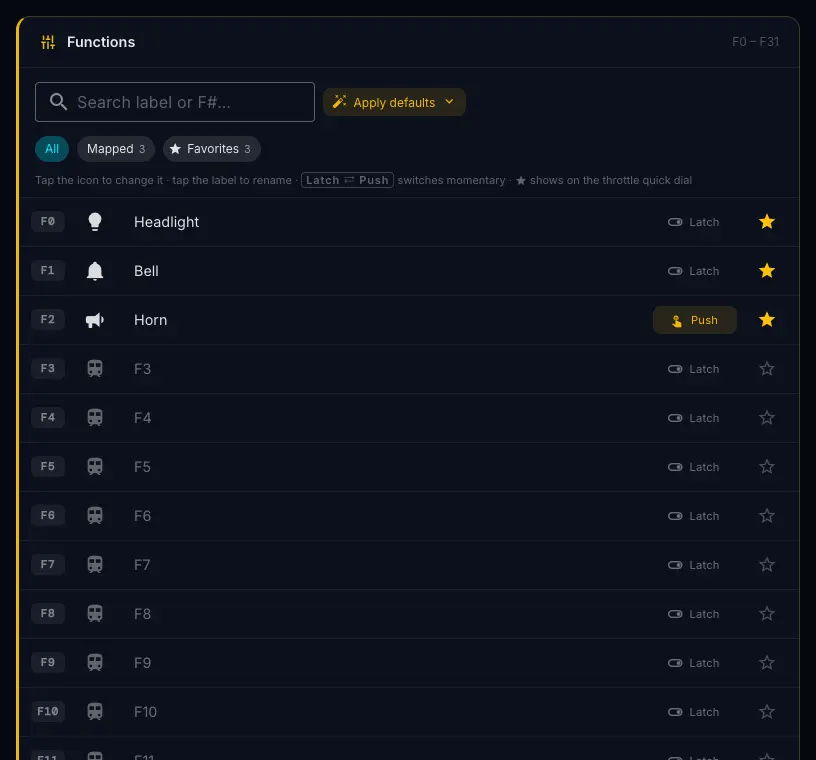
Toolbar
- Search label or F#…Search field
- Find a function by its name or number.
- Marker 1Apply defaultsMenu
- Replaces the whole map with a ready-made one.Options: Sound loco defaults — F0 Light, F1 Bell, F2 Horn, F3 Coupler, F4 Dyn Brake, F5 Dim Lights, F6 Cab Light, F8 Mute, F9 Start-Up, all on the quick dial · Basic loco defaults — headlight only
- Marker 2All · Mapped · FavoritesFilter chips
- Show every function, only the ones you've named, or only the quick-dial ones. Each shows a count.Default: All
Each function row
- F0 … F31Display
- The function number on the decoder.
- IconButton → icon picker
- Tap to choose the icon shown on the throttle button. The picker has a search, No icon, and 20 icons: light, bell, horn, wifi, coupler, fan, brake, station, mute, quiet, sound, track, air, announce, dim, whistle, chuff, steam, injector and engine.
- LabelTap to rename
- The function's name on the throttle. Tap it to type a name or pick a common one; Esc cancels. Clear it and the name goes back to its F-number.
- Marker 3LatchToggle
- Tap on, tap off — for things that stay on, like the headlight.
- Marker 4PushToggle
- Momentary: on only while you hold the button — for the horn, the bell or the coupler. Tap the toggle to switch between Latch and Push.
- ★Star button
- Puts the function on the throttle's quick dial (“Add to throttle quick dial”).
Function changes are kept on the page and written when you press the editor's Save. Leave with Cancel and they're dropped.
The map only names and arranges the buttons — it doesn't reprogram the decoder. If your decoder puts the horn on F3, label F3 Horn.
EZ Consist
WhereLoco editor, below the form (existing locos only) /locos/<address>/edit
EZ Consist
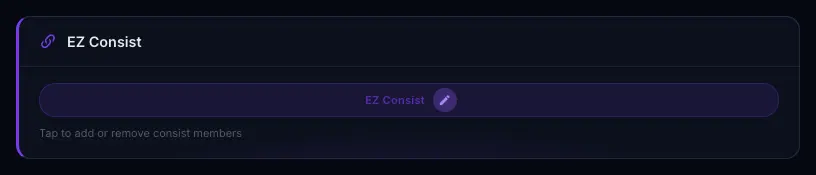
- EZ ConsistBar → dialog
- “Tap to add or remove consist members.” Once the loco has a consist, the bar shows the lead and each member with an arrow for the way it faces.
The EZ Consist dialog
“Software-based consisting by DEJA”. The loco you're editing is the lead.
- Lead LocomotiveCard
- The loco you're editing. Drive this one.
- Member cardsCards · tap to open
- Each member, with “Forward” or “Reversed” and its trim. Tap one to adjust it.
- FlipButton
- Reverses the member — for a loco running backwards in the train.
- Trim − / +Buttons
- Nudges this member's speed up or down so it keeps pace with the lead.
- RemoveButton
- Takes the member out of the consist.
- + Add LocomotiveButton
- Opens Add to Consist.
Add to Consist
- Search by name, address, or road...Search field
- Find the loco to add.
- ◀ Fwd · Rev ▶Buttons on each loco
- Adds that loco facing forward or reversed. Locos already in the consist are dimmed (“Already in consist”).
Consist changes save the moment you make them — they don't wait for the editor's Save button.
Save, Cancel and Delete
WhereBottom of the loco editor /locos/<address>/edit
- CancelButton
- Back to the Roster without saving. DejaBot's suggestions and function edits are dropped.
- SaveButton
- Writes everything on the page — your typing, any suggestions you accepted and the function map — and returns to the Roster. On a new loco it reads Add Locomotive.
- Delete locomotiveButton → confirm
- “Remove UP 450 from the layout — This can't be undone.” It asks once, right there: Cancel or Delete. Its throttle goes with it.
Need a different address? The address can't change, so add the loco again with the new address, then delete the old one.
Programming CVs isn't part of the roster — that's the separate Programming page. To drive what you've added, see the Throttle guide.