
Locomotive Roster
The Roster screen (/locos) displays every locomotive configured for your layout. Browse your collection, tap a loco to drive it, and use the loco editor to add and configure locos with photos, 🤖 DejaBot Identify, decoder function mappings, and consists. Every change is immediately available to every throttle in the room.
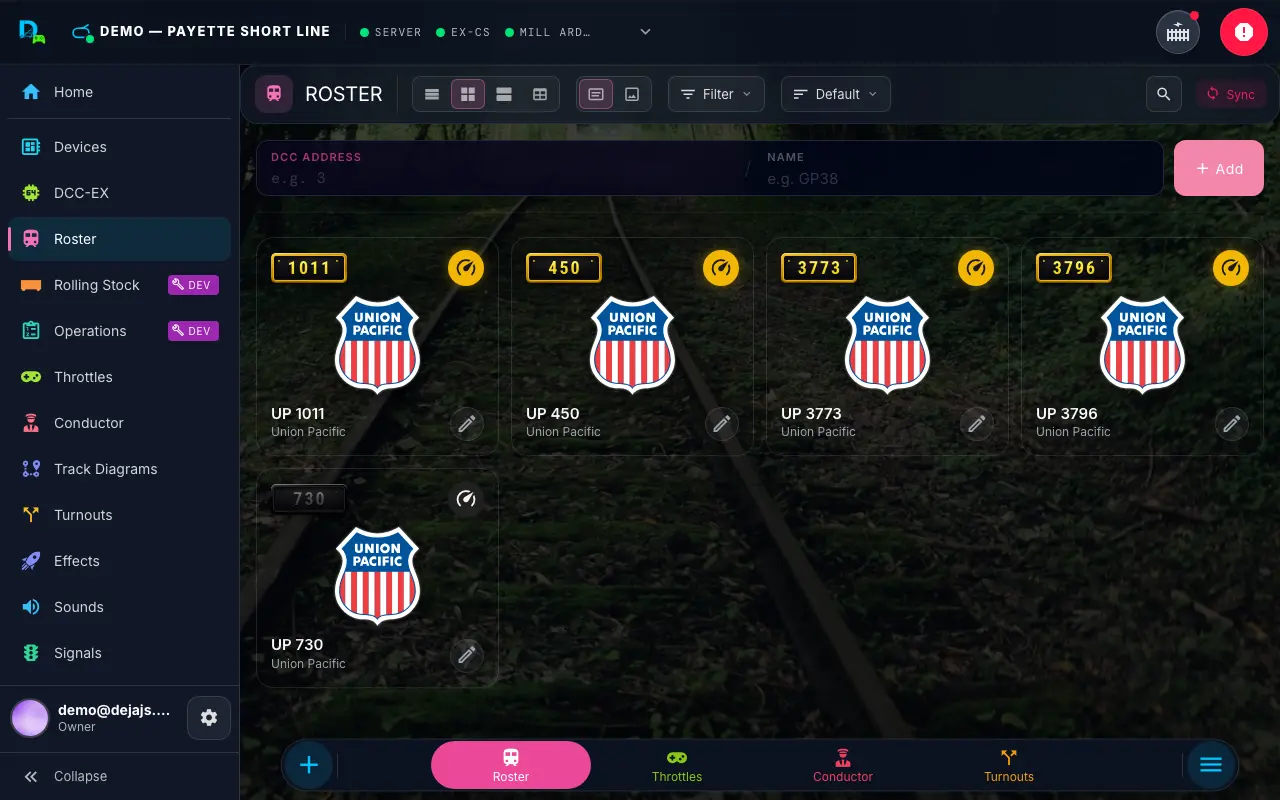
Viewing Your Roster
In the Compact and Comfy views, each locomotive is a picture tile:
- Number plate — the loco's DCC address on a plate in its color, top left.
- Drive — a round speedometer button in the loco's color, top right. Tap it to take a throttle for that loco and open its throttle control screen. The rest of the tile isn't a tap target, so a stray touch never grabs a throttle.
- Photo or line art — the loco's photo (in Photo view, when it has one), otherwise a line-art illustration of the loco (see Roster Cab View).
- Name and Road Name — the display name (e.g., "UP 4014 Big Boy") and railroad, selectable from 77 searchable American roadnames. Comfy tiles add the roadname logo.
- Edit — a ✏️ pencil (or long-press the tile) opens the loco editor.
Tiles are transparent until the loco has an active throttle, then fill with the loco's color (or its roadname color), so you can see at a glance what's on the road. List rows show the plate (or a photo thumbnail), name, a Drive button, and the pencil, with the same fill.
The page header's toolbar carries the roster's view controls — on phones, each one becomes its own dropdown:
- Density — List, Compact (the default), Comfy, or Table (name, road, address, and consist columns; tap a row to drive).
- View — Plate (line art) or Photo.
In the same toolbar, Sort (Default, Name, Address), a Roads filter, and the 🔍 search icon narrow the list. The Roads filter lists only the road names actually present in your roster, so it stays short and relevant (it hides entirely when your locos share a single road or have none).
Roster Cab View
Locomotives without a photo — and every tile in Plate view — are drawn as a line-art illustration instead of a photo: useful when you haven't added photos yet, or just want a clean, uniform roster board. The illustration matches the locomotive's type:
- Steam locomotives render a steam engine with its tender.
- Electric locomotives render a double-cab electric with pantographs.
- Diesel (and any other type) locomotives render a hood-unit road diesel.
Each illustration is tinted with the locomotive's assigned color (or its roadname color).
Adding a Locomotive
For a fast add, the Quick Add row above the roster grid takes a DCC address (and optionally a name) and adds the loco on the spot. For everything else, tap Add with details under the quick-add row — it opens the full loco editor at /locos/new, carrying over any address you already typed. Quick-add can hand off to DejaBot too: add a Photo and the editor opens with DejaBot already identifying it, or tap Identify, tell DejaBot about the loco, and tap Ask.
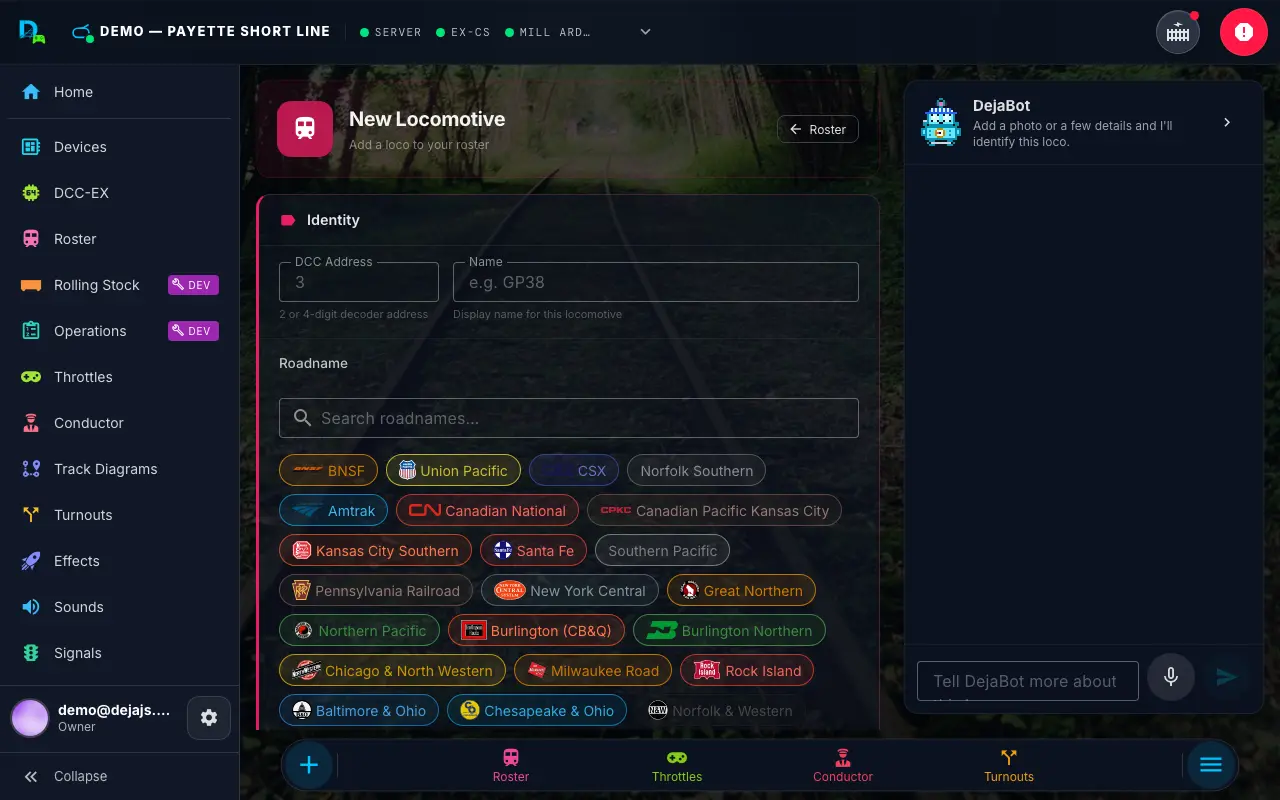
The loco editor has these sections:
- DejaBot -- sits beside the editor and can Identify the loco (see Identify with DejaBot).
- Identity -- DCC address, name, roadname, a theme color for the throttle and UI, locomotive type, and the DC Track / Locomotive and Onboard Sound switches.
- Photo -- upload or paste an image (see Photo).
- Details -- manufacturer, model, decoder, a short description, and the About the Prototype / About the Model write-ups.
- Functions -- the full F0-F31 Function Mapping editor. Until you change it, the mapping follows the Onboard Sound switch: sound-loco defaults when it's on, basic defaults when it's off.
Click Add Locomotive to save, or Cancel to go back to the roster.
Photo
Upload a photo of the locomotive, or paste an https:// image URL. Uploaded photos are automatically resized (JPEG, PNG, or WebP up to 10MB) before being stored. A PNG stays a PNG, so a transparent background is kept; it must be 5MB or smaller once resized. The photo is used as the roster thumbnail and can be replaced or removed at any time.
Identify with DejaBot
DejaBot sits beside the loco editor: a panel on the right on desktop, a pill at the bottom on phones that opens into a sheet. When you add a photo, or the form has a few details, DejaBot offers to Identify the loco. It asks whether the loco has onboard sound, which helps it map the functions. It never runs on its own; tap Identify.
Suggestions appear right in the fields as dashed cyan values. Tap ✓ to accept one, ✕ to dismiss it, or tap the value to accept it and keep editing. A suggestion that would replace something you typed shows the old value crossed out first. Typing in a field drops its suggestion. Accept all takes every suggestion at once.
DejaBot also suggests a full function map for the decoder. It shows as its own card; if the loco already has a custom map, Accept all leaves it alone and the card says it would replace yours.
Not quite right? Tell DejaBot more in the chat (type, or tap the microphone), or tap one of its follow-up questions. Nothing is saved until you press Add Locomotive (or Save).
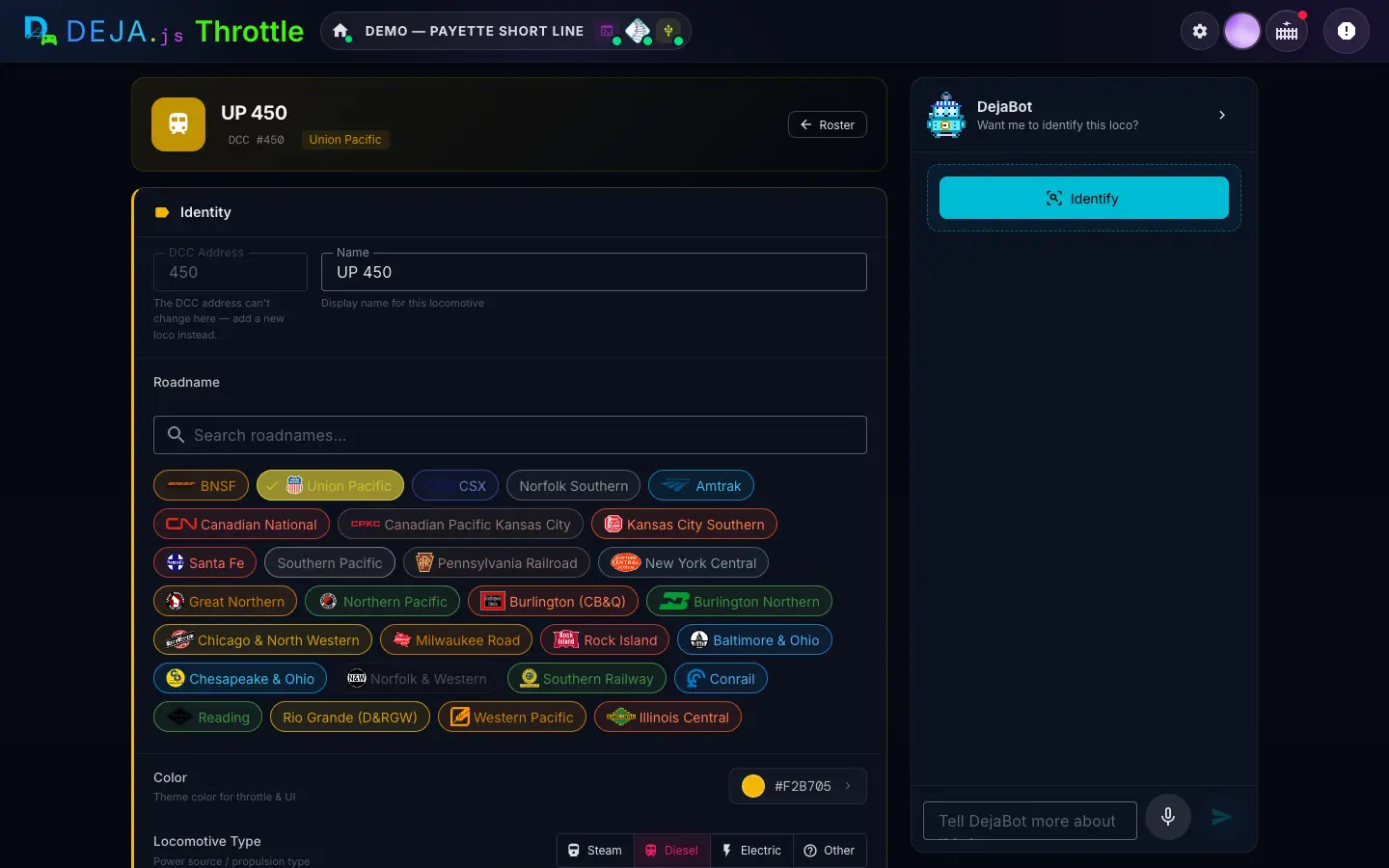
Editing a Locomotive
Tap the ✏️ pencil on a locomotive in the roster to open the loco editor at /locos/:address/edit. It has the same sections as Add — the DCC address is locked, because it identifies the loco — plus:
- DejaBot -- Identify again any time from the panel beside the editor.
- EZ Consist -- see Consist Management.
- Delete locomotive -- see Deleting a Locomotive.
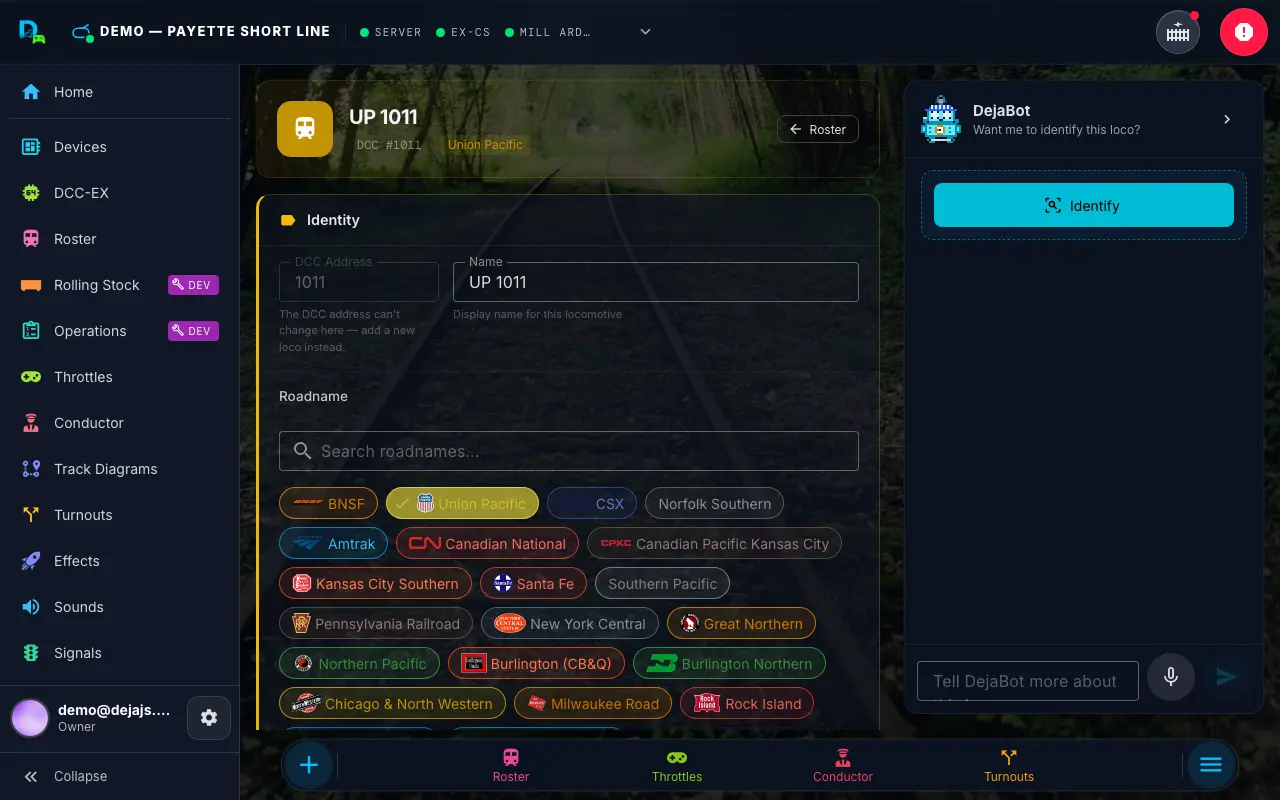
Click Save to keep your changes; the editor returns you to the roster.
Consist Management
The EZ Consist section shows the loco's consist members as chips with each unit's DCC address and direction. Tap it to open the consist editor, where you can:
- Add locomotives by DCC address
- Set each unit's direction (forward or reversed relative to the lead unit)
- Remove units from the consist
Changes to the consist are saved with the lead locomotive. You can also build a consist right from the throttle — see Throttle Control — EZ Consist.
Deleting a Locomotive
At the bottom of the edit page, the red-accented Delete locomotive section holds the delete action. Deleting is a deliberate two-step: click Delete, then confirm inline — a stray tap can't wipe out an entry. Confirming permanently removes the locomotive (including its consist configuration) and returns you to the roster. Every throttle in the room updates immediately.
Function Mapping
Every locomotive has a full F0-F31 function mapping, editable inline with no accordions or expand states -- everything is a single click away:
- Icon -- every row always shows an icon (a sensible default when unmapped). Tap it to open an icon picker dialog.
- Label -- tap the label to turn it into a combobox; type a custom name or pick from a list of common function names (Headlight, Bell, Horn, Coupler, etc.).
- Latch / Push -- an inline toggle button switches the function between latching (tap on, tap off -- e.g. headlight) and momentary/push (active only while held -- e.g. horn, coupler).
- Favorite (⭐) -- one tap adds or removes the function from the throttle's quick-access speed dial.
- Search and filters -- a search box filters by label or F-number; chip filters narrow the list to All, Mapped, or Favorites, each with a live count.
- Apply defaults -- a preset menu offers Sound loco defaults (light, bell, horn, coupler, etc.) or Basic loco defaults (headlight only), replacing the current mapping in one click.
The same mapper powers the loco editor and the throttle's all-functions dialog -- see Throttle Control -- Function Mapping for the throttle-side editing experience.
Roadnames
The road name selector offers 77 American railroads, covering both modern Class I/regional roads and historic fallen flags, each with a default livery color. The selector is searchable -- type a full name, abbreviation, or common reporting mark alias (e.g. "ATSF", "Santa Fe", or "Warbonnet" all find Santa Fe; "BN" finds Burlington Northern) to filter the chip list. Your current selection always stays visible even if it doesn't match the search text.
Related Pages
- Throttle Control -- Function Mapping -- Edit function mappings from the throttle.
- Turnouts -- Set up turnouts for your layout.
- Routes -- Define automated turnout sequences.