
Settings
The Settings screen (/settings) is grouped into sections — Throttle, Layout, Access (layout owners only), Appearance, and App — reachable from the section nav on the side. Your account details and support live on Profile (/profile).
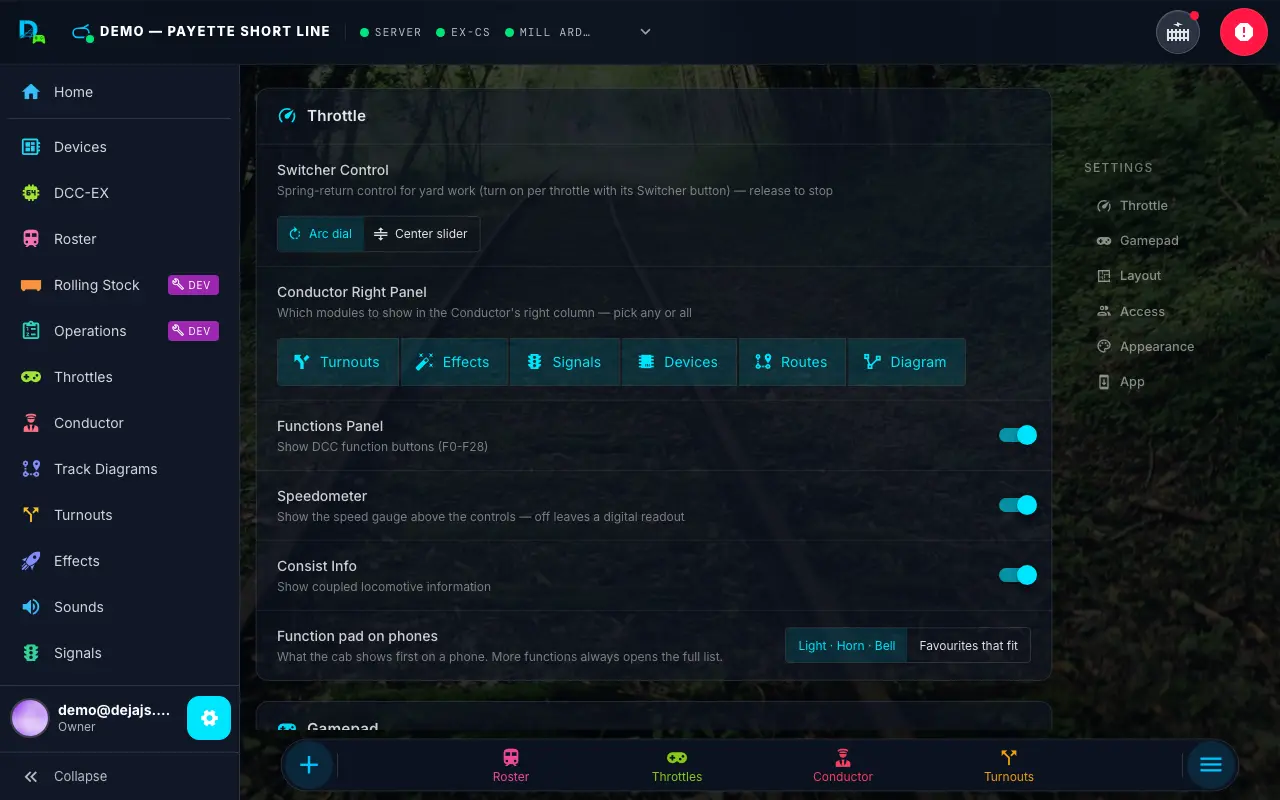
Throttle
Controls that shape how the single-locomotive Throttle Control screen looks and behaves.
Looking for Throttle Type or Speed Display? They've moved out of Settings. Pick your throttle style (Buttons, Slider, Dial, Dashboard, or Proto) from the Control segment, and Analog or Digital speedometers from the Display segment, in the header of the Throttles and Conductor pages — on phones, each is its own dropdown in the page header.
- Switcher Control — the default control for Switcher mode: Arc dial or Center slider. Each locomotive can still switch between the two from its own cab, and remembers its choice. Shown while your throttle style is Buttons, Slider, or Dial.
- Conductor Right Panel — pick which modules fill the right column of the Conductor View — a multi-select, so you can show any or all of: Turnouts, Effects, Signals, Devices, Routes, or Diagram.
- Functions Panel — show or hide the DCC function buttons (F0–F28).
- Consist Info — show coupled-locomotive (consist) information on the throttle.
- Function pad on phones — what the Buttons and Slider cabs show first on a phone: Light · Horn · Bell (the default) or Favourites that fit. More functions always opens the full list, and tablets and desktops always show the full pad. See Phone Pad.
Layout
Layout-wide configuration for the currently selected layout:
- Tags — Create, edit, and remove the reusable tags you assign to turnouts, routes, effects, and signals. Tags are shared across every section of Throttle — a tag called "East Yard" can label the turnouts, routes, and effects that all live in the east yard.
- USB Ports — The serial ports your DEJA Server reports (e.g.
/dev/ttyACM0,/dev/ttyUSB0, orCOM3on Windows) — handy for finding which port your EX-CommandStation is on. - Label Maker — Opens the Label Maker in a new tab to print wire flags, terminal markers, device plates and turnout tags at exact sizes.
- Disconnect Layout — If your account has more than one layout, this leaves the current layout so you can choose another from My Layouts (see Connect). Single-layout accounts stay on their layout and don't see this option.
Access
Layout owners manage who can run trains on the layout:
- Members — Everyone with co-operator access, with a ✕ to remove someone.
- Pending Requests — Approve or deny access requests from people trying to join.
- Require Code for Members — When on, people join instantly by typing the room code shown near the layout instead of waiting for your approval.
- Room Code — A 3-digit rotating proximity code for kiosk-style, in-person joining, shown here and full-screen at throttle.dejadcc.com/access-code.
- Join Link — Your layout's join URL with a Copy button, a QR code, and Print Poster for a full-page printable sign.
See Access & Inviting People for the full walkthrough, including how to join someone else's layout.
Appearance
Theme and per-page background options, plus the Quick Menu bottom-navigation editor:
- Theme — the app follows your system light/dark preference and can be switched here.
- Backgrounds — customize the background treatment for individual pages (Home, Turnouts, Roster, Routes, Signals, Effects, Conductor, Devices).
- Favorites — a row of toggle chips, one per page, for choosing what appears on the bottom navigation bar. Lit chips are pinned; tap to pin or unpin, up to 12. The defaults are Conductor, Throttles, Turnouts, and Roster. Favorites always display on the bar in nav order (there's no custom reordering), and how many the bar actually shows scales with screen width (4 on small phones, 5 on phones, 7 on tablets, 10 on desktop, all 12 on wide desktop screens). The same chips are available from the Command Menu's ⚙ gear — see Command Menu.
App
Housekeeping for the app itself:
- Version and Check for updates — manually check for a new build instead of waiting for the automatic update prompt.
- Guided tour — Take the tour replays the first-run walkthrough of the app shell and roster; Throttle controls replays just the cab segment (speed, functions, switcher, consist). Either one is also reachable from the Command Menu's search (type "tour").
- Feedback — Send feedback opens a report-a-problem / suggest-an-idea form. There's no floating feedback button anymore; this row and the Command Menu are the two entry points.
- Home screen — once Throttle is installed as an app, this row confirms it ("Installed ✓"); otherwise an Install App card walks you through adding it to your home screen (one-tap on Android, steps on iOS, or a QR code to scan with your phone when you're on a computer).
Profile
Profile (/profile) holds your DEJA account:
- Email, Display Name, and UID.
- Your support — DEJA is free, so this row is optional. If you haven't chipped in it offers Chip in (
/donate). Monthly donors see "$X/month — thank you" with Manage, which opens the Stripe billing portal to update a card, view invoices, or cancel (a past-due hint appears if a charge failed). One-time donors see a thank-you and Chip in again. - Help & support — opens the Track & Trestle sheet: book a paid session, join the community Discord, or send feedback.
- News & updates emails — an optional toggle for DEJA news, tips, and launch updates. It's off unless you turn it on (or ticked the box when you signed up); switch it off any time to unsubscribe. Account and service emails aren't affected.
- Sign out of DEJA on this device.
Nothing in DEJA depends on whether you've chipped in — see Onboarding.
The installed app version is shown at the bottom of Settings and Profile.