
Throttle App
The Throttle app is the primary user-facing application in the DEJA system. It gives model railroad operators real-time control of locomotives, turnouts, signals, routes, and effects from any device with a modern web browser — and it's where you set up and manage your layout: your roster, devices, turnouts, effects, signals, sensors, routes, and who can run trains with you.
Operators can run a single train with detailed throttle controls, manage multiple trains simultaneously in a grid view, or use the Conductor view for full-station operation on large screens. Every control takes effect in real time, sent straight through to your EX-CommandStation.
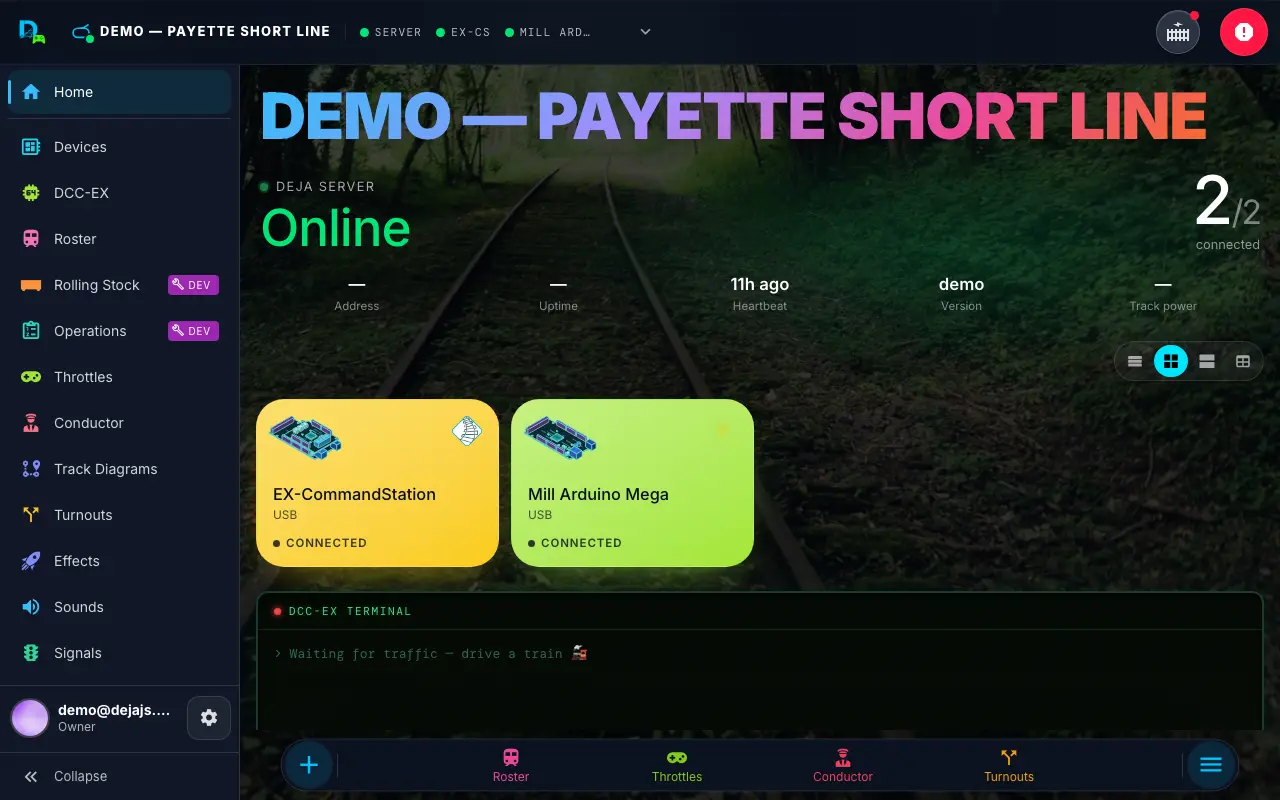
Key Features
- Speed and direction control for individual locomotives in five throttle styles — Buttons, Slider, Dial, Dashboard, and Proto — with Analog or Digital speedometers, picked from the Control and Display segments at the top of the Throttles and Conductor pages.
- Switcher mode — a per-loco, spring-return dial or center-zero slider for yard work: drag to move, let go to stop.
- Function buttons (F0 through F31) for headlights, horns, bells, decoder sounds, and decoder-specific features on a function pad, with an in-place Edit mode for remapping icons, labels, and favorites without leaving the throttle — plus Identify functions (DejaBot) from the loco's sound decoder. Locos without onboard sound get a pad of system sounds (whistle, bell, chuff…) from an editable sound profile, played on the layout.
- Turnout management with throw/close controls and color-coded state indicators.
- Route execution through interactive track maps or a route list, with a visual timeline showing turnout sequences and a progress bar during execution.
- Consist support for linking multiple locomotives together, visible directly on the throttle screen — and EZ-Consist Mode to trim, pause, or drive any unit solo.
- Multi-throttle operation with List, Compact, and Comfy card views of all active throttles, drag-to-reorder cards that fill with the loco's color while it's moving, and one tap into the full cab.
- One header bar per page — every module page (Roster, Routes, Effects, Turnouts, Signals, Sensors, Throttles, Conductor, and more) opens with a single bar: the page title, its view toolbar — View density, Control style, Filter, and Sort, all in one matching style — a 🔍 search icon that opens a search field, and a round + to add an item (layout owners). On a wide screen it all fits on one row; narrower screens move the toolbar to a second row, and on phones each control becomes its own dropdown.
- Conductor view combining throttle list, active throttle, and turnout controls in a three-pane layout designed for operator stations.
- Signal monitoring with red, yellow, and green aspect indicators.
- Effects control for toggling lights and relays and lighting your WLED strips.
- Sounds — play your sound library on the layout, upload and share your own, and build the sound profiles that fill each loco's pad.
- Loco editor with photo upload and 🤖 DejaBot Identify — describe a loco or add a photo, then review the suggested details and a full F0–F31 function map before anything is saved.
- Layout editors for turnouts, effects, signals, sensors and automations, routes, devices, and track diagrams — create and edit items right where you run them.
- Devices and connections — link your DEJA Server with
deja login, connect your EX-CommandStation and IO boards, and see an honest live status for each. - Access — invite operators with a join link, a printable QR poster, or a rotating room code, and approve requests from Settings.
- Get Started — sign up, name your railroad, optionally chip in, and install the server in one guided flow.
- Swipe navigation between locomotives on the throttle screen, with a 2-up or 4-up multi-view layout on iPad-size screens and up.
- Command Menu (⌘K) — adjust page-specific settings and jump to any action from any page; drive your running locomotives in place from Your cabs in the header's layout shade.
- Guided tour — a short interactive first-run walkthrough of the app shell and a throttle cab; replay either one any time from Settings → App.
- Install as an app — add Throttle to your phone's home screen for an app-like, full-screen experience, prompted from Home and available any time from Settings → App.
- Emergency stop accessible from the app header on every page.
- Theme switching between light and dark modes.
- Try Demo access for exploring the app without setting up your own layout.
Navigation Structure
The Throttle app uses a pinned navigation bar at the bottom of the screen -- at least four labeled destinations you choose, plus a persistent + Loco button and a ☰ Menu button (opens the full app map; your profile and the ⚙ Settings button sit at its foot). Edit which pages are pinned from Settings → Appearance → Favorites or the Menu's own ⚙ layer; every page also sets a proper title, so browser tabs are distinguishable.
On tablets and desktops a sidebar lists every page as well: expanded (icons and labels) on desktop, collapsed to an icon rail on tablets, where its foot button slides the full list over the page. Collapse or expand it from the control at its foot or with the [ key; the choice is remembered on that device. The bottom bar stays either way, centred beside the sidebar.
Pages
| Page | Route | Description |
|---|---|---|
| Home | / |
Operating dashboard — layout status, setup steps, device connection, active-throttle speedometers, quick nav, and stats |
| Throttle Control | /throttle/:address |
Full single-locomotive control (the Throttles page's Cab view) with speed, functions, consist, and emergency stop |
| Throttles | /throttles |
Every active throttle as cards for multi-train operation (/throttle-list still works as a redirect) |
| Command Menu | (⌘K overlay) | Page-aware settings, favorites (bar pins), and search — opened from the bottom bar's ☰ Menu or ⌘K |
| Conductor View | /conductor |
Three-pane operator station layout with throttle list, active throttle, and a configurable panel |
| Roster | /locos, /locos/new, /locos/:address/edit |
Locomotive roster and the full loco editor with photo upload and 🤖 DejaBot Identify |
| Effects | /effects, /effects/new, /effects/:effectId/edit |
Lights and relays, WLED looks and signal zones (Effects / WLED tabs); owners add and edit effects |
| Routes | /routes, /routes/new, /routes/:routeId/edit |
Run predefined routes; owners build and edit them |
| Signals | /signals, /signals/new, /signals/:signalId/edit |
Signal monitoring and control; owners wire signal heads |
| Turnouts | /turnouts, /turnouts/new, /turnouts/:turnoutId/edit |
Track switch throw/close controls; owners configure turnouts |
| Turnout Labels | /turnouts/labels |
Printable turnout label sheets |
| Sensors | /sensors |
Live sensor state and direct sensor links |
| Automations | /automations, /automations/new, /automations/:automationId/edit |
Multi-step automations that run on the DEJA Server; members run them, owners build them |
| Track Diagrams | /track-diagrams, /track-diagrams/new, /track-diagrams/:diagramId/edit |
Interactive layout diagram with pan/zoom, live turnout and signal state, and tap-to-route, plus the schematic editor |
| Devices | /devices, /devices/:deviceId |
Server and device connections, device setup, and My Layouts (/connect redirects here) |
| DCC-EX Console | /dccex |
Raw DCC-EX console for the EX-CommandStation |
| Sounds | /sounds, /sounds/mine, /sounds/profiles |
The sound library, your uploads, and loco sound profiles (Library / My sounds / Sound profiles tabs) |
| Programming | /programming |
CV programming for decoders (beta) |
| Settings | /settings |
App preferences, layout tags and ports, Access (owners), and appearance |
| Profile | /profile |
Your account and optional support — Chip in / Manage |
| Select Layout | /select-layout |
Layout picker for multi-layout setups |
| Login / Sign Up | /login, /signup |
Authentication screens; sign-up continues into Get Started |
| Get Started | /onboarding |
New-owner wizard — name your railroad, optionally chip in, install the server |
| Join | /join |
Public page for joining a layout by QR code, room code, or request |
| Join Poster | /join-poster |
Printable join sign for your layout |
| Connect Server | /cli-login |
Approve a deja login from the terminal |
Most pages require you to be logged in and have a layout selected before they are accessible. The Login page and the Join page are always available. Programming is in beta: every signed-in user can open it, and it carries a BETA badge. The Add and edit controls for turnouts, effects, signals, and sensors appear only for the layout owner.
App Shell
The Throttle app shell includes these persistent UI elements visible across all pages:
- AppHeader -- the DEJA mark, the layout strip (layout name, a status lamp for the DEJA Server and each device, and your cab count), Track power, the layout Power button (only when the layout has an effect of type power) and Emergency Stop. Tap or pull down the strip to open the layout shade: server, devices and Your cabs (see Connection Status). Your profile and Settings live at the foot of the ☰ Menu, not in the header.
- Sidebar (tablet and desktop) -- the same page list as the Menu, Home first, in a left drawer. Desktop: expanded by default, collapsible to a 64 px rail (the rail shows each page's name and
g-shortcut on hover). Tablet: the rail by default; expanding floats the full list over the page and it folds again after you pick a page. Your profile and the ⚙ Settings button sit at its foot (the rail shows just your photo and the ⚙); toggle it from the control at its foot or with[. - Pinned Navigation Bar -- a labeled pill at the bottom of the screen showing your favorited pages (at least 4, read-only here) -- shown on every screen size, beside the sidebar where there is one -- capped between a persistent + Loco button and a ☰ Menu / ✕ Close toggle -- both end-caps of the bar -- which opens the Command Menu -- page settings and search-jump to anything; also ⌘K. Defaults: Conductor, Throttles, Turnouts, Roster. You can pin up to 12 pages; how many the bar actually shows scales with width (4 on small phones, 5 on phones, 7 on tablets, 10 on desktop, all 12 on wide desktop screens), topped up from the nav if you've favorited fewer.
- Pinning favorites -- the bar itself is read-only (tap a pin to navigate, or swipe up to open the Menu). To choose what's pinned, open the toggle-chip list of every page in Settings → Appearance → Favorites, or tap the ⚙ gear at the foot of the Menu (beside your profile) for the same chips inline. Favorites always display in the app's nav order, not a custom order. The Menu's page list itself is tap-to-navigate only -- it doesn't pin.
Page transitions use a fade animation when navigating between views.
Coming from DEJA Cloud?
DEJA used to ship a separate Cloud web app for layout configuration. It has been retired: every page it had now lives in Throttle, with the same editors and the same data. Bookmarks and links to cloud.dejajs.com redirect to the matching Throttle page, and the old Cloud docs pages redirect to the Throttle pages below.
| Cloud section | In Throttle | Route | Docs |
|---|---|---|---|
| Dashboard | Home | / |
Home |
| Connect | Devices | /devices |
Devices |
| Roster | Roster → Add with details / ✏️ edit | /locos, /locos/new, /locos/:address/edit |
Roster |
| Turnouts | Turnouts | /turnouts, /turnouts/new, /turnouts/:turnoutId/edit |
Turnouts |
| Routes | Routes | /routes, /routes/new, /routes/:routeId/edit |
Routes |
| Effects | Effects | /effects, /effects/new, /effects/:effectId/edit |
Effects |
| Signals | Signals | /signals, /signals/new, /signals/:signalId/edit |
Signals |
| Sounds | Sounds | /sounds |
Sounds |
| Track Diagrams | Track Diagrams | /track-diagrams, /track-diagrams/:diagramId/edit |
Track Diagrams |
| Devices / Layout | Devices | /devices, /devices/:deviceId |
Devices |
| Sensors | Sensors | /sensors |
Sensors |
| Automations | Automations | /automations, /automations/new, /automations/:automationId/edit |
Automations |
| DCC-EX | DCC-EX | /dccex |
DCC-EX Console |
| Settings | Settings, plus Profile for your account and support | /settings, /profile |
Settings |
| Access | Settings → Access | /settings |
Access |
| Onboarding | Sign up → Get Started | /signup, /onboarding |
Onboarding |
"DEJA Cloud" is still the name of the sync service that keeps Throttle and your DEJA Server in step — only the separate web app is gone.