
Routes
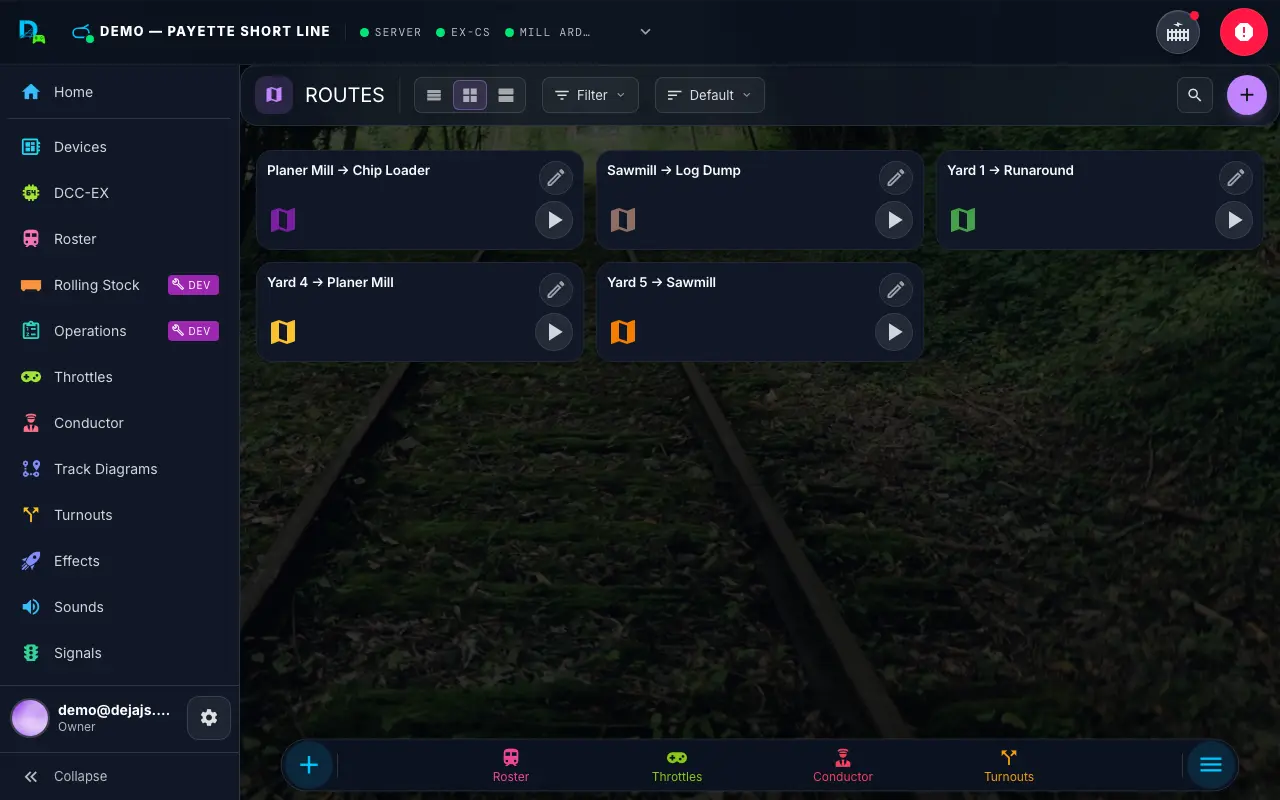
The Routes screen (/routes) lets you execute predefined routes that automatically throw the correct sequence of turnouts to move a train from one point to another on your layout. Routes can also be triggered programmatically through the server, and layout owners create and edit them here.
[!NOTE] Earlier versions of this page included interactive SVG track maps for tap-to-select routing. That map view has been retired in favor of the Track Diagrams page, which is where tap-to-route functionality now lives.
Route List
The Routes screen displays your configured routes as a responsive grid of cards -- one column on small screens, two on medium screens, three on large screens. Each route card shows:
- Route name as the card title (falling back to the route ID if no name is set).
- Point chips showing the origin (P1) and destination (P2) with map marker icons.
- Turnout chips showing each turnout in the sequence with its target state (Straight or Divergent).
- Run button to execute the route immediately.
Route cards use a tonal variant with the route's configured color, or cyan as the default. Layout owners also get a round + add button in the page header and a ✏️ edit button on each card.
The View segment in the page header's toolbar switches between List, Compact, and Comfy cards (on phones, it's a dropdown).
Running a Route
Tap Run on a route card to execute it. The route's turnouts throw in sequence rather than all at once -- there's a brief delay between each successive throw.
Progress Bar
A progress bar fills from 0 to 100% as each turnout in the running route is thrown, giving you a clear indicator of how far along the sequence is.
Empty State
If no routes are configured for the current layout, the screen shows an empty state. Layout owners can create one with the round + (or at /routes/new) — see Creating a Route.
Creating a Route
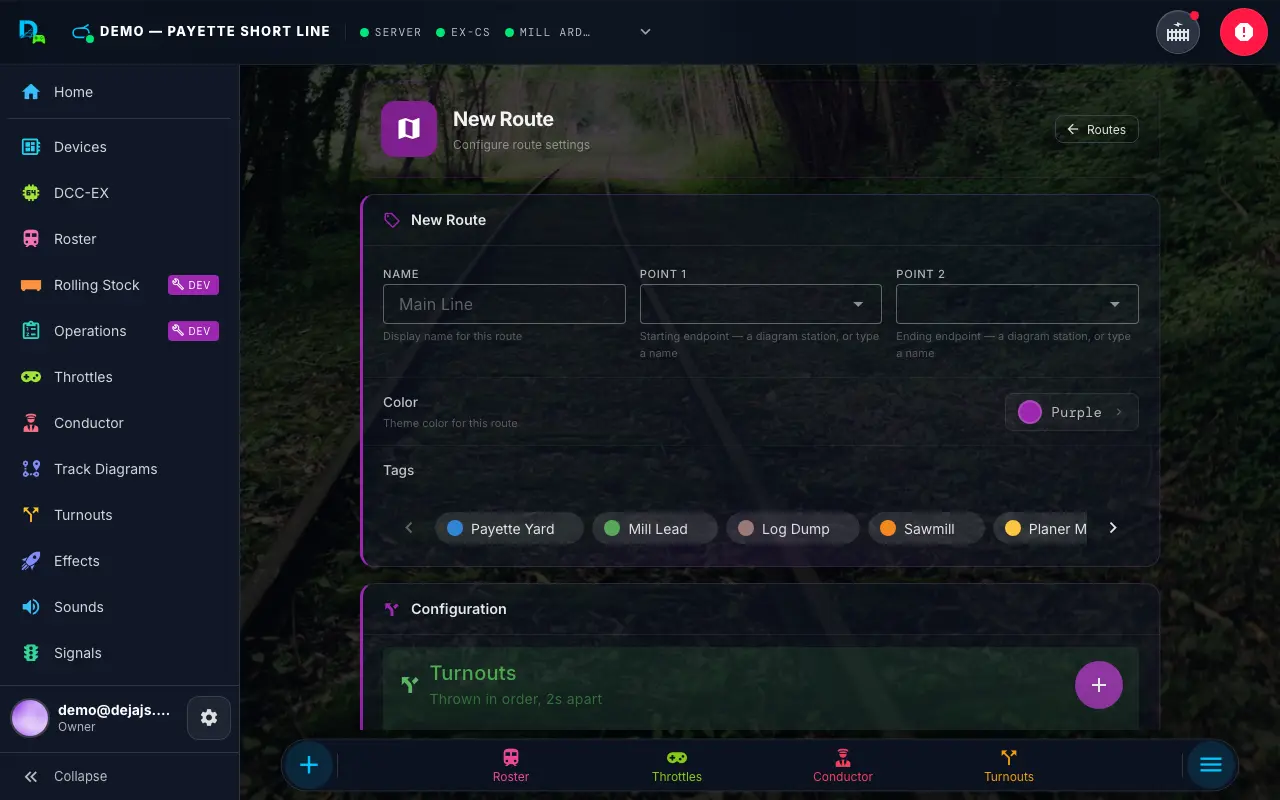
Tap the round + in the page header (or go to /routes/new). The route form has three main areas: metadata, turnout sequence, and display options.
Route Metadata
| Field | Description | Required |
|---|---|---|
| Name | A display name for the route (e.g., "Main Line to Yard") | Yes |
| Point 1 | The starting location or track identifier | Yes |
| Point 2 | The ending location or track identifier | Yes |
The Point 1 and Point 2 fields are free-text identifiers that describe the route's endpoints on your layout. They are also used to auto-generate the route's ID when creating a new route.
Turnout Sequence
The core of a route is its turnout sequence. The Turnouts card displays the assigned turnouts as a draggable list of rows, reordered with a drag handle. Each row shows:
- The turnout name
- A Straight / Divergent toggle button setting the turnout's target state for this route
- A live-state color dot -- green when the turnout is currently straight, amber when divergent
- A lightning-bolt Test throw button that fires that turnout on real hardware immediately
- A delete button to remove the turnout from the sequence
Adding Turnouts to a Route
Click the + button on the Turnouts card to open the turnout selector dialog. It shows every turnout defined on your layout. Select the turnouts you want in the route and confirm. Duplicate entries are removed automatically.
Setting Turnout State
Each turnout in the route has a target state. Click its Straight / Divergent toggle button to set where the turnout should end up when the route runs.
Removing Turnouts
Click the delete icon on any turnout row to remove it from the route sequence.
Testing a Route
While editing, click Run in the Run Route row to execute the route immediately without saving -- every turnout in the sequence throws right away. This is useful for checking a route works before you save it.
Save stays disabled until the route has at least one turnout -- the footer shows "Add at least one turnout" until you do.
Display Options
- Color -- Choose a display color for the route card from the colour picker — presets, your layout's tag colours, saved custom colours, or Custom (your device's own colour picker plus a hex field; a colour you use is saved as a swatch for the layout).
- Tags -- Assign tags to the route for filtering and organization. Tags are shared across the layout.
Editing a Route
Tap ✏️ on a route card to open /routes/:routeId/edit. The form is the same as Add, pre-populated with the route's existing data. Click Save to keep your changes, or Cancel to discard them. Delete sits at the bottom of the edit page and asks you to confirm inline.