
Before you start: complete the Getting Started guide — your server should be running and your EX-CommandStation connected.
Every editor works the same way.
Learn it once and you can set up anything. Only the layout owner sees these controls.
- Add
- The round + in each page’s header (Roster uses Quick Add; Devices, Add device; Automations, New).
- Edit
- The ✏️ pencil on a card, or a long-press. Turnout and signal tiles use ⋮ → Edit.
- The editor
- An Identity card and a Configuration card, with Cancel and Save at the bottom.
- Delete
- At the bottom of the editor; it asks once, right there. A device can’t go while anything still uses it.
- Device
- Pick the board something is wired to from a grid of your devices.
- Tags
- Create them first in Settings → Layout → Tags, then pick them in any editor.
Build it in this order.
Devices first, then the things wired to them, then the things that use those. Skip anything your layout doesn't have.
Step 1: Your layout
Your layout is your railroad in DEJA. Every loco, device, turnout and automation belongs to it, and everyone you invite joins it — you set it up once.
WhereSign up → Get Started /onboarding
- Sign up, then follow Get Started: Create Account → Name Layout → Install Server → Connected.
- Give it a Layout Name (“My Railroad”) — the Layout ID fills itself in. Tap Continue.
- Install the server, run
deja loginand Authorize in the browser, thendeja start. - Every new layout already has your EX-CommandStation device (
dccex), a starter loco (DEFAULT DCC #3) and the default sounds.
Running more than one layout? Devices → Disconnect layout, then My Layouts → New Layout.
Step 2: Your EX-CommandStation
The DCC-EX EX-CommandStation is the box that puts DCC on your rails. Your DEJA Server talks to it over USB, so it’s the one device every layout has.
WhereDevices /devices
- It’s already on your Devices page as dccex — you connect it, you don’t add it.
- Open it, find the Connection row and pick its Serial port (tap Refresh ports if it’s missing), then Connect.
- Turn on Auto connect so it reconnects every time the DEJA Server starts.
- The same page has Track power, a DCC-EX Console, and the board’s pinout under IO.
No ports listed? The server has to be running — start it with deja start.
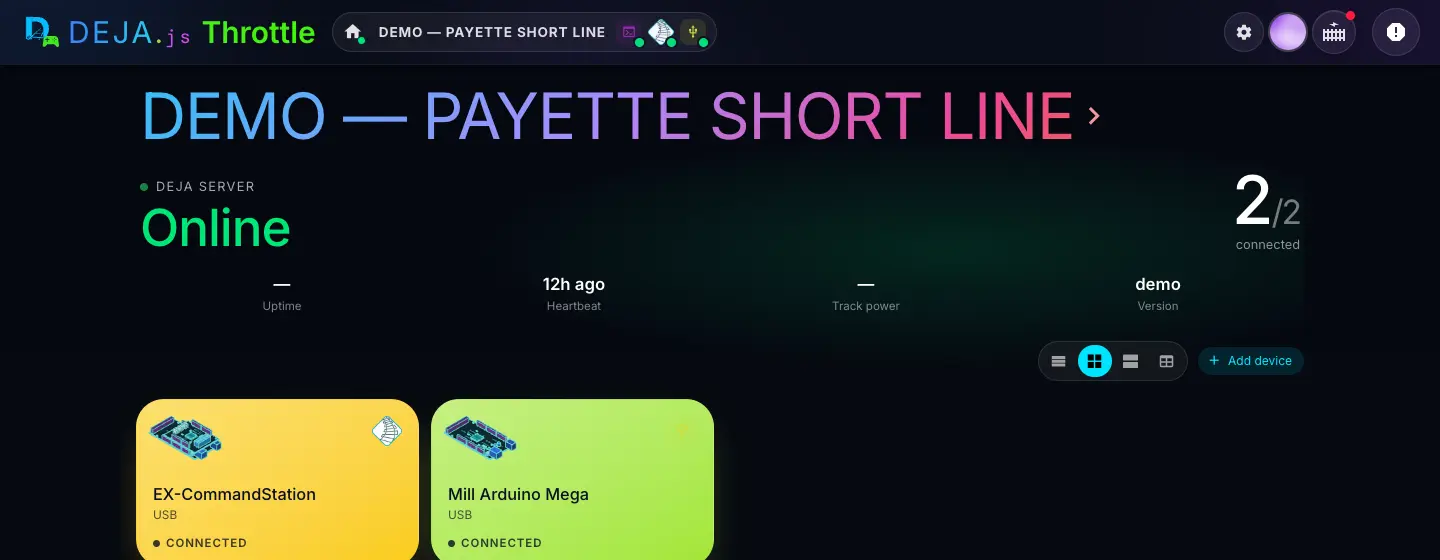
Step 3: IO devices
Devices are the boards DEJA talks to. Beside your EX-CommandStation, DEJA IO boards run the rest of the layout — lights, servos, signals, relays and sensors — and WLED drives LED strips.
-
EX-CommandStation
DCC on your rails, over USB. Every layout has one.
-
Arduino Mega
USB. Lots of pins for turnouts, signals, lights and sensors.
-
ESP32 (USB)
USB, with room to go wireless later.
-
ESP32 (WiFi)
Anywhere on the layout, over MQTT or WebSocket.
-
Pico W
Small and wireless, for hard-to-reach scenes.
-
WLED
Addressable LED strips, with scenes saved on the device.
-
DCC accessory decoder
Drive turnouts and signals through your EX-CommandStation.
No code to write.
DEJA IO includes the firmware that runs on your boards. It's built from your own configuration and deployed straight from the Throttle app.
- 1. Plug inAn Arduino Mega, ESP32 or Pico W, over USB.
- 2. AttachYour LEDs, servos, signals, relays and sensors.
- 3. ConfigurePick devices and pins in Throttle — no sketches to write.
- 4. DeployFrom your browser (ESP32, Mega) or one deja deploy. Nothing extra to download.
Transparent, configurable and flexible: the firmware ships as readable source, and changing a pin is a redeploy, not a rewrite.
WhereDevices → Add device /devices
- Tap Add device and pick a type: DEJA Arduino Mega USB, DEJA Arduino ESP32 USB or WIFI, DEJA Pico W WIFI, WLED, or a DCC Accessory Decoder.
- Choose the Board, usb or wifi, and for WiFi boards the Transport — MQTT or WebSocket.
- Give it an ID, leave Auto Connect on, and Submit.
- Install its firmware from the device’s Firmware section: Browser (ESP32 WiFi and the Mega, in a browser with Web Serial, such as Chrome or Edge) or CLI with
deja deploy <id>.
After adding a device, restart the server (deja restart) so it picks it up. WiFi details are entered when you install the firmware, never stored in the form.
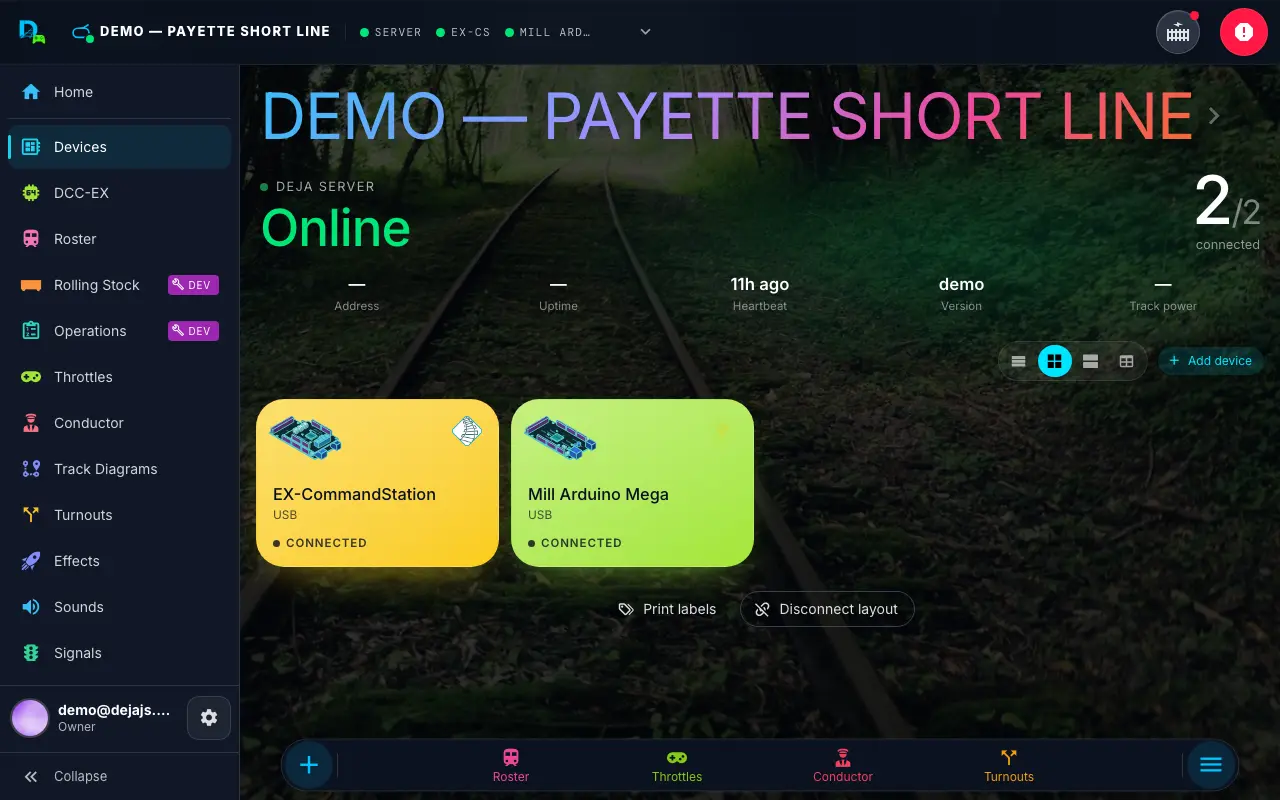
Step 4: Locomotives
Your roster: every loco with its DCC address, photo, colours and functions, shared by every throttle in the room.
WhereRoster /locos
- Use the Quick Add row: DCC Address and Name, then Add.
- Next, add a Photo and let DejaBot Identify it — or open Details, or Skip.
- DejaBot, Throttle’s AI, answers with suggestions right in the fields — address, name, roadname, colour and a full F0–F31 function map. Tap ✓ or ✕ on each, or Accept all.
- The full editor has a Roadname (77 railroads), Color, Locomotive Type, Onboard Sound, details, and Functions F0–F31 with Latch or Push and favourites.
- Edit any loco with the ✏️ pencil (or a long-press) — that’s also where EZ Consist lives.
DejaBot asks whether the loco has onboard sound so it maps the right functions. It never saves on its own — nothing changes until you tap Add Locomotive.
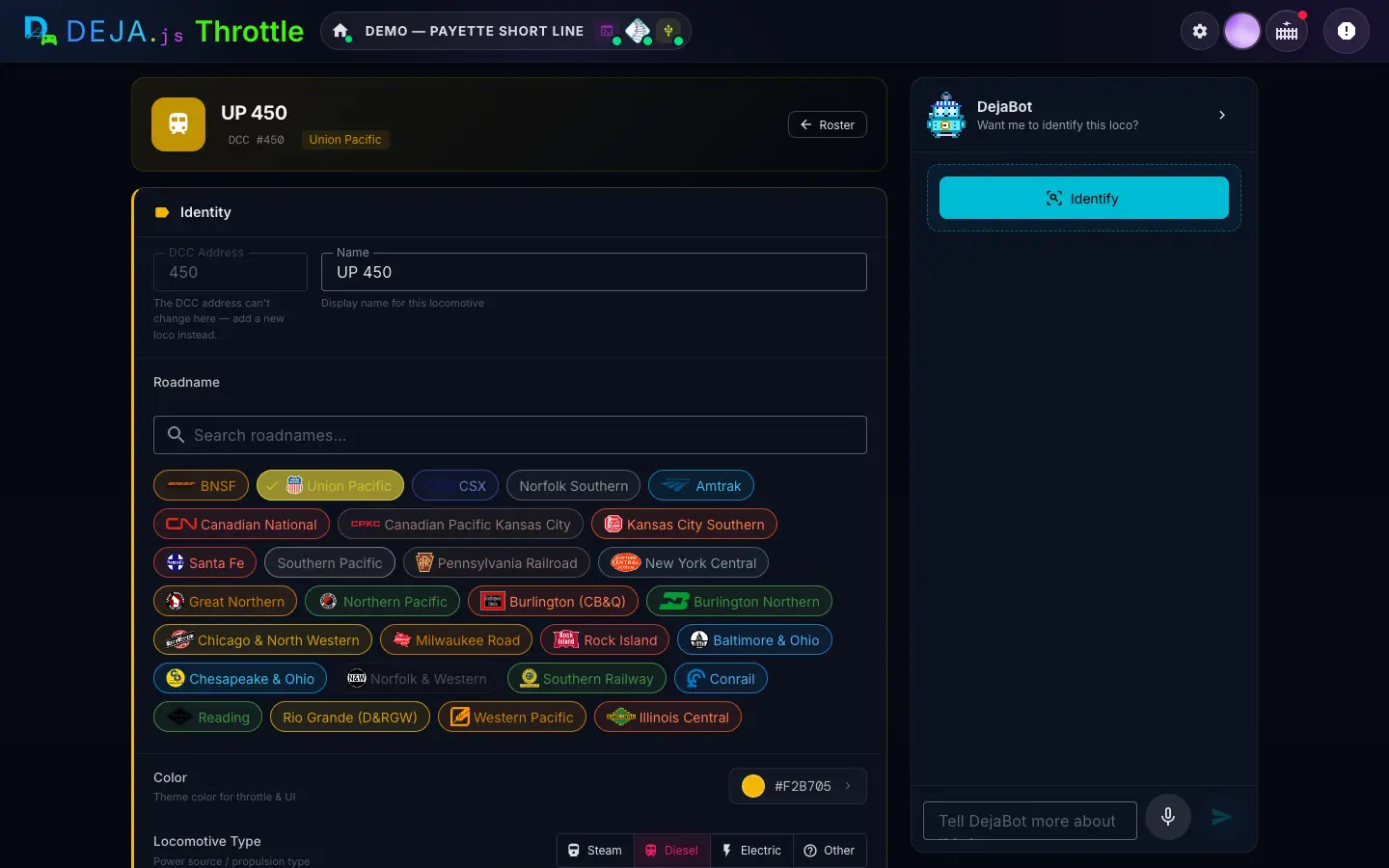
Step 5: Turnouts
Turnouts are your track switches. DEJA throws them through your EX-CommandStation, a servo on a DEJA IO board, a Kato snap-switch, or a DCC accessory decoder.
WhereTurnouts → + /turnouts/new
- Identity: Name and Index, plus an optional description, colour and tags.
- Configuration: pick the Device (your EX-CommandStation by default) and the Type — Kato, Servo or DCC accessory decoder.
- Set Straight and Divergent. Servos get Real-time Servo Config with a slider and test buttons; Kato gets Test Turnout once saved.
- Optionally play an Effect when it throws, or add a Feedback sensor. Save.
Turnouts on an IO board need its firmware deployed again after you change them.
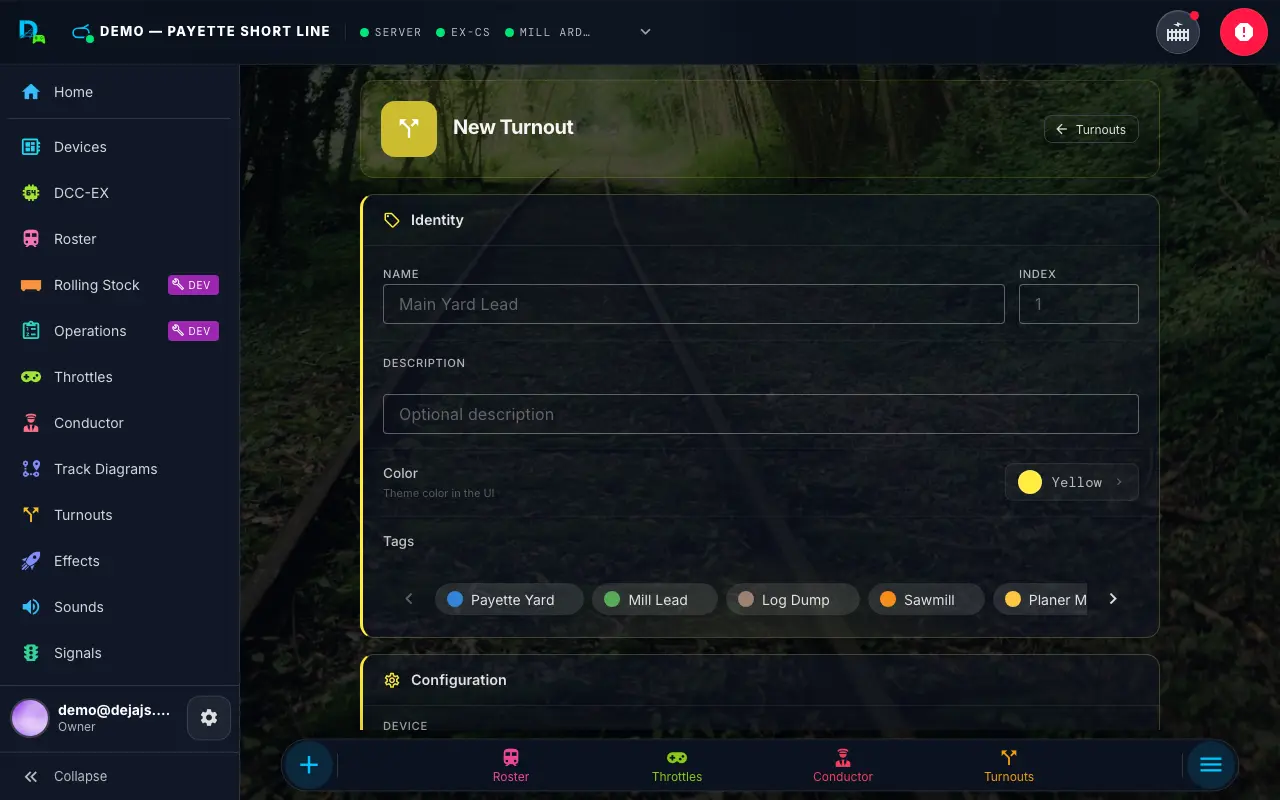
Step 6: Effects
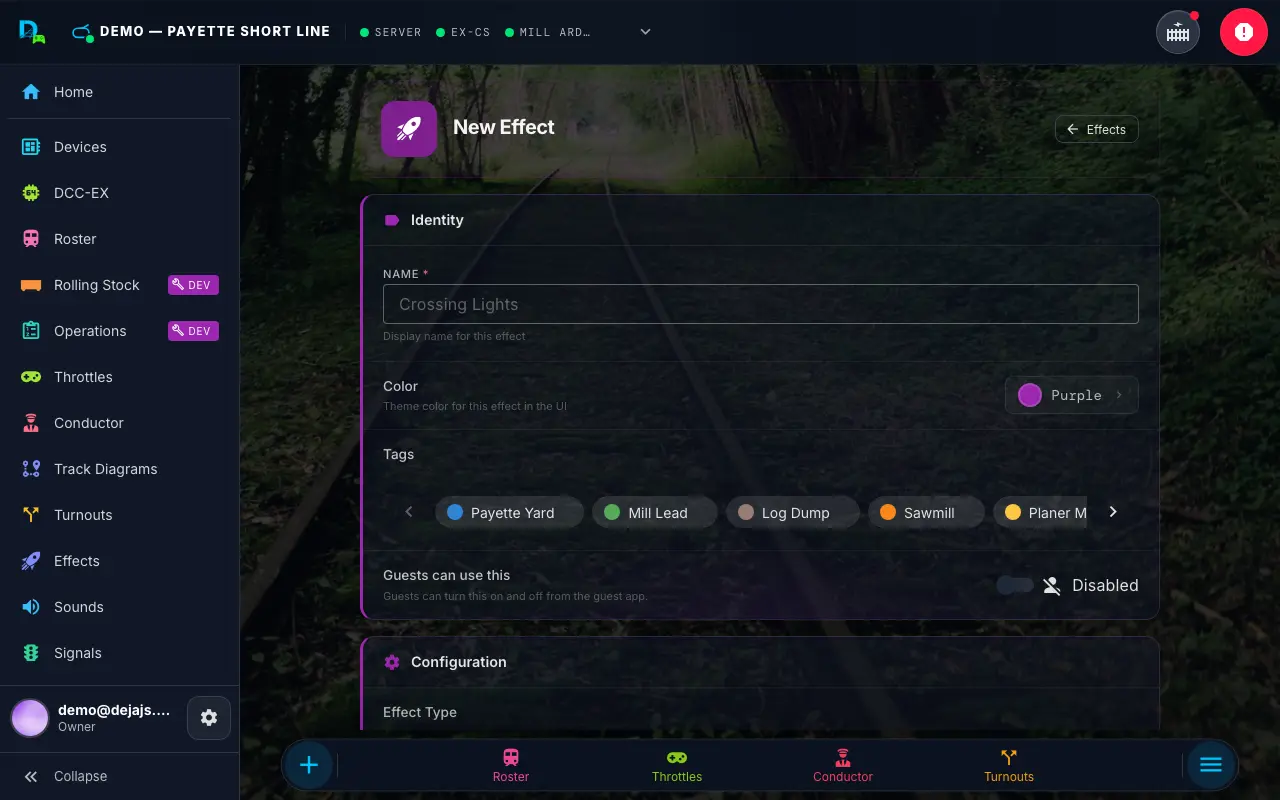
Effects are the things you switch on and off around the layout: LEDs and building lights, street lights, relays for anything with its own power, frog juicers, power to a section of track, or a plain output pin.
WhereEffects → + /effects/new
- Name it, give it a Color and tags, and choose whether Guests can use this.
- Pick the Effect Type: Light, LED, Street Light, Relay, Frog Juicer, Power or PIN.
- Then the Device and the Pin it’s wired to. Save.
WLED looks aren’t effects — the strip’s studio lives on its device page, and the WLED tab runs it compactly.
Step 7: Signals
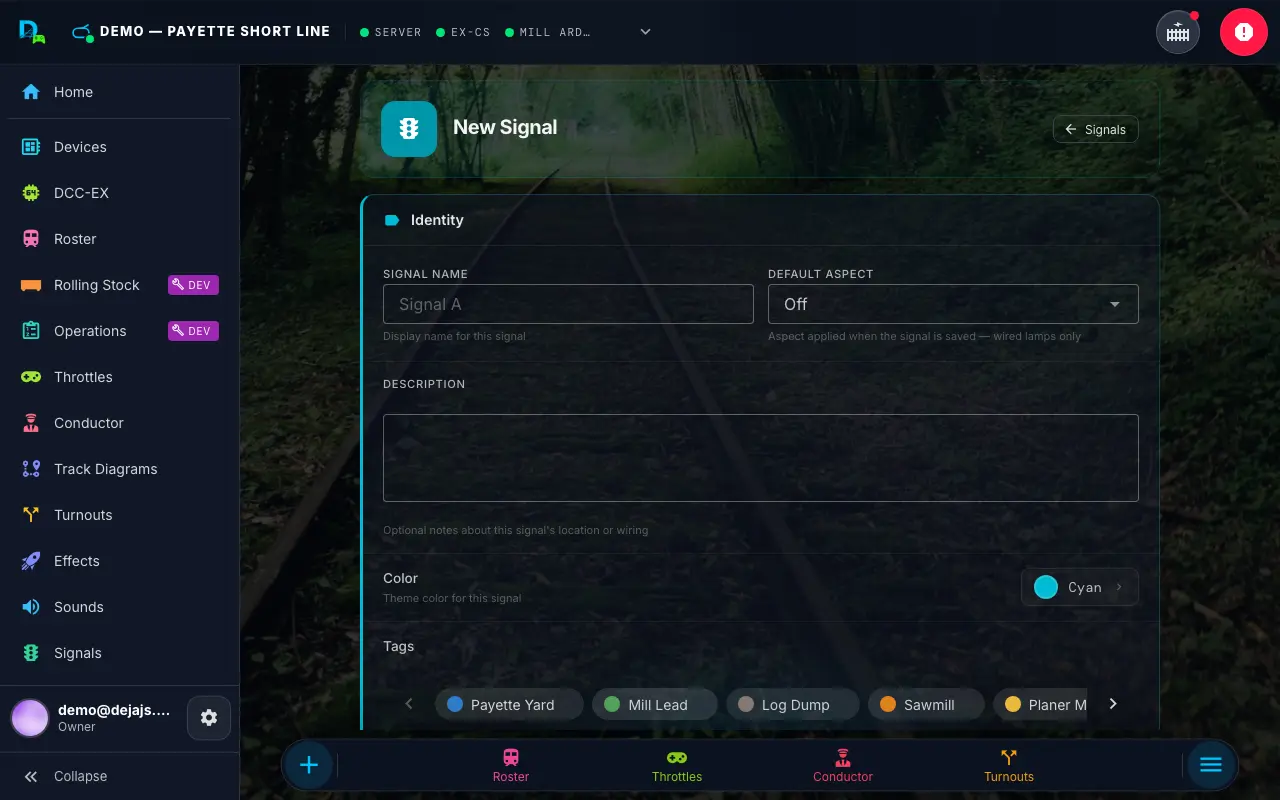
Lineside signals with red, yellow and green lamps — or a single searchlight head — wired to a DEJA IO board or driven over DCC.
WhereSignals → + /signals/new
- Signal Name and a Default Aspect.
- Choose the Device and the Head Type: Discrete lamps or Searchlight.
- Enter the Red Pin, Yellow Pin and Green Pin and the Wiring Type (common cathode or anode). Save.
Step 8: Sensors
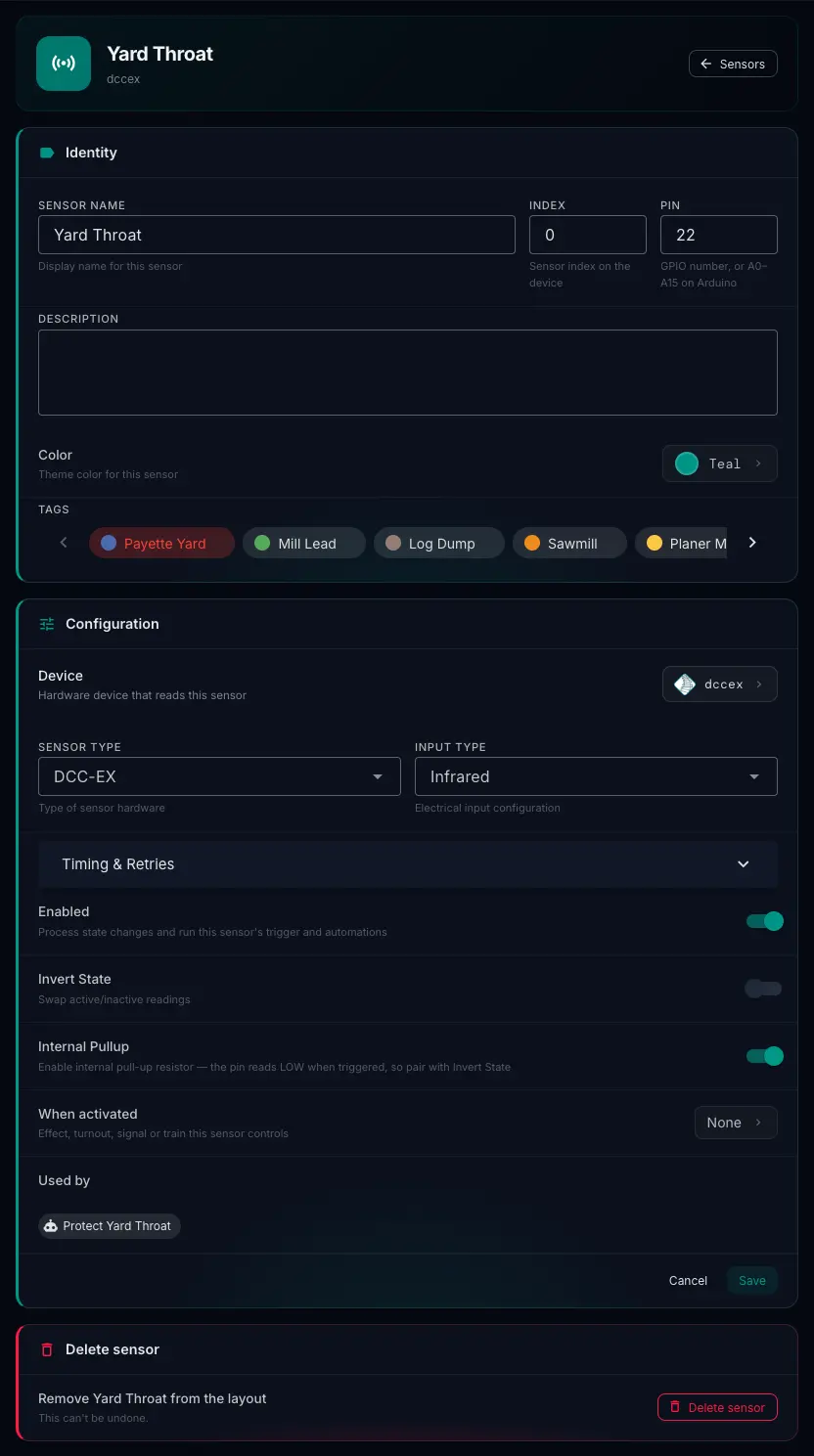
Sensors tell DEJA what’s happening: an infrared beam or current detector sees a train in a block, a reed switch feels a magnet go by. Each sensor can drive one thing on its own.
WhereSensors → + /sensors/new
- Sensor Name, Index and Pin (a GPIO number, or A0–A15 on an Arduino).
- The Device, Sensor Type and Input Type — infrared, current detection, reed switch, optical, pressure or custom.
- Under When activated, pick one thing it drives: an Effect, Turnout, Signal or Throttle. Save.
Using a sensor to stop a train? Leave its debounce and cooldown empty so it never misses one.
Step 9: Routes
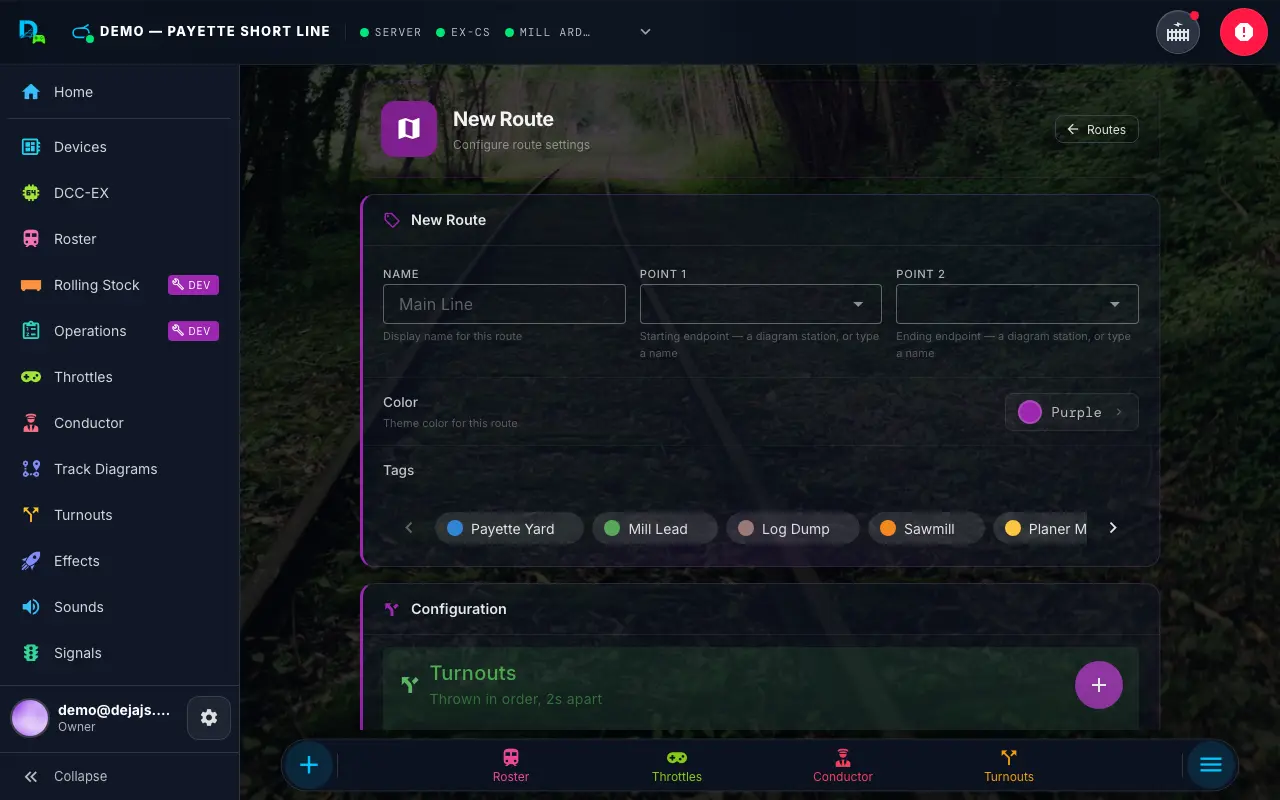
A route lines up a whole path in one tap: a set of turnouts thrown in order to get a train from one point to another.
WhereRoutes → + /routes/new
- Name it and set Point 1 and Point 2.
- Tap + on Turnouts, choose them, then set each one Straight or Divergent and drag them into order.
- Try it with Run — it throws for real without saving — then Save.
Save stays off until the route has at least one turnout, so add turnouts first.
Step 10: Automations
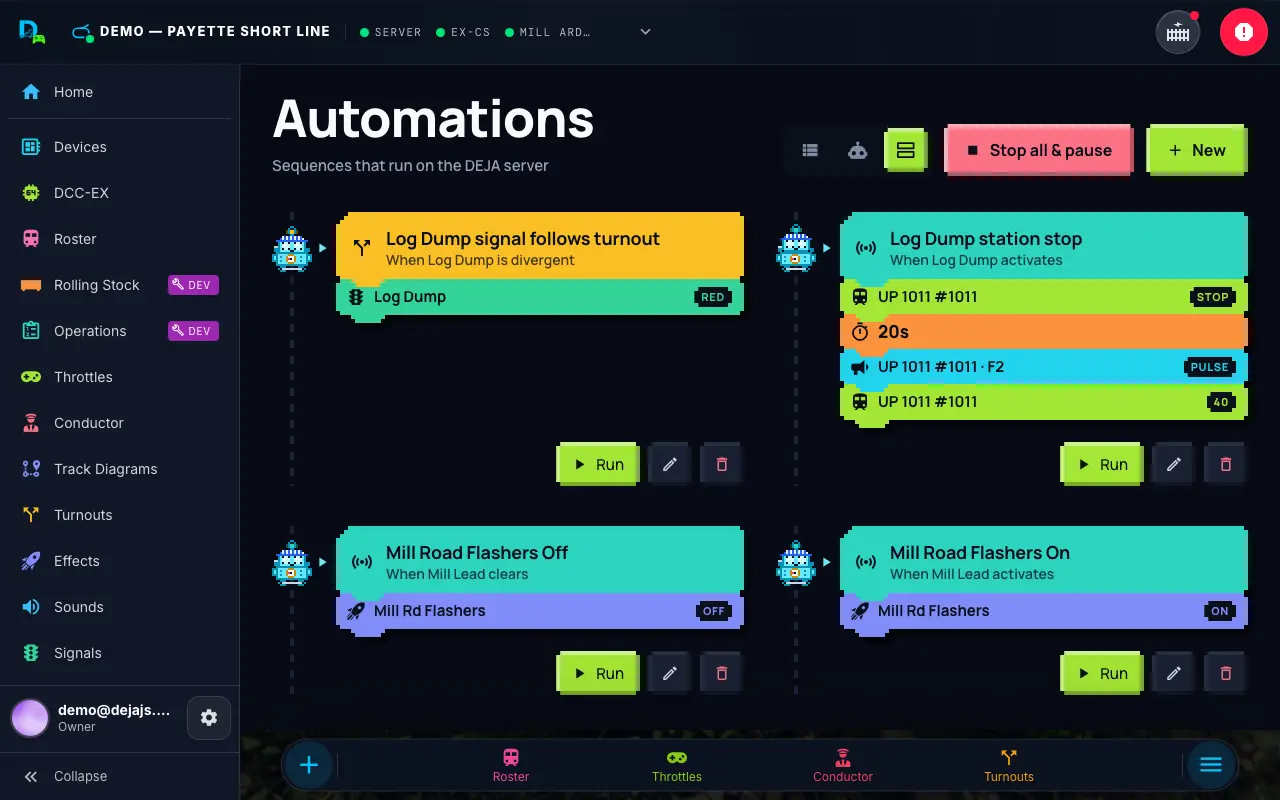
Automations are little programs for your layout — when this happens, do that — built from coloured blocks and run by your DEJA Server.
WhereAutomations → New /automations
- Start from a template — Station stop, Shuttle between two sensors and more — or a Blank automation.
- Tap the top block to set what Starts it and any Only if checks.
- Tap Add step to throw turnouts, set signals, drive locos, wait, delay, branch or repeat. Done keeps each block.
- Test run walks it on screen with nothing moving, then Save.
Automations run on your DEJA Server — they keep going when you close the app.
Step 11: Track diagram
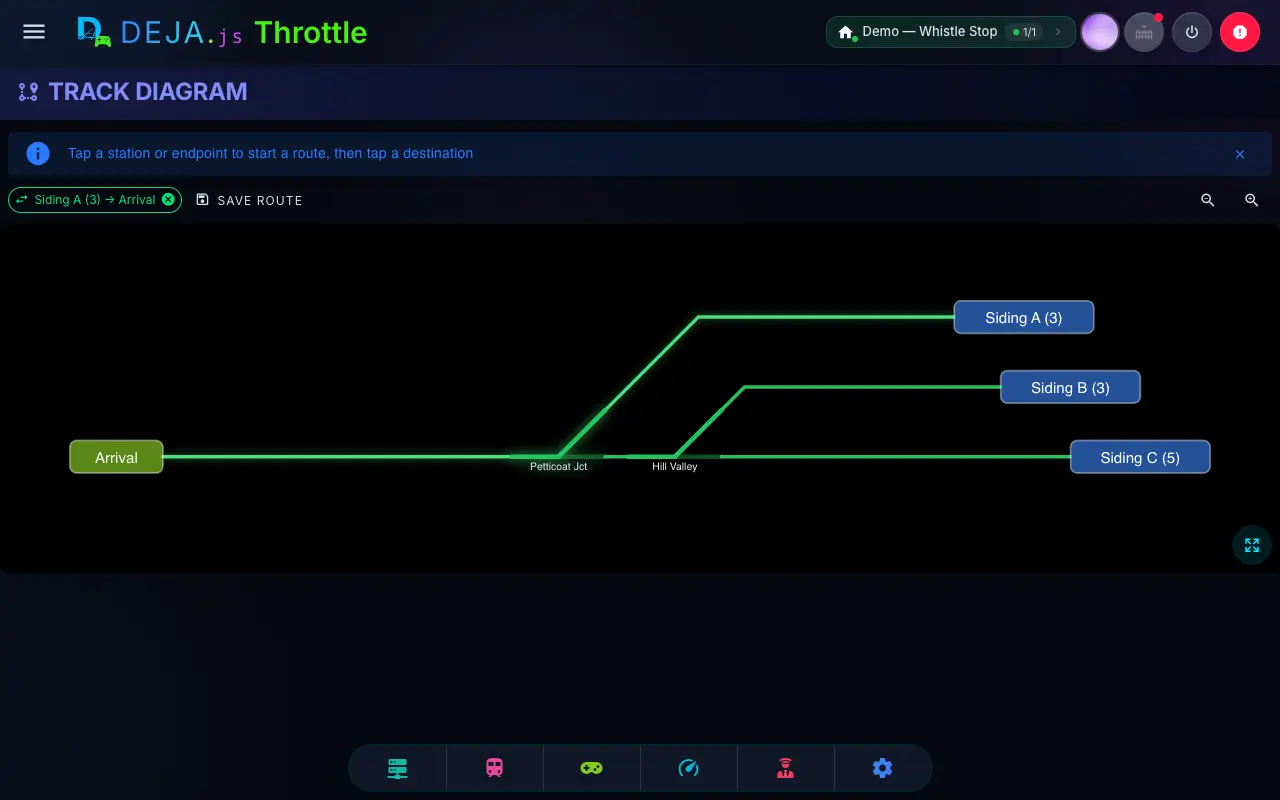
A drawing of your track plan that comes alive: turnouts and signals show their real state, and you can tap to throw them.
WhereTrack Diagrams → + /track-diagrams/new
- Enter a Diagram Name and tap Create & Edit.
- Drag your turnouts from the palette onto the canvas and connect their handles to lay track.
- Add stations, waypoints and labels, then Save. Turnouts and signals show live on the finished diagram.
Add your turnouts first — the diagram is built from them.
Step 12: Sounds
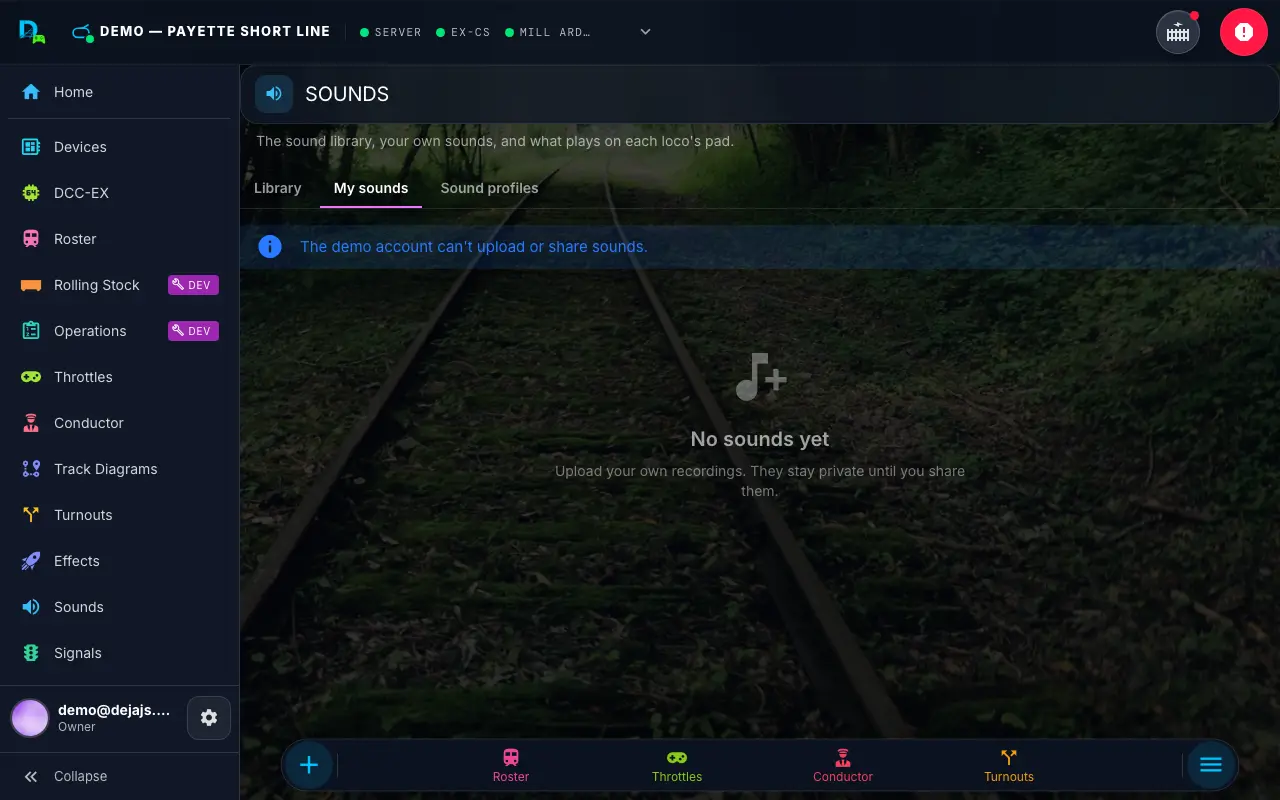
Sound effects and ambience that play through your DEJA Server’s speakers — horns, bells, station announcements and your own uploads.
WhereSounds → My sounds /sounds/mine
- Tap Upload: choose the audio file (MP3, WAV, OGG, M4A, FLAC or AAC, up to 25 MB), a Name and Category, and One-shot or Loop.
- Sounds play through your DEJA Server’s speakers.
- Want visitors to play one? Use its ⋯ menu → Open to guests.
Want it set up for you? Track & Trestle can build your devices, stops and automations with you in a paid session. Book a session.