
Sensors
Sensors provide real-time detection of train presence, turnout positions, and other physical events on your layout. A sensor can drive an effect, a turnout, a signal or a throttle directly, or start a multi-step automation.
How Sensors Work
Sensors are hardware inputs (typically analog or digital pins on Arduino, ESP32, or Pico W devices) that detect physical changes on the layout. Common sensor types include:
- Infrared detectors -- Detect train presence in a block by breaking an IR beam.
- Current sensors -- Detect power draw on a section of track, indicating occupancy.
- Reed switches -- Activated by magnets mounted under rolling stock.
- Optical sensors -- Detect passing trains using light sensors.
Pins
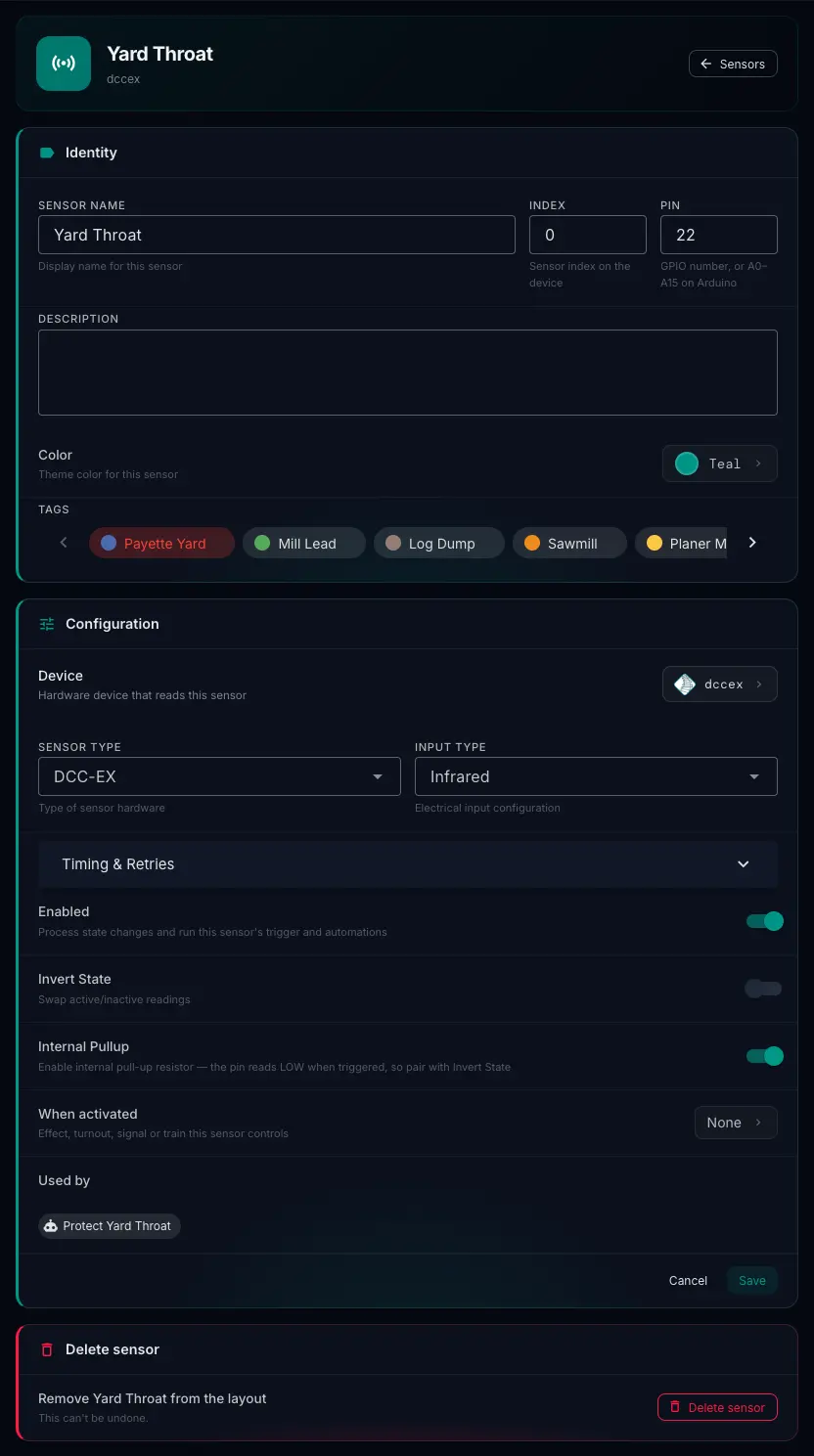
A sensor's Pin field takes either a GPIO number (e.g. 22) or, on Arduino boards, one of the analog pins A0-A15 (e.g. A0). An Internal Pullup switch in the sensor form enables the board's internal pull-up resistor; firmware wires the pin as INPUT_PULLUP instead of INPUT. Because a pulled-up pin reads LOW when triggered, pair it with Invert State so the sensor still shows active at the right moment.
When Activated: Linking a Sensor to a Target
Each sensor can drive one thing on the layout. Open the sensor's editor and tap When activated to choose what it controls:
| Target | What happens |
|---|---|
| Effect | On while the sensor is active, off when it clears. Turn on Invert to do the opposite. |
| Turnout | Straight while the sensor is active, divergent when it clears (or the reverse with Invert) -- the same positions the turnout card shows. |
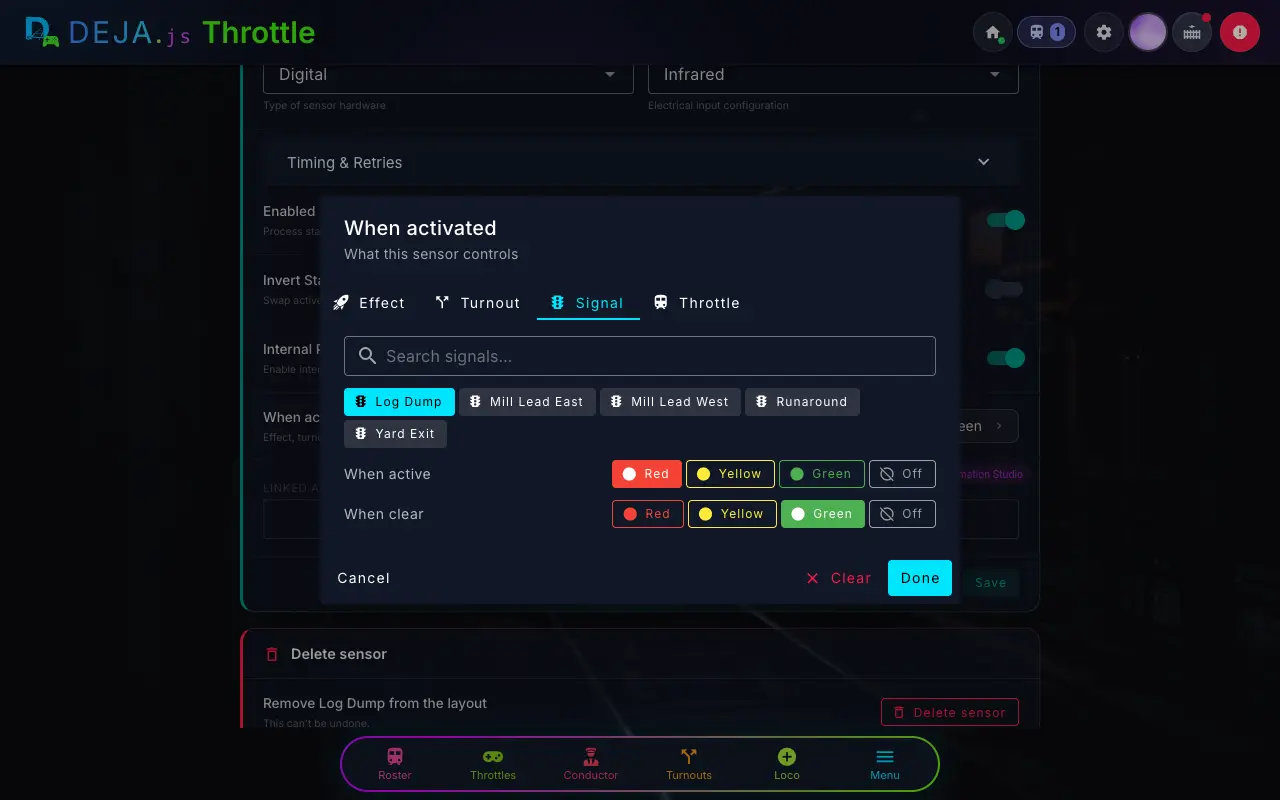
| Signal | Shows one aspect while the sensor is active and another when it clears -- red / green by default. Either can be Off. |
| Throttle | Sets a locomotive to a speed and direction the moment the sensor activates. Pick a loco from the roster or type any DCC address. Speed 0 stops the train. |
Effects, turnouts and signals follow the sensor: they change when it activates and change back when it clears, so a block detector can hold a signal at red for exactly as long as the block is occupied. A throttle target fires once, when the sensor goes from clear to active -- editing or reordering the sensor later does not send the speed again.
The sensor card shows its linked target as a chip, for example Log Dump → red / green or UP 450 #450 → stop.
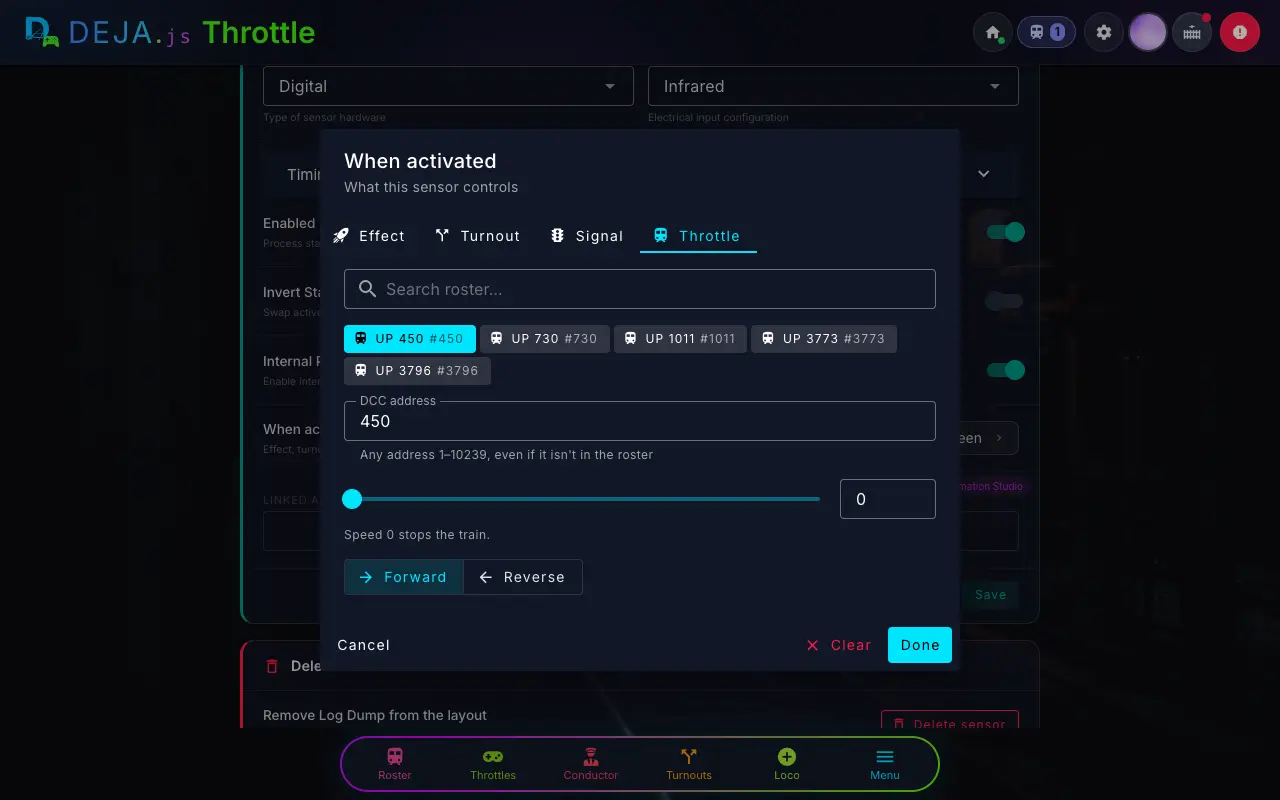
⚠️ Stopping trains: a train that arrives inside the sensor's debounce or cooldown window (under Timing & Retries) will not fire a throttle target, so leave both empty on a sensor used to stop a train. The editor warns you when they are combined.
Example: Block Occupancy Signal
- Configure an IR sensor on an Arduino board connected to pin A4.
- Add the sensor from the Sensors screen (
/sensors), tap When activated, and pick the block's signal on the Signal tab (red while active, green when clear). - When a train enters the block, the sensor activates and the signal drops to red.
- When the train exits, the sensor clears and the signal returns to green.
Automations
A sensor's direct link can only drive a single target. For anything more involved, build an Automation at /automations. An automation can start when a sensor activates, clears, or a train has passed, then wait, branch, repeat, and run many steps. See Automations for the full guide.
The sensor's editor shows a Used by row listing the automations that start from it, each linking back to the automation.
Real-Time Monitoring
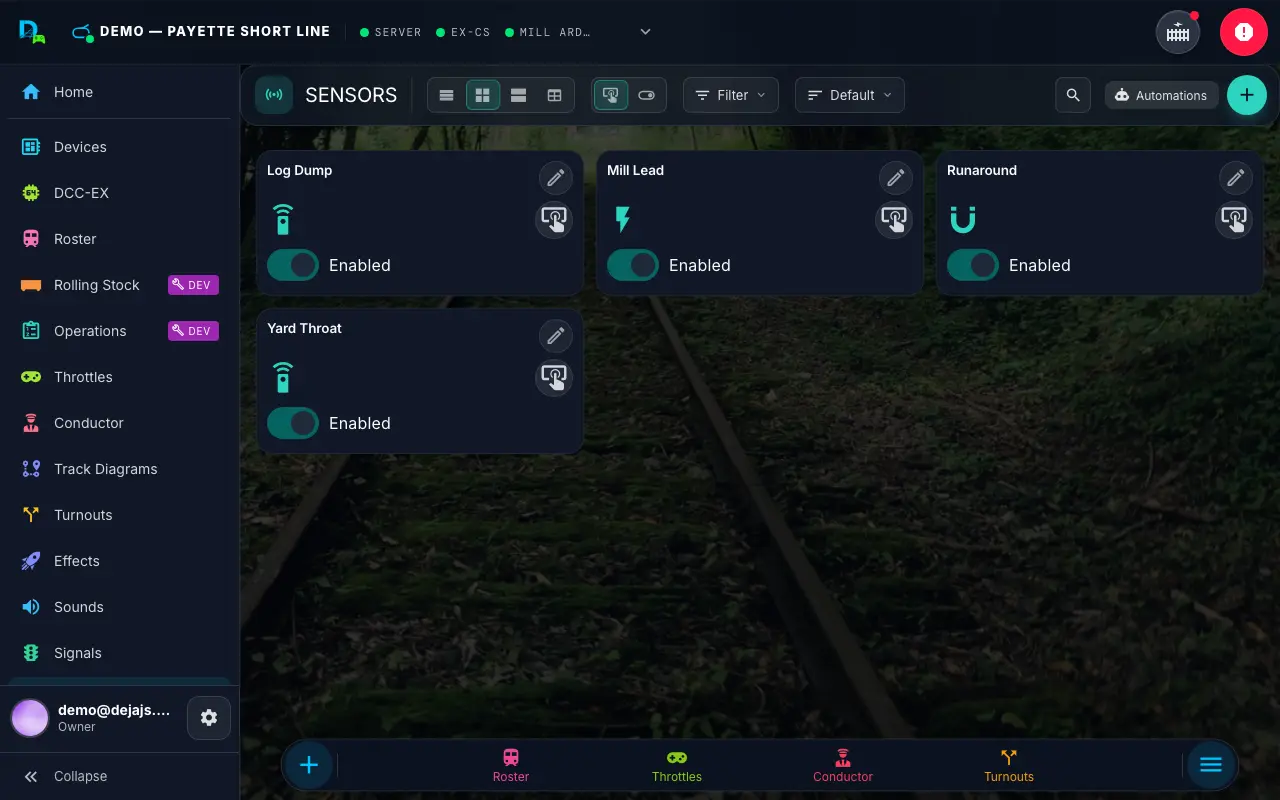
The Sensors screen (/sensors) lists your sensors and displays their data in real time. As sensor states change on the layout, the UI updates immediately. This makes it easy to verify that sensors are working correctly during installation and testing. Layout owners add sensors with the round + in the page header (/sensors/new) and edit one with the ✏️ pencil on its card, or by long-pressing it (/sensors/:sensorId/edit); build sensor-triggered rules on the Automations page (/automations).
When viewing a device's details page (/devices/:deviceId), you can see which sensors are assigned to that device alongside its turnouts and effects.
Enabling and Disabling
Each sensor card carries an owner-only Enabled / Disabled switch. Disabling a sensor clears its state and stops the server from processing its hardware reports -- it won't drive its linked target, start automations, or show as triggered -- without deleting its configuration. A disabled sensor's card dims and shows a Disabled chip.
Sensor Tips
- Debouncing -- Hardware sensors can produce noisy signals, especially current sensors. Implement debouncing in your device firmware to avoid rapid state toggling.
- Pin placement -- For IR sensors, position the emitter and detector on opposite sides of the track, below rail height, to reliably detect all rolling stock.
- Testing -- Use Throttle's real-time sensor display to verify sensor wiring before linking a target. Watch the sensor state change as you manually trigger the sensor.
- Need more than one action? -- A sensor's direct link only drives a single target. For several outputs, waiting, or repeating, use an Automation that starts from the sensor.
Related Pages
- Effects -- Create the effects that sensors switch on.
- Turnouts -- Turnouts a sensor can throw.
- Signals -- Use sensors to automate signal aspects.
- Automations -- Multi-step automations that start from a sensor.
- Devices -- Register the devices that host your sensors.