
Track Diagrams
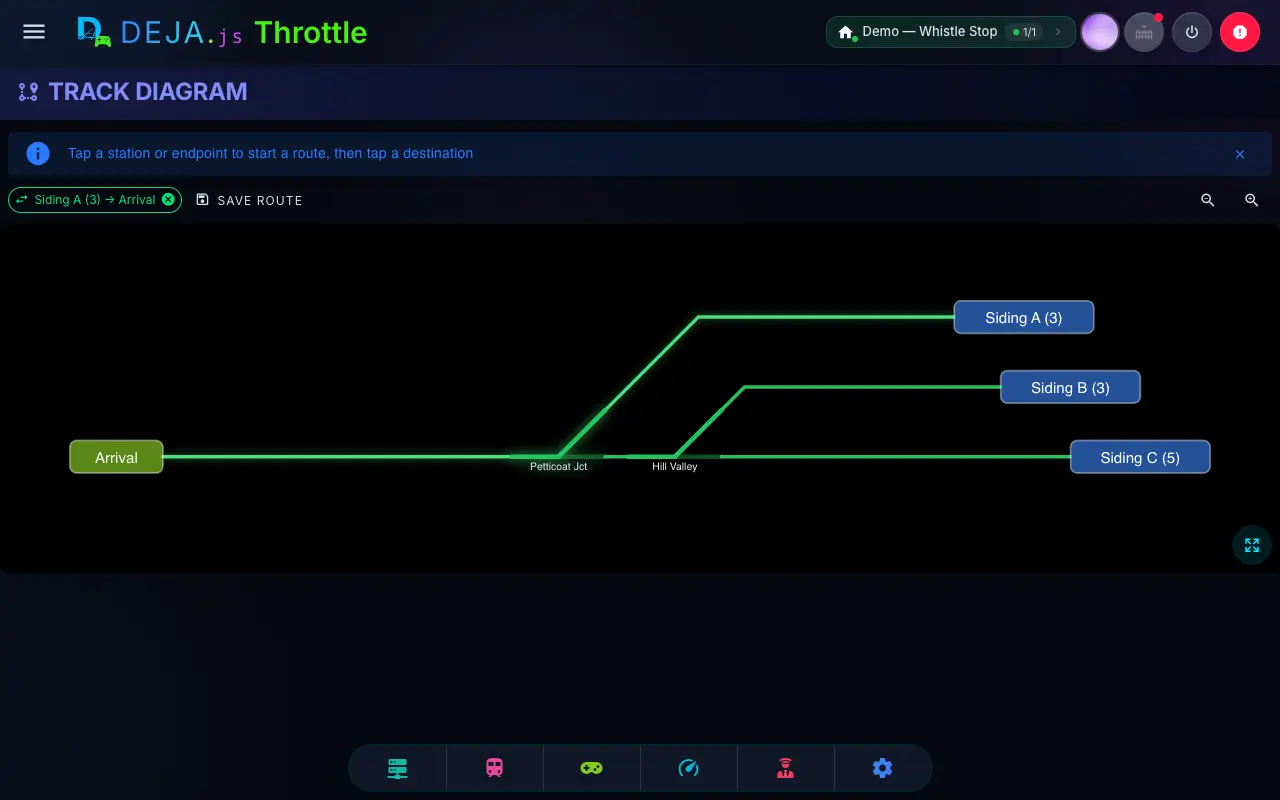
The Track Diagrams screen (/track-diagrams) shows your layout as a live schematic. Every turnout and signal on the diagram tracks its real state, so the plan is also a control panel: throw switches and line routes straight from the map. Layout owners draw the diagrams in a built-in editor; everyone else gets the live viewer.
🗺️ Using the Viewer
- Pan and zoom -- Drag to pan, pinch or scroll to zoom. The Zoom in, Zoom out, and Fit to screen buttons sit on the diagram, and double-tapping empty canvas toggles between fit and a closer view. Full screen gives the diagram the whole display.
- Live state -- Turnouts show which leg is lined, and signals show their current aspect, updated in real time across every connected device.
- Throw a turnout -- Tap a turnout on the diagram to toggle it.
- Tap-to-route -- Tap a starting station or waypoint, then a destination, and DEJA lines every turnout in between. Tap a lined route's endpoint to release it. Save route keeps the lined path as a saved Route you can run with one tap later.
A diagram can also show in the Conductor View's right panel — pick the Diagram module.
➕ Creating a Diagram
You need turnouts first — the editor builds the track from the turnouts you've already configured.
- Tap + Add track diagram in the page header, Add Track Diagram on the empty state, or choose New track diagram from the Command Menu. Any of them opens New Track Diagram (
/track-diagrams/new). - Enter a Diagram Name.
- Tap Create & Edit to open the editor.
✏️ The Editor
The editor lives at /track-diagrams/:diagramId/edit (owners only — the ✏️ on a diagram opens it).
- Palette -- Turnouts · N unplaced lists your layout's turnouts. Drag a turnout onto the canvas, then connect its handles to other turnouts, stations and waypoints to lay track.
- Tools -- Select, Station, Waypoint, and Text Label. Grid snap keeps everything aligned (hold Alt while dragging to bypass it).
- Properties panel -- Select a piece to edit it: a track segment's Segment Name and Line Color, a turnout leg's Signal, a node's Label and Rotation, and more.
- Header -- Undo, Redo, Toggle Preview (see the diagram as operators will), and Save — enabled only when you have unsaved changes. The ⋮ menu holds Save & Export, which saves and generates a standalone SVG/CSS snapshot.
If you leave the editor with unsaved changes, an Unsaved changes prompt asks you to Cancel, Discard, or Save.
Related Pages
- Turnouts -- Configure the turnouts you place on a diagram.
- Routes -- Run routes saved from a diagram.
- Signals -- Wire the signals shown on a diagram.
- Conductor View -- Show a diagram beside your throttles.