
Access & Inviting People
A DEJA layout starts with one person — you, the owner. Settings → Access (/settings, layout owners only) is where you let other people in, so a visiting friend or a whole club can pick up a throttle and run trains on your layout.
Everyone who joins becomes a member: a full co-operator with the same throttle, turnout, and effect control you have.
Two ways in
Every join starts the same way — someone opens your layout's join link and signs in — but what happens next depends on one switch, Require Code for Members.
| Switch | What the visitor does | Best for |
|---|---|---|
| Off (default) | Taps Request Access, then waits while you approve them | Remote friends, a handful of people, joining ahead of a session |
| On | Types the Room Code shown on a display near the layout | Open houses and club nights — proves the person is physically in the room |
You can flip the switch at any time. It only affects people joining from that moment on; existing members stay members.
Sharing your join link
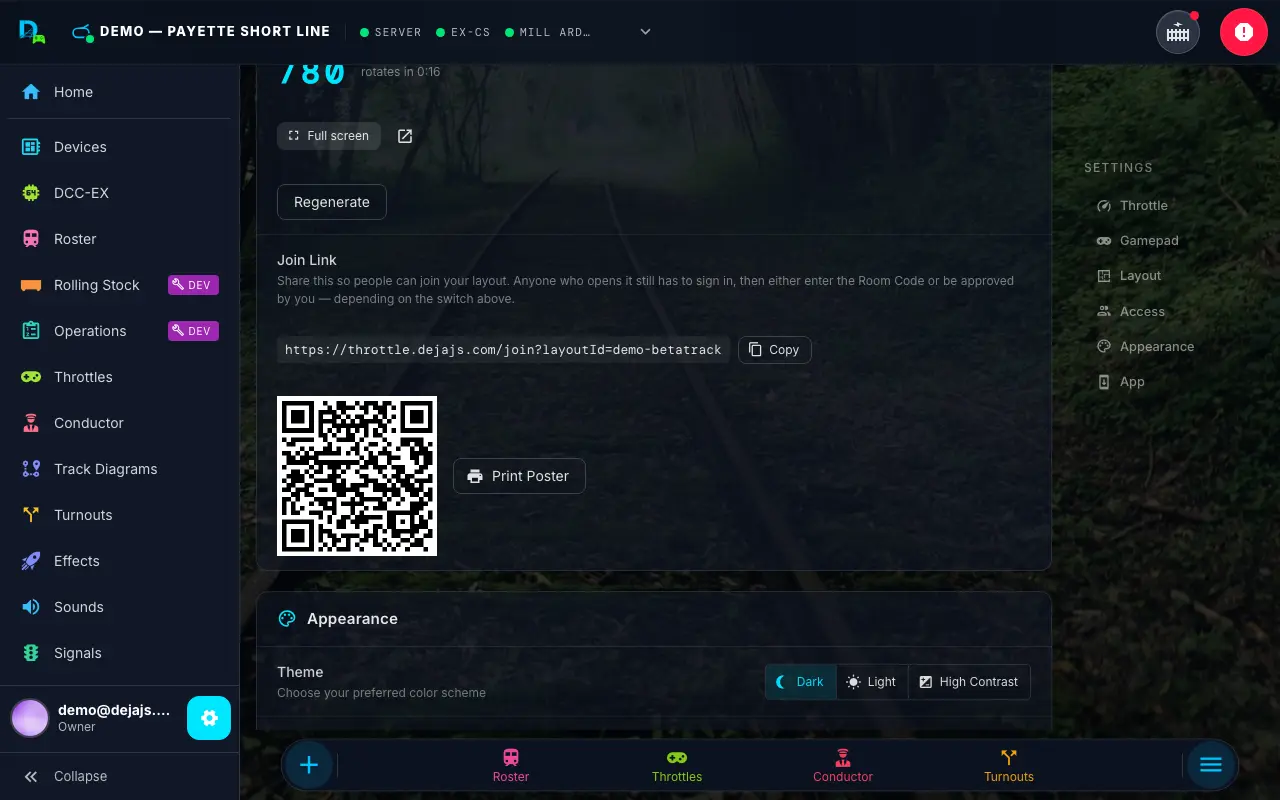
The Join Link section shows your layout's address:
https://throttle.dejadcc.com/join?layoutId=your-layout-id
Three ways to hand it out:
- Copy — puts the URL on your clipboard for a text message, email, or club newsletter.
- The QR code — hold your phone up to the screen.
- Print Poster — opens a full-page printable sign.
The link is not a secret in itself. Nobody gets in just by having it — they still have to sign in and then either enter the room code or be approved by you.
The printable poster
Print Poster opens a one-page sign (/join-poster) with a large QR code, your layout's name, and numbered instructions. Use your browser's print dialog (Cmd+P / Ctrl+P) and post it near the layout.
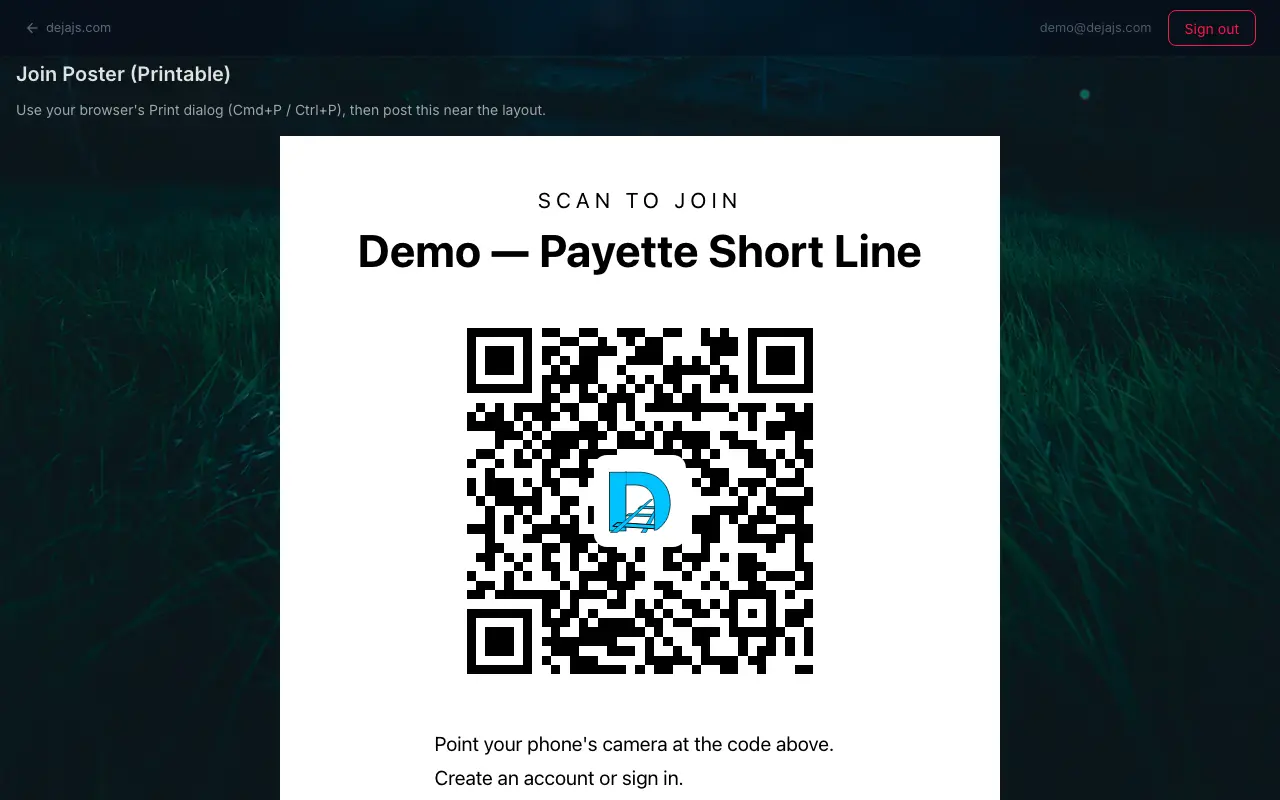
The instructions on the poster follow your Require Code for Members setting — it prints "enter the code shown on the layout's display" when the switch is on, and "tap Request Access" when it's off. If you change that switch, print a fresh poster.
Room Code
The Room Code is a 3-digit code that changes every 5 minutes. Because it's only visible to someone who can see a screen at your layout, typing it correctly proves the person is actually there.
- Click Generate Room Code. (Regenerating later invalidates the old one immediately — anyone mid-join will need the new code.)
- Turn on Require Code for Members.
- Show the code near the layout. Settings → Access (and the Guests page) displays the current code and a countdown to the next one. Click Full screen for the kiosk view built for a spare tablet or monitor, or the ↗ icon to open it in a new tab you can drag onto another screen. It's also at throttle.dejadcc.com/access-code. On the kiosk, the ⛶ button takes the browser itself full screen, and the corner buttons fade away after a few seconds.
Only the layout owner can see the room code.
Approving people
With Require Code for Members off, anyone who opens the join link taps Request Access and appears under Pending Requests with their email address. Approve adds them as a member; Deny turns them away. Their screen updates on its own within a few seconds — they don't need to refresh or re-scan.
Removing a member
The Members list shows everyone with access. The ✕ beside a name removes them immediately. They keep their DEJA account — they just lose access to this layout.
Joining someone else's layout
From the other side, it takes four steps:
- Scan the QR code or open the join link they sent you.
- Create an account or sign in. (Sign in on the same phone you scanned with — the whole flow happens in Throttle.)
- Enter the room code from the layout's display, or tap Request Access and wait for the owner to approve you.
- Start running trains takes you into Throttle, already pointed at that layout.
If you're a member of more than one layout, My Layouts on the Devices page lets you move between them.
Guests
Guests are visitors who just want to look around — no account, no approval. Guest mode is on for every layout.
Guest access is set up on its own Guests page, not in Settings. Turn on Allow Guests there. A Guest QR appears below the switch, and it is not the same as the member Join Link:
- Guest QR — for visitors. They pick a name, type the Room Code and are in, with no account.
- Join Link — for members. They sign in, then enter the Room Code or wait for your approval.
Things to know:
- A Room Code is required. Guests always type the code shown on your display, so generate one first. The Guests page shows a reminder until you do. The Room Code panel appears both here in Settings and on the Guests page.
- Passes last 24 hours. Each guest's access expires a day after they join, and they can simply rejoin.
- Regenerating the Room Code ends every guest pass. Treat it as "kick everyone": all current guests are signed out and need the new code to return.
Related Pages
- Guest Mode -- What visitors see, and setting up stops, signs, guest effects, guest automations and hunts.
- Settings -- Everything else on the Settings screen.
- Connect -- My Layouts, joining, and sign-in from the operator's side.