
Signals
The Signals screen (/signals) displays all signals configured for your layout and lets you control their aspect (red, yellow, or green). Each signal head is wired to pins on an IO device; set its aspect by hand here or let an automation set it, and use signals to coordinate safe train movements during operating sessions. Layout owners also add and wire signal heads here.
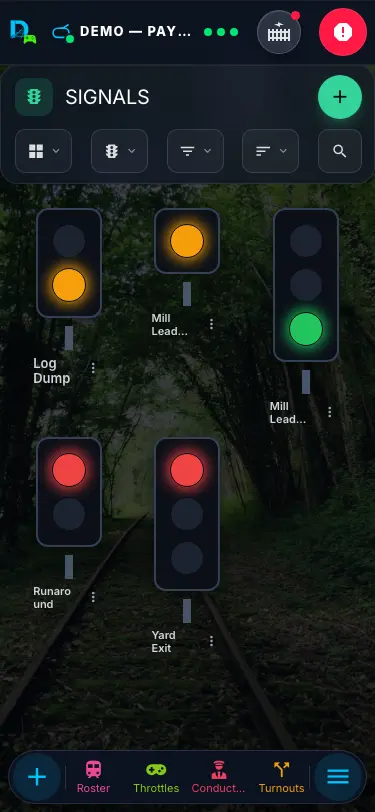
Signal Cards
Each signal is rendered as a tonal card with a cyan theme. The card contains:
- Signal name as the card title (falling back to the signal ID if no name is set).
- Signal head -- displayed against a dark background to simulate a physical signal housing. A discrete-lamp head shows one circular button per wired aspect (one, two or three -- there is no button for an aspect that has no pin), each a bright filled color when active or a muted tonal version when inactive. A Searchlight head (see Head Type below) instead shows a single lens that changes color, since one bi-color LED stands in for all three aspects.
- A Flash button alongside the aspect buttons (Comfy density) -- toggles flashing on whichever aspect is currently lit; disabled while the signal is off.
Toggling Aspects
On a discrete-lamp head, tap any of its aspect buttons to change the signal:
- Tapping an inactive aspect activates it and deactivates any other active aspect. Only one aspect can be active at a time.
- Tapping the currently active aspect turns it off, setting the signal to a null (dark) state.
Aspect buttons are disabled if the signal does not have a pin configured for that color. For example, if a two-aspect signal only has red and green pins assigned, the yellow button will be disabled and non-interactive.
On a Searchlight head, there is no separate button per aspect -- tapping the lens (or the Button control) instead advances it through the wired aspects in order (red -> yellow -> green) and then off, skipping any aspect the head can't show.
Filtering and Views
The Signals list supports filtering by:
- Device -- show only signals attached to a specific hardware device.
- Tags -- filter by user-defined tags.
Two segments in the page header's toolbar choose how the list looks (on phones, each becomes its own dropdown):
| Segment | Options |
|---|---|
| View | List, Compact (the default), Comfy, or Table (all signals with their properties in rows). |
| Control | Head (the default signal head described above -- shows 1, 2 or 3 lamps, or a searchlight lens) or Button. |
Adding a Signal
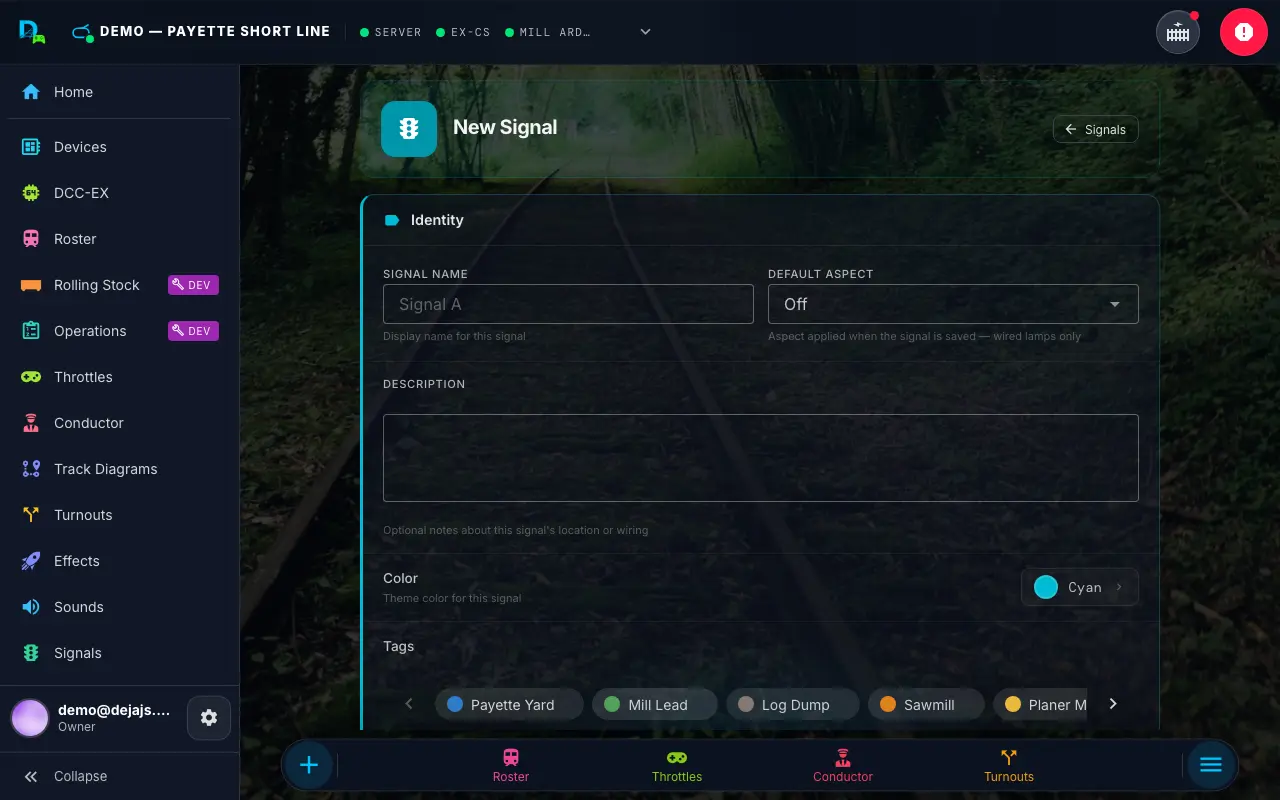
Layout owners tap the round + in the page header (or go to /signals/new). The signal form collects the following information.
Device Selection
At the top of the form, a device picker shows every hardware device registered on your layout. When adding a signal, the picker renders as an inline grid so you can see every option at once; when editing, it collapses to a compact chip that opens a picker dialog. Select the device that physically drives this signal's LEDs. If only one device is configured, it is selected automatically.
A device is required -- signals need a physical controller to drive their LED outputs.
Signal Details
| Field | Description | Required |
|---|---|---|
| Signal Name | A display name for the signal (e.g., "East End Main", "Yard Entry") | Yes |
| Default Aspect | The aspect applied when the signal is saved. Options are Off plus whichever aspects are currently wired -- the picker only ever offers lamps the head can actually show. | No |
Head Type
A toggle selects how the head's lamps are wired, and decides how many pins it needs and which aspects it can show:
- Discrete lamps (default) -- a separate LED per aspect, one pin each. Wire only the lamps the head has -- one, two or three.
- Searchlight -- one bi-color LED on two pins (red and green elements only); yellow is the red and green elements lit together, so there is no yellow pin. Matches most prototype searchlight signal heads.
A signal can also live on a WLED strip as a signal zone -- a stretch of addressable LEDs acting as a searchlight or a three-lamp head, with no pins at all. Zones are created in the strip's WLED Studio rather than from this form, but they appear in this list and take their aspect, flashing and automations like any other signal.
Pin Configuration
Pin fields map each signal aspect to an output pin on the selected device. On a Discrete lamps head these are Red Pin, Yellow Pin, and Green Pin; on a Searchlight head they relabel to Red Element Pin and Green Element Pin, and the Yellow Pin field disables (a searchlight makes yellow from red + green).
| Field | Color Indicator | Description |
|---|---|---|
| Red Pin | Red circle icon | Pin number for the red LED (or the searchlight's red element) |
| Yellow Pin | Yellow circle icon | Pin number for the yellow LED (discrete lamps only) |
| Green Pin | Green circle icon | Pin number for the green LED (or the searchlight's green element) |
Each field takes the output pin number on your hardware device -- typically a digital output pin for Arduino and ESP32 devices, and a GPIO number for Pico W devices. For expansion boards, they may be I2C or shift-register addresses.
At least one lamp pin is required -- a discrete head can have one, two or three (leave the others blank, e.g. omit yellow for a simple red/green block signal); a searchlight needs both its red and green element pins. A live readout under the pin fields confirms the resulting aspect count (e.g. "2-aspect signal (Red / Green)" or "3-aspect searchlight (Red / Yellow / Green) on 2 pins") and turns to an error if nothing is wired yet.
Wiring Type
A toggle switch selects between two wiring configurations:
- Common Cathode (default) -- The LEDs share a common ground. Each pin sources current to light the corresponding LED. This is the most common wiring for individual LED signal heads.
- Common Anode -- The LEDs share a common positive voltage. Each pin sinks current to light the corresponding LED. Some commercial signal modules use this wiring.
The Wiring Type row shows the current setting under its name ("Common Cathode" or "Common Anode").
Flashing
A Flashing switch pulses the lit aspect instead of showing it steady -- useful for an Advance Approach (a flashing yellow) or a higher-speed flashing green. It is disabled until Default Aspect is set to something other than Off, and switching the aspect back to Off clears it. The same control appears as a Flash button on the signal card. A flashing lamp cycles on and off once per second (50% duty).
Additional Fields
- Description -- Optional notes about the signal's location, purpose, or wiring.
- Color -- A display color for the signal card, from the colour picker — presets, your layout's tag colours, saved custom colours, or Custom (your device's own colour picker plus a hex field; a colour you use is saved as a swatch for the layout).
- Tags -- Assign tags for filtering and organization.
Validation
The form checks that a signal name is provided, a device is selected, and at least one lamp pin is wired (both red and green for a searchlight), and shows an error at the bottom of the form if not.
DCC signals
If the signal's device is a DCC accessory decoder (or your DCC-EX command station with Driven by: DCC chosen -- Pins is the default there), the pin fields are replaced by a DCC mapping: either Extended (<A>, an aspect number 0-31 on one address; needs DCC-EX 5.2.34 or newer) or Basic (<a> address pairs, as used by the Digitrax SE8C and NCE Light-It). Presets and a Test button are included. See Using third-party accessory decoders.
Editing a Signal
Tap the ✏️ pencil on a signal card (on a signal-head tile, open its ⋮ menu and choose Edit), or long-press the signal, to open /signals/:signalId/edit. The form shows the same fields, pre-populated. Click Save to keep your changes, or Cancel to discard them. Delete sits at the bottom of the edit page and asks you to confirm inline.
Aspect Wiring Reference
When you set a signal's aspect, DEJA drives the red, yellow, and green pins according to the wiring type you selected -- for common cathode, the active aspect's pin turns on while the others turn off; for common anode, this is inverted.
Aspect Truth Table (Common Cathode, Discrete Lamps)
| Aspect | Red Pin | Yellow Pin | Green Pin |
|---|---|---|---|
| Red | HIGH | LOW | LOW |
| Yellow | LOW | HIGH | LOW |
| Green | LOW | LOW | HIGH |
| Off | LOW | LOW | LOW |
For common anode wiring, the HIGH/LOW values are inverted.
A Searchlight head has no yellow pin -- yellow lights both the red and green elements at once, so the truth table's "Yellow Pin" column does not apply; use the Red/Green columns against the element pins instead.
Signal Placement Tips
- Block signals -- Place signals at the entrance to track blocks to indicate occupancy. Use red for occupied, green for clear.
- Approach signals -- Use yellow to indicate that the next block is occupied, giving the engineer time to slow down.
- Interlocking signals -- Place signals at turnout junctions to indicate which route is set. Tie aspect changes to routes with a sensor automation.
- Two-aspect signals -- For simple block detection, configure only the red and green pins, leaving yellow blank.
- Searchlight signals -- Choose the Searchlight head type to drive a prototype bi-color-LED head from two pins instead of three.
- Advance approach -- Turn on Flashing with the yellow aspect selected for a flashing-yellow advance signal.
Empty State
If no signals are configured for the current layout, the page shows only the "Signals" heading — plus Add for the layout owner.