
Turnouts
The Turnouts screen (/turnouts) lists all track switches (turnouts) configured for your layout and lets you throw or close them. Turnouts control which path a train takes at a junction, and their state is reflected in real time across all connected clients. Layout owners also add and configure turnouts here.
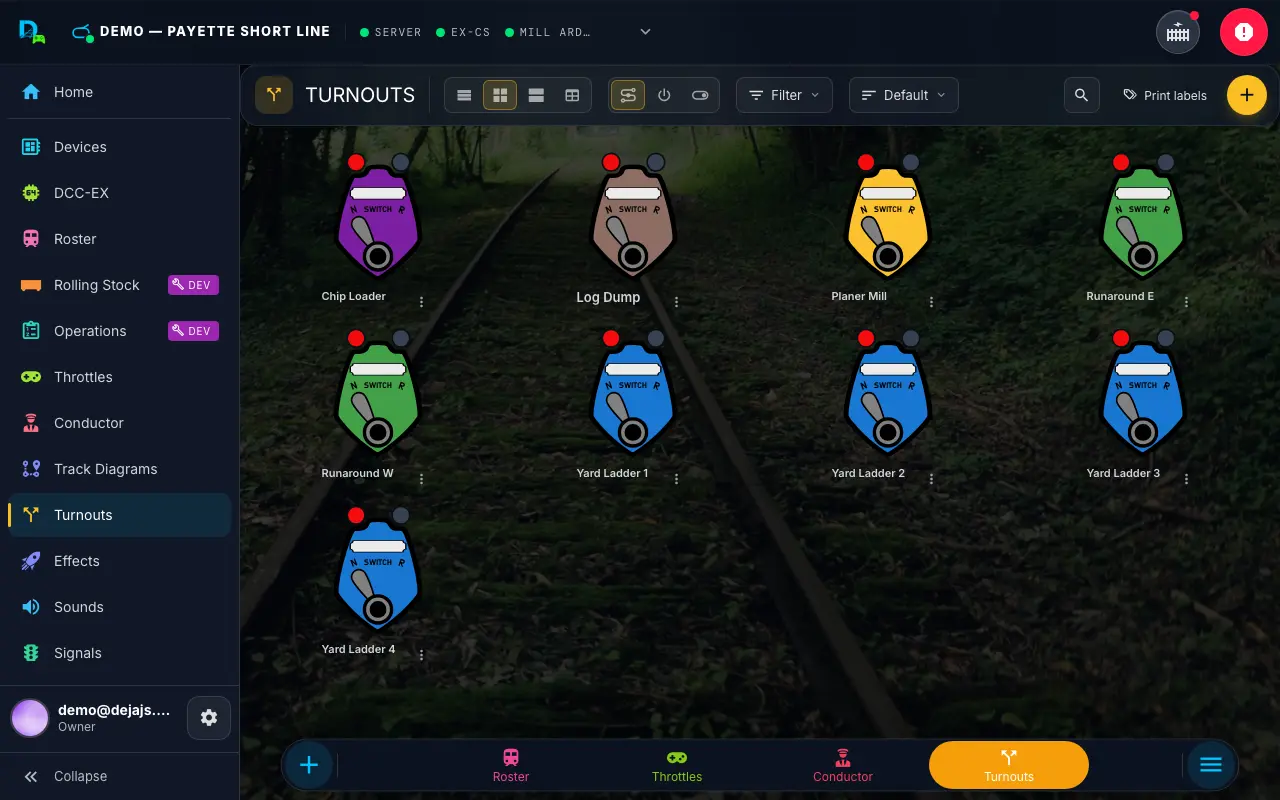
CTC Switch View (Default)
The default view renders each turnout as a CTC (Centralized Traffic Control) lever switch -- an SVG component styled to resemble the panel switches used in real railroad dispatch offices.
Each CTC switch displays:
- Shield shape with the turnout's configured color as the background.
- Turnout name in a labeled plate at the top of the switch.
- "SWITCH" label below the name plate.
- Lever handle that visually rotates between two positions. The lever swings 55 degrees when toggled, with a smooth animation.
- N and R indicators -- two circular lights labeled "N" (Normal/Straight) and "R" (Reverse/Divergent):
- When the turnout is in the straight (normal) position: the R indicator lights green and the N indicator is gray.
- When the turnout is in the divergent (reverse) position: the N indicator lights red and the R indicator is gray.
Tapping anywhere on the CTC switch toggles the turnout between its two states. A 3-second cooldown prevents rapid repeated toggles while the physical turnout motor moves.
CTC switches are responsive, scaling from about 96px wide on small screens to 144px on medium and larger screens.
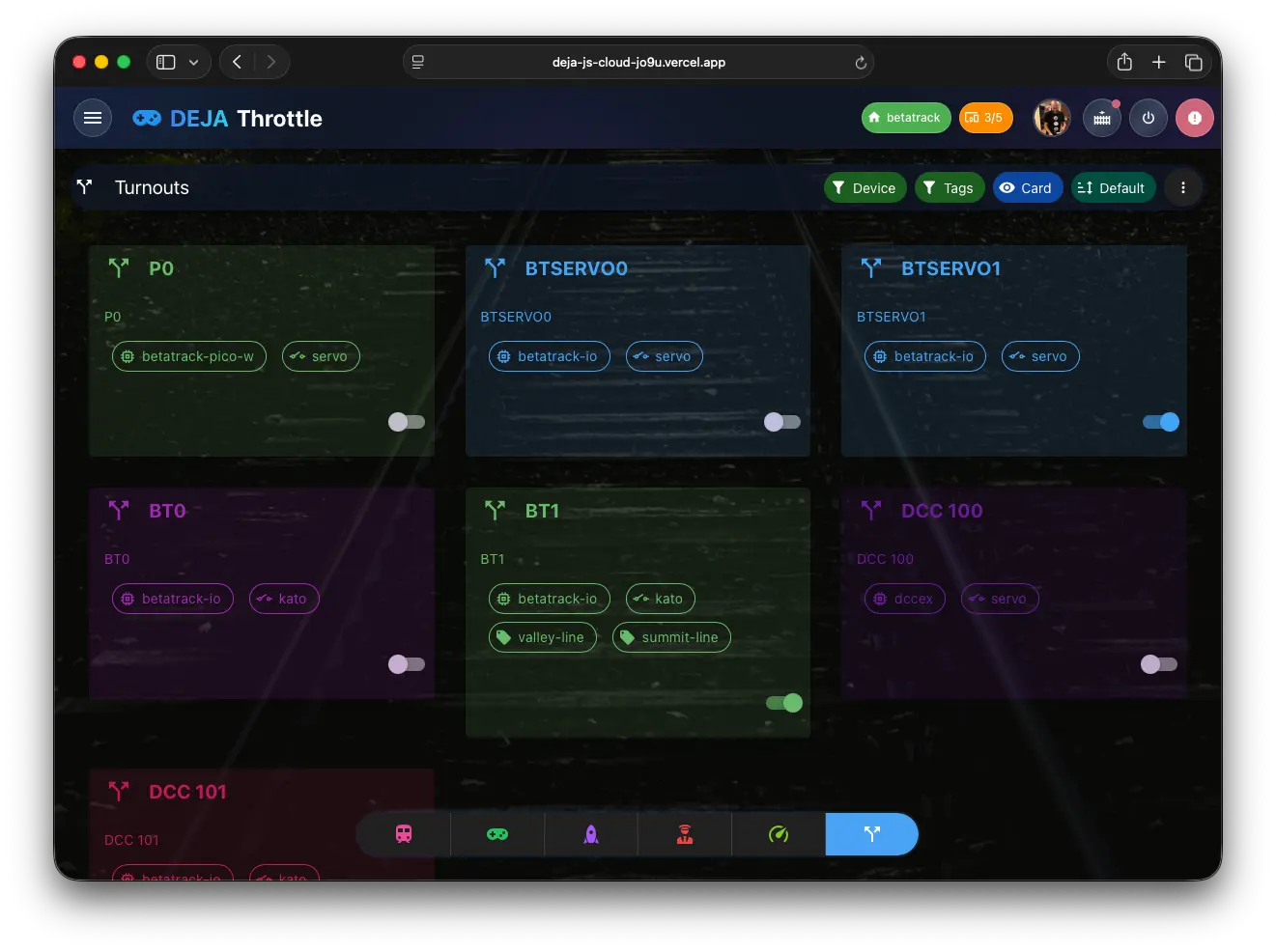
Alternative Views
Two segments in the page header's toolbar choose how the list looks (on phones, each becomes its own dropdown):
| Segment | Options |
|---|---|
| View | List (one slim row per turnout), Compact (the default), Comfy (roomier cards with more detail), or Table (all turnout properties in rows). |
| Control | CTC (the default lever switch described above), Button (a tappable power button), or Switch (a toggle switch). |
Filter, Sort, and the 🔍 search icon sit in the same toolbar. On phones, each control becomes its own dropdown.
Card View
With the Button or Switch control, each turnout is a card showing its name, the target device and turnout type (e.g. servo 3), chips for the type and any assigned tags, and the control in your chosen style. On the CTC tiles, the same details sit in the tile's ⋮ menu.
The control is disabled and pulses while the turnout command is being processed.
Turnout States
Each turnout has two possible states:
| State | Meaning |
|---|---|
| Straight / Normal | The turnout routes trains along the main line (straight through). |
| Divergent / Reverse | The turnout routes trains along the branching track. |
In the stored data, a turnout's state is true when it is thrown (divergent) and false when it is straight. state: true means thrown everywhere in DEJA.
Invert
If a turnout's hardware is wired the other way round, switch on Invert on its form. Invert flips only what is sent to the hardware; the screens, routes and automations still show thrown and straight exactly as before. DCC turnouts also show a small dot for commanded vs confirmed state -- see the accessory decoder guide.
Filtering
The Turnouts list supports filtering by:
- Device -- show only turnouts connected to a specific hardware device.
- Tags -- filter by user-defined tags for organizing turnouts into groups (e.g., by yard, mainline section, or staging area).
Empty State
If no turnouts are configured for the current layout, the screen displays an empty state with a swap icon and the message "No turnouts -- Add turnouts to control track switches." Layout owners can create one with Add (or at /turnouts/new) — see Adding a Turnout.
Adding a Turnout
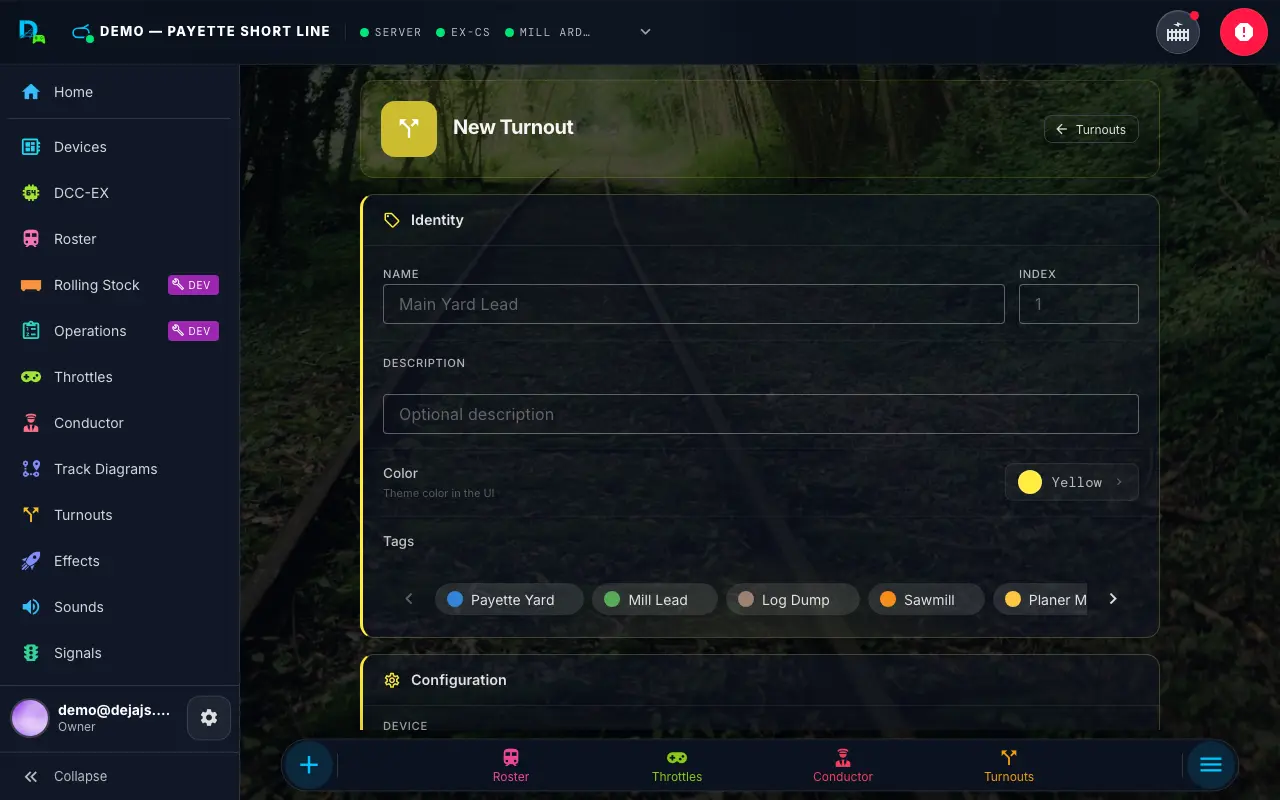
Layout owners tap the round + in the page header on the Turnouts screen (or go to /turnouts/new). The turnout form has two cards — Identity and Configuration — with Cancel / Save in the footer.
Identity
| Field | Description | Required |
|---|---|---|
| Name | A display name (e.g., "Main Yard Lead", "East Siding") | Yes |
| Index | The DCC turnout index as configured on the EX-CommandStation | Yes |
| Description | An optional text description of the turnout's location or purpose | No |
| Color | The turnout's theme colour in the UI — presets, your layout's tag colours, saved custom colours, or Custom (your device's own colour picker plus a hex field; a colour you use is saved as a swatch for the layout) | No |
| Tags | Layout-level labels for filtering, created and managed under Settings → Layout | No |
A unique ID for the turnout is generated automatically from its name, index, and device (e.g., main-yard-lead-1-dccex).
Configuration
- Device -- A grid of your layout's devices; choose the one that controls this turnout. It defaults to
dccex, your EX-CommandStation. - Type -- The turnout mechanism: Kato (the default, "Snap-action solenoid"), Servo, Tortise (shown but not selectable yet — the UI spells it "Tortise"), or DCC accessory decoder. A DCC turnout adds Decoder output, Accessory address, and DCC-EX turnout id fields -- see Using third-party accessory decoders.
- Invert -- Flip what's sent to the hardware (see Invert).
- Feedback sensor -- Optionally pick a sensor that confirms the turnout's real position.
- Straight / Divergent (required) -- The servo position or pin value for each route. For a turnout on a DEJA accessory decoder these become Closed angle / Thrown angle (0–180).
- Kato turnouts get a Swap straight / divergent button, and, when editing, a Test Turnout tool to fire each direction.
- Servo turnouts get a Movement picker — Instant, Fast, Medium, Slow, or Bounce — to control how the servo travels between positions. If the turnout is assigned to a device, a Real-time Servo Config tool lets you tune it live: an angle/pulse slider drives the physical servo in real time, Use as Straight / Use as Divergent buttons capture the current position into the form, and Test Straight / Test Divergent buttons replay the turnout's saved movement profile.
- Effect -- Optionally link an effect that triggers when the turnout is thrown (e.g., a frog juicer or an indicator light). Once an effect is linked, an Effect State toggle lets the effect fire inverted relative to the turnout's thrown state.
Editing a Turnout
Tap the ✏️ pencil on a turnout card (on a CTC tile, open its ⋮ menu and choose Edit), or long-press the turnout, to open /turnouts/:turnoutId/edit. The form is the same as Add, pre-populated with the existing turnout data. Click Save to keep your changes, or Cancel to discard them. Delete sits at the bottom of the edit page and asks you to confirm inline.
Turnout Types
| Type | Description | Status |
|---|---|---|
| Kato | Kato Unitrack electric turnouts controlled via pulse signals | Available |
| Servo | Hobby servos controlled via PWM signal for precise position control | Available |
| Tortoise | Circuitron Tortoise slow-motion switch machines (listed as "Tortise" in the Type picker) | Coming soon |
| DCC accessory decoder | DCC accessory decoders (DS64, Switch-It, SwitchPilot and others) driven through your DCC-EX command station. See Using third-party accessory decoders | Available |
The turnout type determines how the DEJA Server translates the straight/divergent values into hardware commands.
Turnout Labels
Print labels on the Turnouts page opens the Label Maker on the HO between-the-rails preset: colour-filled tags with each turnout's name and number. Switch to the N preset for N scale, or print wire flags for the turnout cables. (/turnouts/labels still prints the older fascia sheet.)
Turnouts in Other Views
Turnouts also appear in the Conductor View (right pane, alongside any other modules you've enabled) and on Track Diagrams, where they can be toggled directly by tapping the turnout element.
Related Pages
- Routes -- Throw several turnouts in sequence with one tap.
- Track Diagrams -- Lay your turnouts out as a live track plan.
- Devices -- Manage the devices that control your turnouts.
- Effects -- Link effects (like a frog juicer) to turnout actions.