
Throttles
The Throttles page (/throttles; the old /throttle-list link redirects here) gives you a bird's-eye view of every active throttle on your layout. It is designed for operators who need to monitor and control multiple trains at the same time.
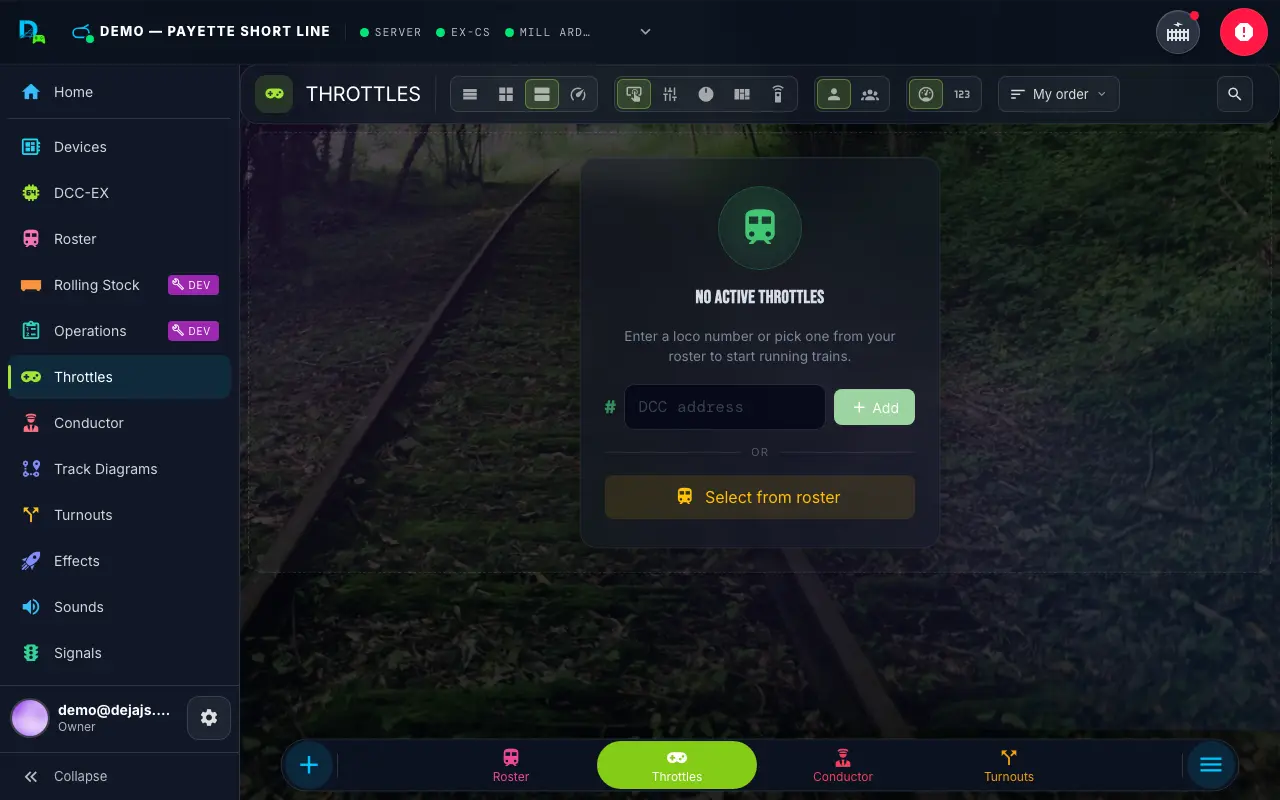
Header Toolbar
The page header's toolbar carries three segments:
- View -- List, Compact, Comfy (the default), or Cab. The first three are card densities; Cab opens the full Throttle Control swipe deck.
- Control -- the throttle style: Buttons, Slider, Dial, Dashboard, or Proto. It applies to every throttle -- the cards here and the full cab -- and the cards on the other pages re-skin to match.
- Display -- Analog (dial gauge) or Digital (number readout) speedometers.
On phones, each becomes its own dropdown. Sort (My order, Address, Name) and the 🔍 search icon in the same toolbar narrow the cards; they're hidden in Cab view.
The Control and Display choices are shared with the Conductor View, which has the same two segments.
Grid Layout
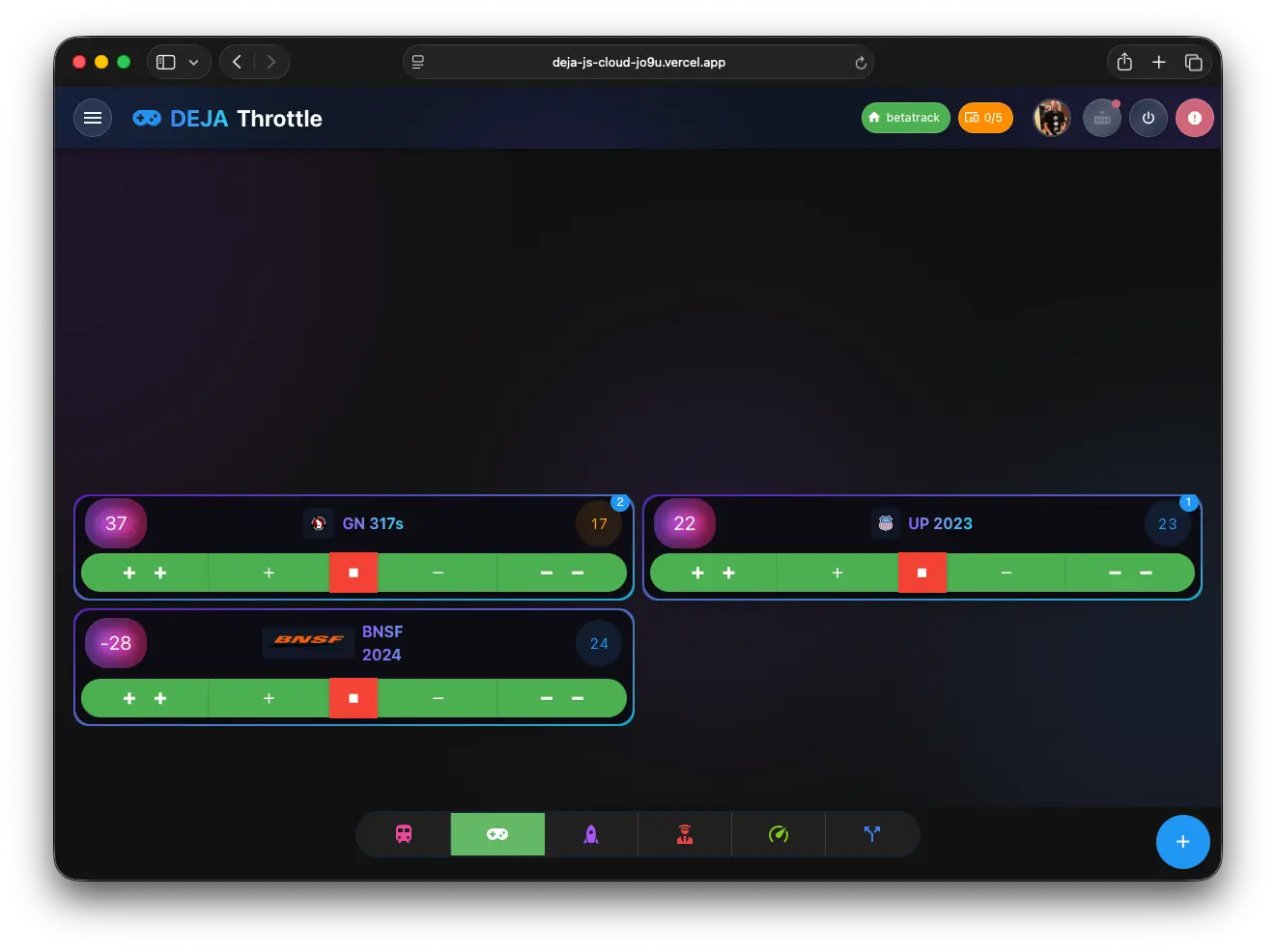
Active throttles are displayed as cards in a responsive grid that follows the View density:
- List -- one slim row per throttle, two columns on wide screens.
- Compact -- one column on narrow screens, and at most 2-up across the full width.
- Comfy -- one, two, or three columns as the screen widens.
Locomotives you're driving solo from EZ-Consist Mode stay in their consist panel and don't get a card of their own while solo.
Throttle Tiles
Each card is a compact version of the full throttle control, following your chosen Control style:
- Identity row -- the locomotive's number plate (its DCC address on a colored plate), the locomotive name, and the current speed. A chip shows the number of consisted units, and another shows IDLE, FWD, or REV. The number plate is also the drag handle. Comfy cards add the loco's photo -- or its line-art illustration in the loco's color -- above the name, and Compact and Comfy cards show the road's herald (its logo) at the end of the title row.
- Control well -- on Compact and Comfy cards the controls sit on a darker, recessed faceplate across the bottom of the card, set apart from the photo, name and plate above. It holds an eject button to park (release) the locomotive, the speed controls, and a dedicated stop button. The speed controls follow the Control style: horizontal −5 / −1 / +1 / +5 buttons for Buttons; a speed slider with an R/F reverser lever for Slider, Dashboard and Proto; and for Dial, the arc dial itself, with the live speed on its disc (turn clockwise for forward, counter-clockwise for reverse -- there is no separate readout or reverser). List rows keep everything on one slim line and use the slider for every style except Buttons, Dial included.
- Edit -- on Compact and Comfy cards, layout owners get a ✏️ pencil (or long-press the card) to open the loco editor. List rows have no room for it -- edit from a card, the cab, or the Roster.
Cards are transparent while the locomotive is stopped and fill with the loco's color (or its roadname color) while it's moving, so you can see at a glance which trains are running. The Dashboard and Proto styles keep their hardware-panel look instead.
Drag to Reorder
Cards can be reordered by dragging the number plate, with a smooth drag-and-drop animation. Dragging is available when Sort is set to My order and no search is active.
Your custom card order is remembered on this device across page reloads and browser sessions. The ordering logic works as follows:
- Throttles with a saved position are sorted according to your custom order.
- Newly added throttles (not yet in the saved order) are appended to the end, sorted by DCC address.
- If a throttle is removed (released/parked), it is automatically cleaned from the saved order list.
Adding a Locomotive
When you have no active throttles, the page shows No active throttles with two ways to start:
- By address -- type any DCC address in the field and tap Add.
- Select from roster -- opens your roster; tap a locomotive to acquire it.
Once you're running, add more with the + Loco button on the bottom navigation bar (pick from your roster or type an address), or the Drive button on any Roster tile. Either one opens the new throttle in the cab; its card joins the Throttles page right away and the DEJA Server begins controlling that address.
Navigating to Full Control
Tapping the number plate on any card opens the full Throttle Control cab for that locomotive at /throttle/:address (the Cab view). Pick List, Compact, or Comfy from View to come back to the cards.
Background
The Throttles page features a dark background with three large, blurred gradient orbs (purple, blue, and violet) positioned at different corners, providing subtle depth without distracting from the card content.