
Sounds
DEJA has a sound library — horn blasts, bells, ambient loops and station announcements — that plays through your DEJA Server's speakers. You can play the DEJA System sounds, upload your own, share them with the whole community, open chosen sounds to your guests, and give locos without onboard sound a pad of system sounds from a sound profile.
Sounds has its own entry in the menu (/sounds). The page has three tabs:
| Tab | Route | What's there |
|---|---|---|
| Library | /sounds |
Every sound you can play, grouped by category |
| My sounds | /sounds/mine |
The sounds you've uploaded |
| Sound profiles | /sounds/profiles |
The sets of sounds that fill a loco's pad |
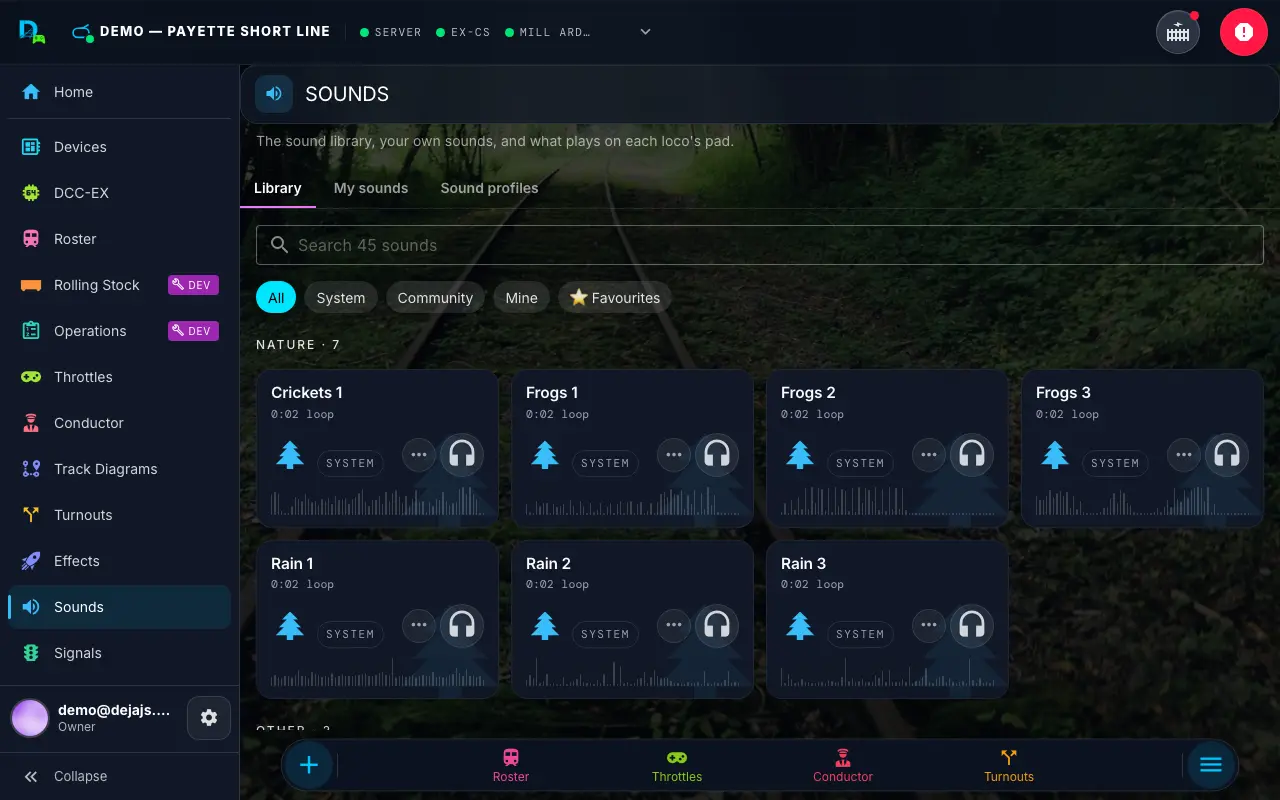
[!NOTE] Sounds used to be a tab on the Effects page. Old
/effects?tab=soundslinks now open the Library tab.
Playing Sounds
Open Sounds from the menu; it opens on the Library tab. Layout members can play anything in the library.
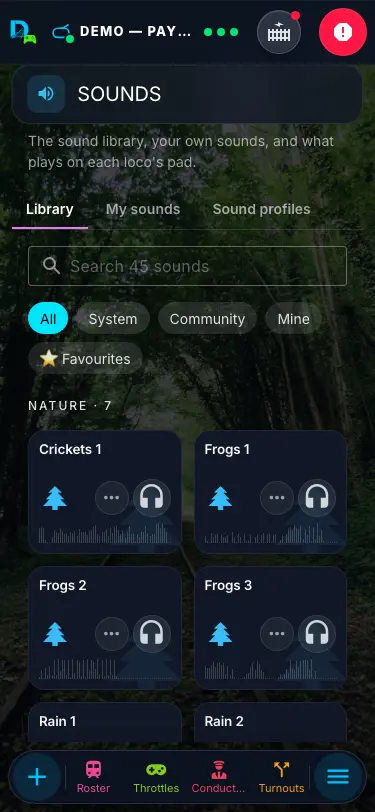
- Tap a card to play it on your layout. Your DEJA Server plays it through its speakers.
- 🎧 previews the sound on your own device only, so you can check it before it fills the room. On phones in compact cards the button is hidden -- use the card's ⋯ menu instead.
- Cards light up from the layout server. A card shows "Sending…" until the server confirms it's playing. If that takes more than 4 seconds you'll get a toast — "Still loading on the layout — give it a moment, then try again" when the server is online (a big file is still downloading), or "Layout server didn't respond" when it isn't.
- Progress -- the waveform at the bottom of a card shows how far along the sound is. Looping sounds show ∞.
- Stop all -- the red-tinted button in the Now Playing bar at the bottom of the Library tab stops everything playing on the layout.
- Recently played (your last 8) and ⭐ Favourites sit at the top. Both are per user.
- Search matches a sound's name or category; the filter chips narrow by source — All, System, Community, Mine and ⭐ Favourites.
- Sound credits -- at the foot of the library, a fold-out list credits the authors of recordings whose licence asks for it (CC-BY), each with a link to its source.
[!NOTE] On the public demo layout a card tap previews in your browser instead of playing on a layout (you'll see one info toast), and the demo account can't upload or share.
My Sounds
Open the My sounds tab (/sounds/mine, or "Go to My sounds" in the command palette) to manage the sounds you've uploaded.
- Choose Upload and pick a file -- MP3, WAV, OGG, M4A, FLAC or AAC, up to 25 MB.
- DEJA analyses the file in your browser: its duration, a waveform, and a suggestion for one-shot or loop (anything over 20 seconds is suggested as a loop).
- Give it a name, a category, and the kind (one-shot or loop), then save.
You can rename, recategorise or change the kind of a sound at any time, and delete it when you're done.
Private means unlisted
A new sound is private: it doesn't appear in anyone else's library. But "private" really means unlisted -- anyone who has the file's URL can fetch it. Don't upload anything you wouldn't want someone with the link to hear.
Deleting
- A sound that was never shared is deleted along with its file.
- A sound that was ever shared is retired instead: it disappears from lists, but layouts, hunts and automations already using it keep playing it.
Sharing With Everyone
Offer one of your sounds to every DEJA user: flip Share with everyone in the upload dialog, or later open the sound's ⋯ menu → Share… and send it for review. The same menu has Cancel request (while it's pending), Un-share (once approved) and Keep private (after a rejection).
- Tick the attestation: "I made this recording or have the right to share it, and it contains no copyrighted material. Shared sounds are reviewed before other users can see them."
- The sound shows Pending review while the DEJA team listens to it.
- Once approved it shows ✅ Shared and appears in everyone's library with a Community badge. If it isn't approved it shows 🚫 Not approved along with the reviewer's note.
Things to know:
- Renaming or recategorising a shared sound sends it back for review. Changing it between one-shot and loop does not.
- Un-sharing keeps it working for people who are already using it in a hunt, automation or loco button; it just stops being offered to new people.
Guests
Guest mode visitors can play sounds you open to them. Only the layout owner sees these controls:
- On a sound card, ⋯ → Open to guests.
- On Guests → Effects, the Guest sounds section lists every sound opened to guests.
- In a stop's editor, Sounds guests can play at this stop picks which of those sounds appear at that stop.
Guests get one pass: a tap always plays the sound once -- even for loop-kind sounds (the button says "Plays once"). While it plays, tapping the button again stops it -- a guest can only ever stop the sound they started; you can stop anything from the Library tab. Each guest can play one sound at a time with a 3-second gap ("Give it a moment…"), and the layout server also refuses a sound that is already playing.
Sound Profiles
A sound profile is an ordered set of sounds for a loco's function pad: a whistle or horn, a bell, a chuff or engine loop, and so on. Locos without onboard sound get their profile's sounds on the pad as magenta system sound keys, played on the layout by your DEJA Server. Locos with onboard sound show only their decoder functions unless you switch system sounds on for them (see Throttle Control — Sound pad).
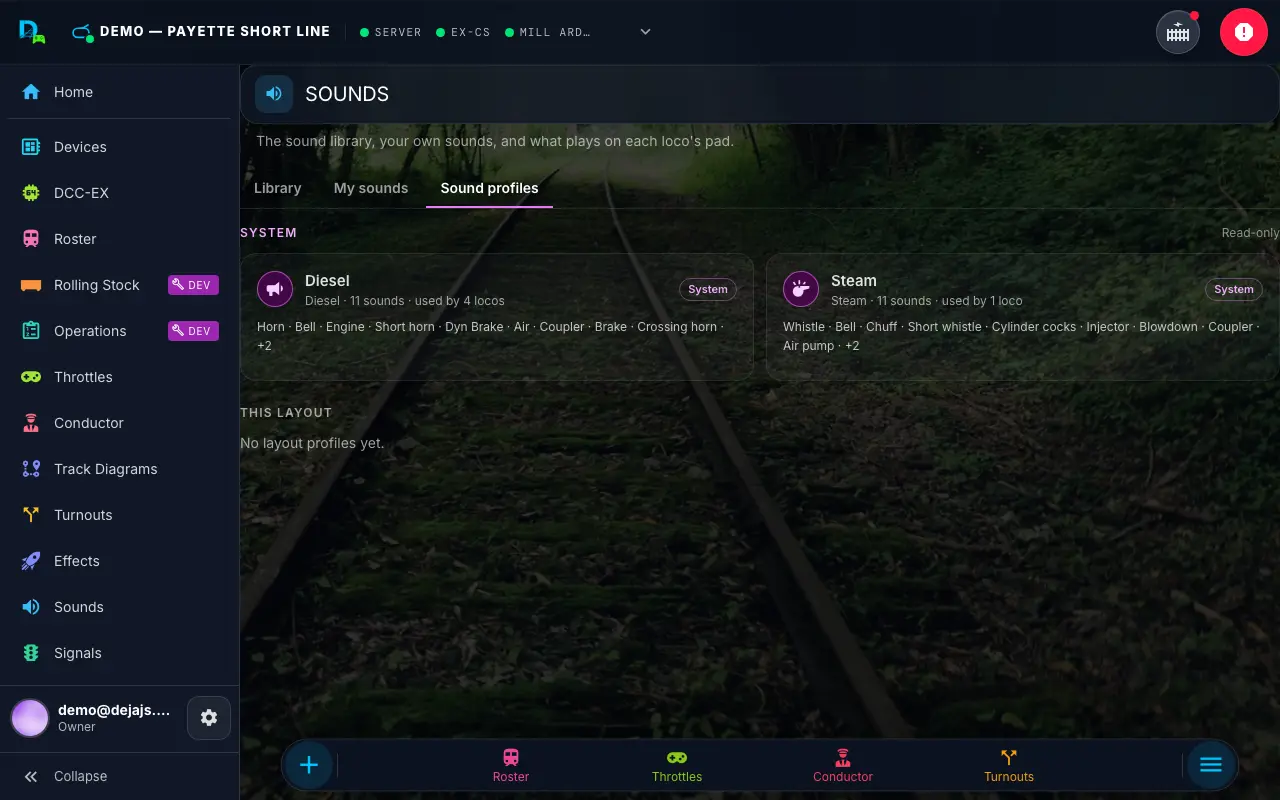
The Sound profiles tab lists two kinds:
- System -- DEJA's Steam and Diesel profiles. Every steam loco uses Steam and every other loco uses Diesel until you pick something else. They're read-only: Duplicate one to make your own copy.
- This layout -- profiles your layout's members made. Each card has Edit, Duplicate and Delete.
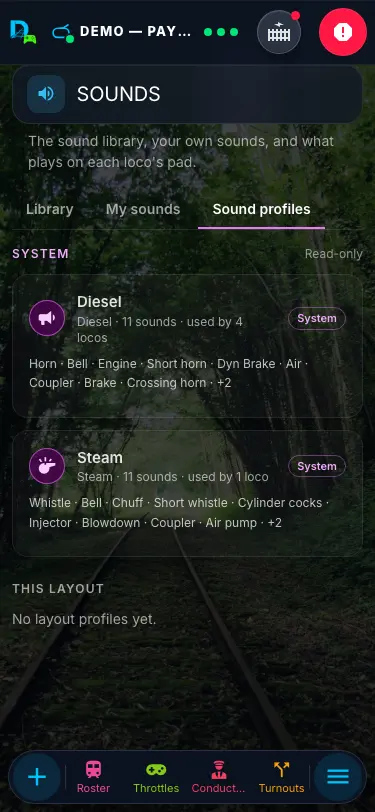
Each card shows the profile's loco type, how many sounds it has, how many locos use it, the profile it was copied from, and its sounds in pad order.
Editing a Profile
Tap New profile, or Edit on one of your layout's profiles. You can also duplicate a system profile, which opens the copy in the editor.
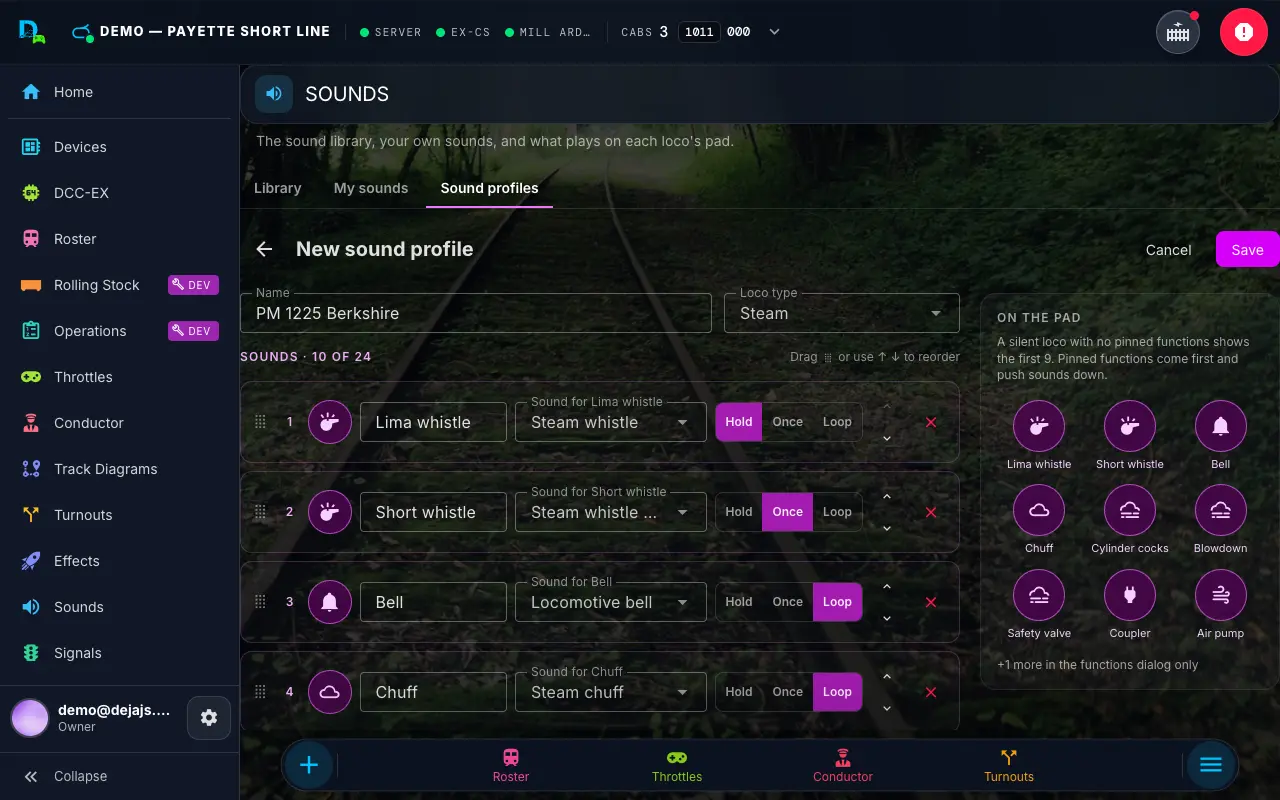
- Name (up to 60 characters) and Loco type -- Steam, Diesel, Electric, Other or Any type. The type puts the profile first in the picker for locos of that type.
- Sounds -- up to 24. Each row has an icon, a label (up to 24 characters), the library sound it plays (with a preview), and how it plays:
- Hold -- plays while you hold the key and stops when you let go (a whistle or horn).
- Once -- plays to the end; tapping again starts it over (a coupler clank).
- Loop -- tap to start and tap again to stop (a bell, a chuff or an idling engine).
- Reorder by dragging a row by its handle, or with ↑ / ↓. The first sounds fill the pad.
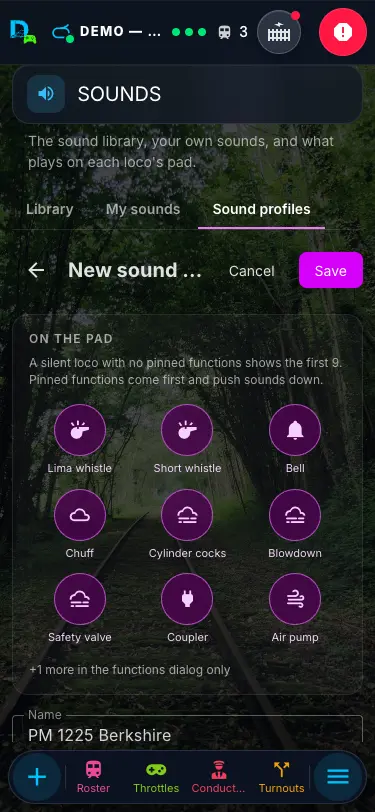
- On the pad -- a live preview of the keys a silent loco with no pinned functions would show: the first 9 sounds. Pinned functions come first and push sounds down, and anything past the ninth is reachable from the functions dialog.
Save stays off until the profile is complete. A message under the problem tells you what's missing, such as "Give the profile a name", "Add at least one sound", "Give this sound a label" or "Choose a sound".
Deleting a Profile
Delete always asks first and says how many locos use the profile. Those locos go back to their type's default: Steam for steam locos, Diesel for everything else.
[!NOTE] The public demo account can look at the profiles but can't create, duplicate, edit or delete them.
Picking a Profile for a Loco
Open a loco's All Functions dialog (All on its pad, or More functions on a phone) and use its System sounds panel:
- System sounds switch -- on by default for locos without onboard sound.
- Sound profile -- any system or layout profile.
- Duplicate for this loco -- copies the loco's current profile into a new layout profile named after the loco and assigns it. Edit the copy to tailor that one loco.
- Manage profiles -- jumps to the Sound profiles tab.
Loco Buttons, Hunts and Automations
- Loco sound pad -- a loco's system sound keys play on the layout, one group per cab, following each sound's mode (Hold, Once or Loop). See Sound Profiles.
- Hunts and automations -- when a hunt action or automation step plays a sound, the picker groups sounds by category and has a 🎧 preview. If a saved sound is no longer listed it shows 🔇 Unlisted sound; your choice is kept, not cleared.
Related Pages
- Throttle Control -- The function pad, system sound keys, and the functions dialog.
- Effects -- Pin-toggle effects and the WLED studio.
- Guests -- Guest mode, including guest sounds.
- Hunts -- Egg hunts, whose actions can play sounds.
- Automations -- Steps that play a sound.
- Devices -- the WLED Studio, another kind of layout ambiance.