
Devices are the boards DEJA talks to. Beside your EX-CommandStation, DEJA IO boards run the rest of the layout: lights, servos, signals, relays and sensors on an Arduino Mega, an ESP32 or a Raspberry Pi Pico W. WLED controllers drive LED strips.
There's no code to write. DEJA IO's firmware comes with DEJA: Throttle builds it from your own configuration and you deploy it from the board's page, from the browser or with one deja deploy. Only the layout owner adds devices, changes their settings and deploys firmware. Everyone in the layout can see them and connect them.
The Devices page
WhereMenu → Devices /devices
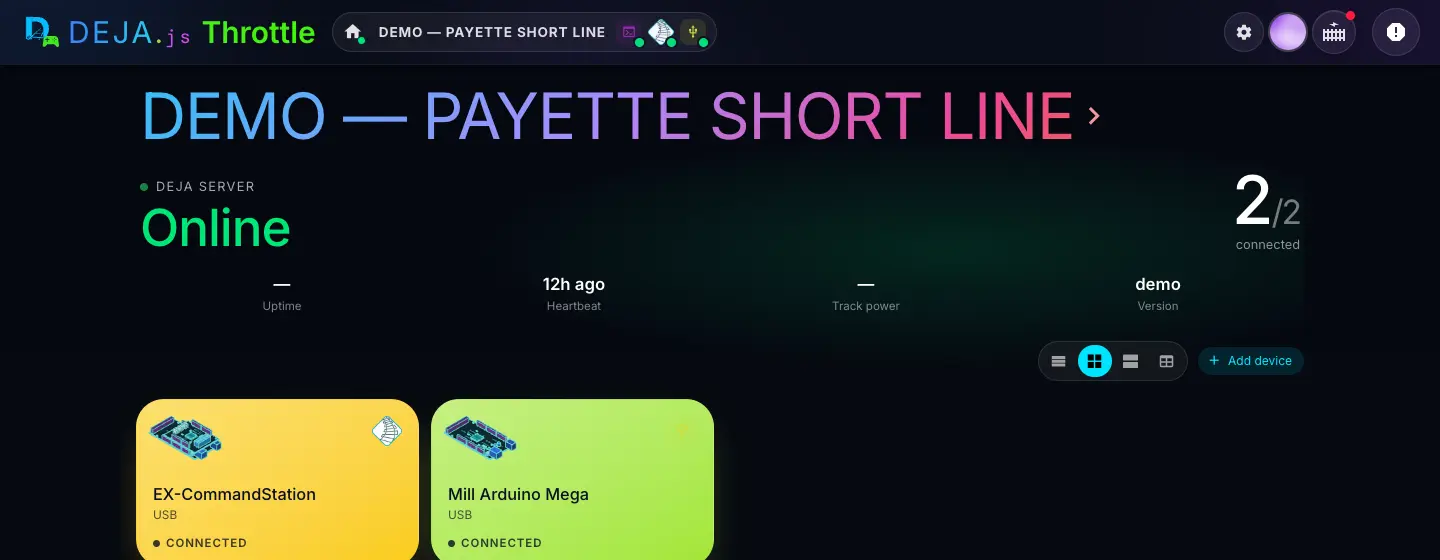
Server header
- Layout nameLink
- Your layout, big at the top. Tap it to go Home.
- DEJA SERVERStatus
- Online, Stalled (no heartbeat for a while), Offline or Checking….
- connectedCount
- How many of your devices are talking, out of how many, e.g. 2/2.
- Uptime · Heartbeat · Track power · VersionDisplay
- How long the server has run, when it last checked in, whether the rails are powered, and its version. When the server is offline these give way to a
deja startchip you can tap to copy.
Toolbar
- Device viewSegmented buttons
- How the devices are shown. Remembered on this device.Options: List · Compact · Comfy · TableDefault: Compact
- Add deviceButton (+)
- Opens Add Device. Owner only.
Each device tile
Your EX-CommandStation always comes first, then connected boards, then the rest. A connected tile lights up in its type's colour.
- Name and detailDisplay
- The board's name, then how it's connected:
USB · /dev/…,MQTT · topicorWiFi · host. Comfy view adds its type. - Connected · Linking · Waiting · OfflineStatus
- Connected: talking. Linking: a WiFi board the server is listening for, but no message yet. Waiting: the DEJA Server itself is offline. Offline: not connected. A heart shows when it was last heard from.
- ✓ AutoBadge
- The DEJA Server connects this device automatically when it starts.
Table view
- Device · Connection · Status · Activity · Last seenColumns
- Status is VERIFIED, LINKED, WAITING or OFFLINE, or FAULT when an online board reports a problem such as a dead servo bus (hover it for the reason). Activity is a sparkline of recent traffic.
- Connect →Button
- On an offline USB or WLED device: opens its page to connect it. WiFi boards say “connects automatically when online” instead.
Below the devices
- Print labelsButton
- Device plates for every board, in the Label Maker, in a new tab.
- Disconnect layoutButton
- Leaves this layout and shows My Layouts, where you can switch or make a new one. See the layout guide.
No devices yet? The page shows Add your first device instead of tiles.
Add Device
WhereDevices → Add device
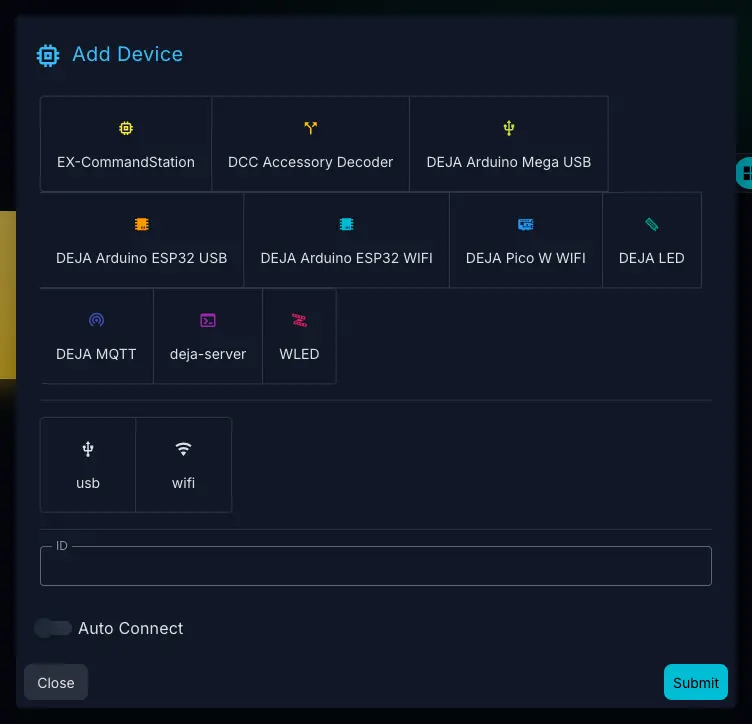
Device type
- Device typeTiles · pick one
- What the board is. Picking one fills in sensible defaults below. The type can't be changed after you save.Options: EX-CommandStation (see the EX-CommandStation guide) · DCC Accessory Decoder (a stationary decoder that listens to your EX-CommandStation) · DEJA Arduino Mega USB · DEJA Arduino ESP32 USB · DEJA Arduino ESP32 WIFI · DEJA Pico W WIFI (Raspberry Pi Pico W or Pico 2 W) · DEJA LED · DEJA MQTT (a board running your own MQTT firmware) · WLED (an LED controller running WLED)
Board and connection
For every type except DCC Accessory Decoder.
- BoardChips · pick one
- Only for types that come on more than one board. Picks the pinout drawing; you can change it later in the device settings.Options: ESP32: ESP32-DevKitC V4 (38-pin) · WEMOS D1 R32 (Uno form factor)
- usb · wifiTiles · pick one
- How the board reaches the DEJA Server. Set for you from the type.Default: wifi for ESP32 WIFI, Pico W, DEJA MQTT and WLED; usb for the rest
- TransportSegmented buttons
- WiFi ESP32 and Pico W only. MQTT goes through the server's MQTT broker; WebSocket boards dial the DEJA Server directly. Run
deja deployafter saving.Options: MQTT · WebSocketDefault: MQTT
DCC Accessory Decoder
These replace Board and connection when you pick DCC Accessory Decoder.
- Command stationSelect · required
- The EX-CommandStation this decoder listens to. Picked for you if you have one.
- DecoderSelect
- The make and model, which sets how many outputs it has and what they drive.Options: Generic accessory decoder · DEJA ESP32 Accessory Decoder · DEJA Arduino Accessory Decoder · Digitrax DS64 · Digitrax SE8C · NCE Switch-It · NCE Light-It · ESU SwitchPilot · TCS WS-4 · DCC Concepts CobaltDefault: Generic accessory decoder
- Base address (output 1)Address field
- The DCC accessory address of its first output. DEJA decoders must start on a board boundary: 1, 5, 9, 13 and so on.Default: 1
- Address offsetSegmented buttons
- Third-party decoders only. Using Lenz, Roco or Z21 numbering? Your decoder may answer 4 addresses off; nudge it here instead of renumbering.Options: −4 · 0 · +4
- OutputsNumber field
- How many outputs it has, 1 to 64.
- Signal LEDs · Output pinsFields
- DEJA decoders only: GPIO or WS2812 signal LEDs, and a Pin and Frog pin per output. Leave pins blank for the board's defaults.
Identity
- IDText field · required
- A short ID that's also its name, e.g.
mill-mega. You'll type it indeja deploy, so keep it simple. It can't be changed later. - Host IP AddressText field · required
- WLED only: the controller's IP address on your network, e.g.
192.168.86.35. - LED CountNumber field
- WLED only: the total number of LEDs on the strip, e.g. 60.
- Auto ConnectSwitch
- Have the DEJA Server connect this board every time it starts.Default: Off
- Close · SubmitButtons
- Submit adds the device. A new WLED strip also gets a starter look, Warm white.
After adding a device, restart your server with deja restart. The server reads the device list when it starts, and the toast reminds you.
Give every board its own ID that isn't already on the layout. To change a board's ID, type or connection later, delete it and add it again.
The device page
WhereDevices → a device /devices/<id>
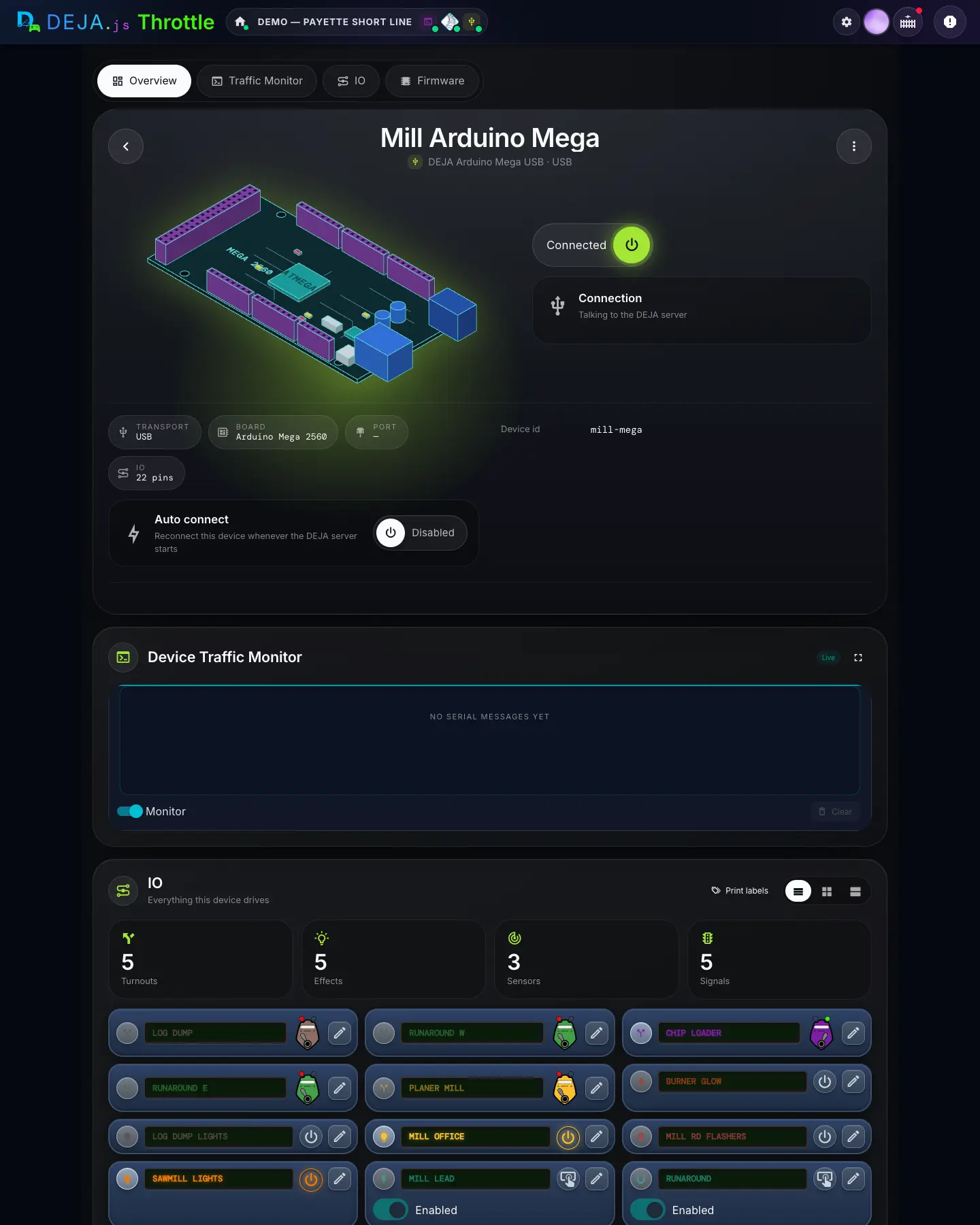
Section pills
- Overview · Traffic Monitor · IO · FirmwarePills
- Jump to each section. Which ones appear depends on the board: WLED has no Traffic Monitor, and Firmware is only there for the owner.
Overview
- BackRound button
- Back to Devices.
- More device actionsMenu (⋮)
- Copy device id for everyone. For the owner, Deploy firmware, Settings and Delete device.
- Connected · DisconnectedPower pill
- Its connection. For a WiFi board, turning it on connects straight away. For a USB board or WLED it takes you to the Connection row to pick a port or enter a host.
- ConnectionRow
- “Talking to the DEJA Server” when connected; “Subscribed, waiting for its first message” for a WiFi board that hasn't spoken yet; “Not connected”; or “The DEJA Server is offline”.
- Serial port · Refresh ports · ConnectUSB boards
- Shown while a USB board isn't connected. Pick its port from the server's list (Refresh ports looks again), then Connect.
- WLED host / IP · ConnectWLED
- Shown while a WLED device isn't connected. The host is saved on the device.
- Subscribe manuallyWiFi boards
- “This device connects automatically when it comes online.” The button asks the server to listen for it now.
Stat chips and details
- TransportChip
- USB, MQTT, WebSocket, or WiFi for WLED.
- BoardChip
- The board it's drawn as, e.g. Arduino Mega 2560.
- PortChip
- Its USB port or WiFi host, marked Current or Last known.
- IOChip
- How many of its pins are in use, e.g. 22 pins.
- Auto connectPower pill
- Reconnect this device whenever the DEJA Server starts. Owner only.Options: Enabled · Disabled
- Topic · Last seen · Deployed · Signal · Device uptime · Servo driver · Device idDisplay
- Rows that show when there's something to say. Deployed is the firmware version, when, and whether from this browser or with
deja deploy. WiFi boards report Signal (e.g. −58 dBm · good) and Device uptime; a board with servos reports its Servo driver. - BoardSelect
- ESP32 boards only: picks the pinout drawing under IO. Deploy and firmware are unaffected. Owner only.
Device Traffic Monitor
USB and WiFi DEJA IO boards. It's the “Serial log” on a USB board and “MQTT traffic” on WiFi.
- LiveStatus chip
- Live, Connecting to server…, Paused, or Relay off when the server has DEJA Cloud turned off.
- Full screenButton
- Fills the window with the log. Esc returns.
- LogDisplay
- Newest first: ↓ from the board, ↑ to the board, with times. Keeps the last 100. Empty: “No serial messages yet”.
- MonitorSwitch
- Pauses and resumes the feed.Default: On
- ClearButton
- Empties the log on this screen.
IO
Everything this device drives.
- Print labelsButton
- Labels for this board's wiring, in a new tab.
- List · Compact · ComfySegmented buttons
- Card density. Remembered on this device.Default: List
- Turnouts · Effects · Sensors · SignalsCount tiles
- Tap one to show only those; tap again to show everything.
- Item cardsCards
- Live, just like on their own pages: throw turnouts, switch effects, set signal aspects. The owner can tap the pencil to edit. You choose a board in each item's own editor.
Delete this device
At the bottom of the page. Owner only.
- DeleteButton → confirm
- Asks Delete “name”? with Cancel and Delete, then returns you to Devices. Blocked while anything uses the board: the strip says what, e.g. “In use by 2 turnouts, 1 effect — reassign or delete those first”. This can't be undone.
Want every board's traffic side by side? Menu → Console gives each device its own pane.
“Device not found” means that ID isn't on the layout you're on. Back to Devices takes you to the list.
Pinout
WhereDevice page → IO → Pinout /devices/<id>#hookups
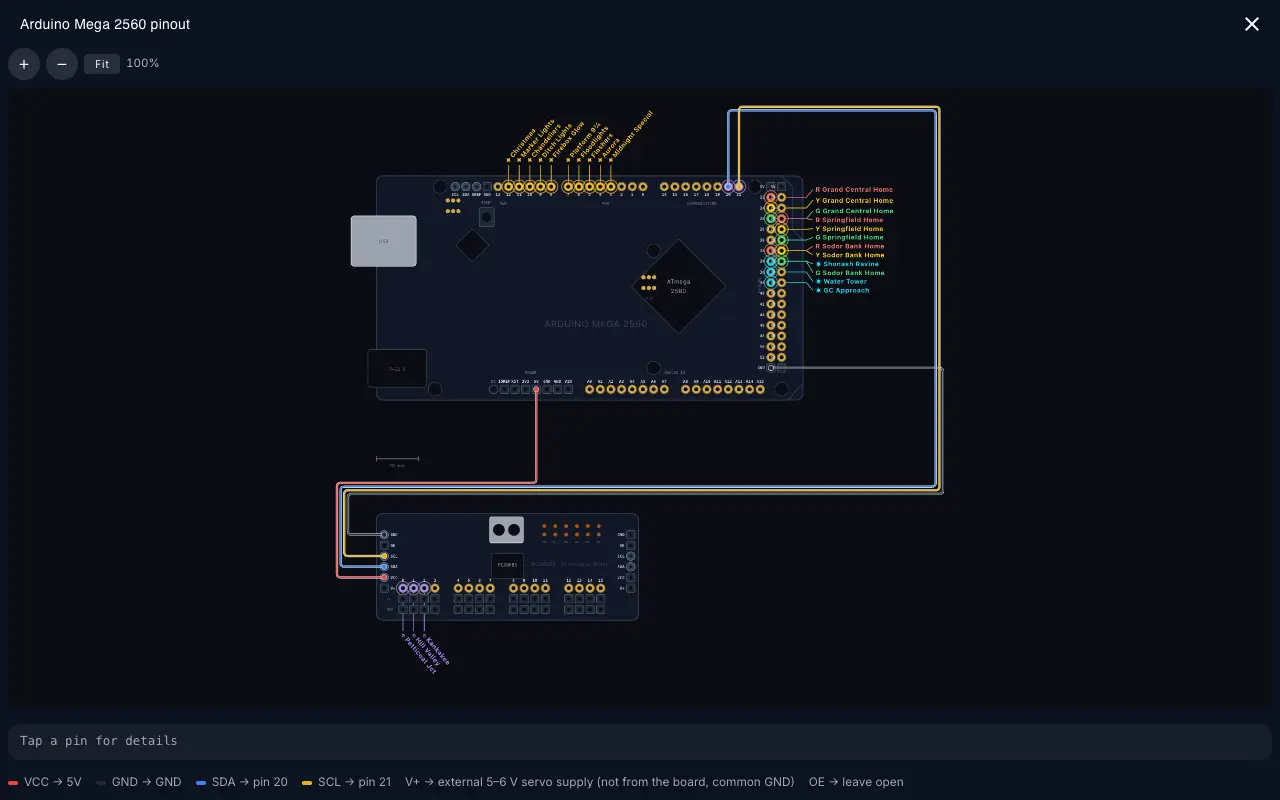
- pins · servosChips
- How many pins and servo channels are in use.
- Board · Sheet · ListSegmented buttons
- The drawing, the maker's pinout sheet (ESP32-DevKitC and Pico W only), or a plain list. List also shows the PCA9685 servo channels.
- Pin conflicts detectedAlert
- Two things share a pin, e.g. “Pin 22 is assigned to A + B”. Move one in its editor.
- ExpandButton
- Full screen, with +, -, Fit and Close. Pan and zoom freely.
- Tap a pin for detailsStrip
- Tap any pin to see what it's for.
- PCA9685 wiringDrawing + legend
- When servos are in play: the servo board and its wires. VCC to 5V, GND to GND, SDA and SCL to the board's I²C pins, and V+ to a separate 5–6 V servo supply (not from the board, common ground).
- LegendDisplay
- What each colour means: roles, free, input-only, reserved and power pins, plus a link to the maker's documentation.
Firmware
WhereDevice page → Firmware /devices/<id>#firmware
Install method
Covers the DEJA Arduino Mega USB, ESP32 USB, ESP32 WIFI and Pico W WIFI. Everything here reaches the board only when you deploy.
- TALKS TO THE SERVER OVERSegmented buttons
- WiFi boards only. Saves straight away; deploy again to apply it.Options: MQTT · WebSocket
- BrowserTab
- Install from this browser over USB, with Board Stage (below). For the DEJA Arduino ESP32 WIFI and the Mega 2560, in a browser that supports Web Serial, such as Chrome or Edge on a computer. Picked for you when it's available.
- CLITab
- Plug the board in over USB to the computer that runs the DEJA Server (a WiFi board only needs it for flashing), then Run this on that computer:
deja deploy <id>, with a copy button and Deployment docs. - TerminalTab
- Do it by hand. Get the generated files (config.h for Arduino and ESP32, settings.toml and config.json for the Pico W) with Preview, Copy contents and Download, then Flash the board with the arduino-cli line shown, or copy the Pico W files onto its CIRCUITPY drive.
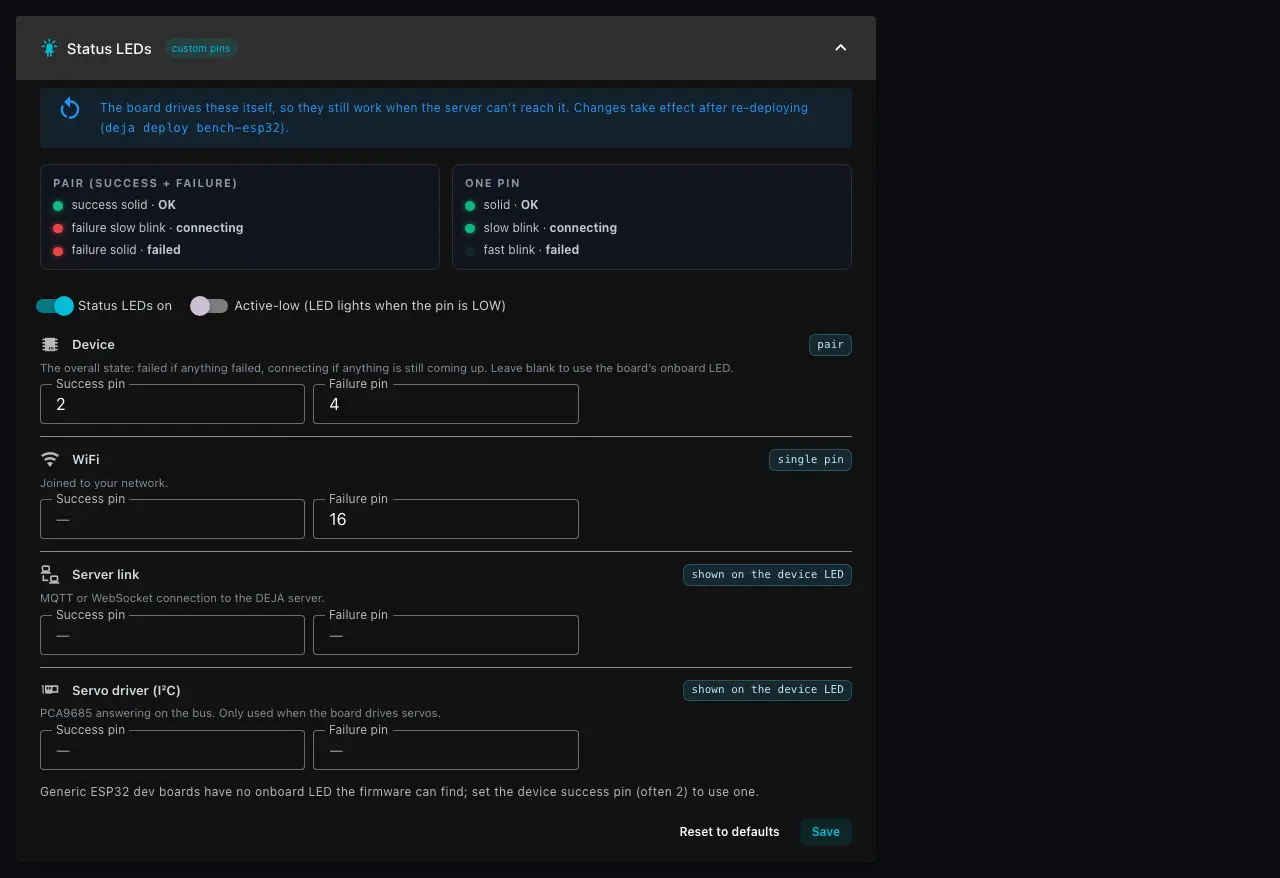
Status LEDs
Arduino, ESP32 and Pico W boards. The board drives these itself, so they still work when the server can't reach it.
- Pair (success + failure) · One pinLegend
- With a pair: success solid is OK, success slow blink is connecting, failure solid is failed. With one pin: solid is OK, slow blink is connecting, fast blink is failed.
- Status LEDs onSwitch
- Turns them all on or off.Default: On
- Active-low (LED lights when the pin is LOW)Switch
- For LEDs wired to light when the pin goes low.Default: Off
- Success pin · Failure pinNumber fields
- A GPIO number for each, e.g. 2, per row: Device (the overall state; blank uses the onboard LED), then USB serial or WiFi and Server link, and Servo driver (I²C). Leave one blank to show it on the device LED. A pin already used by something else is flagged.
- Reset to defaults · SaveButtons
- Save, then deploy again to apply.
Advanced Configuration
Arduino and ESP32 boards. Blank fields fall back to the built-in defaults, so leave these alone unless you need them.
- Baud rateNumber field
- Serial speed. Must match the DEJA Server.Default: 115200
- SERVOMIN · SERVOMAX · MIN_PULSE_WIDTH · MAX_PULSE_WIDTH · USMIN · USMAXNumber fields
- Servo pulse limits for the PCA9685 servo board, as counts and microseconds.Default: 150 · 600 · 650 · 2350 · 600 · 2400
- SERVO_FREQ · SERVO_COUNT · PWM oscillator freqNumber fields
- PWM frequency (50 Hz for analog servos), channels on the board, and its oscillator trim.Default: 50 · 16 · 27000000
- PCA9685 addressText field
- Its I²C address. Change it for a second servo board or soldered address jumpers.Default: 0x40
- Custom SDA pin · Custom SCL pinNumber fields
- ESP32 and RP2040 only; the Mega ignores them. Set both or neither.
- Sensor debounce (ms)Number field
- Ignore sensor changes faster than this, to filter contact bounce.Default: 500
- Reset to defaults · Save configurationButtons
- Save, then deploy again to apply.
LED strips run WLED, not DEJA firmware. For a DEJA LED or WLED device the Firmware section has no install tabs: put WLED on the board with the WLED web installer, then add or connect it in DEJA as a WLED device — its studio (looks and signal zones) lives on the device page.
Added or moved a turnout, effect, signal or sensor on this board? Deploy again. There's still no code to write: Throttle rebuilds the configuration for you.
Board Stage
WhereDevice page → Firmware → Browser /devices/<id>#firmware
1 Plug it in
- Connect boardButton
- Plug the board into this computer by USB, then pick its port in the browser's chooser.
2 Review
The board lights up its assigned pins: outputs amber, sensors cyan, I²C and servos magenta.
- Network · PasswordText fields
- ESP32 only, under WiFi: your network and its password. Sent over USB and never stored. The network name is remembered in this browser; the password never is.
- Address · PortText fields
- ESP32 only, under DEJA Server: where the board finds your server. Filled in from your online server.Default: Port 1883 for MQTT, 8082 for WebSocket
- Install firmwareButton
- Starts the install. On an ESP32 it waits for Network and Address.
3 Install
- ProgressDisplay
- Downloading firmware, Bootloader, Writing firmware, then sending your config (ESP32) or checking the write (Mega), and Restarting. Don't unplug the board until it says Online.
4 Online
- DoneButton
- Once the board boots, joins WiFi, reaches the server and checks in, you'll see “… is online and ready to run”. The device page then shows it was deployed from this browser.
Something went wrong? The error card says what and how to fix it, with a retry and Start over. “Couldn't reach the bootloader” on an ESP32 means: hold BOOT, tap EN, then let go of BOOT. A wrong WiFi password can be sent again without reflashing.
No DEJA Server online? The latest release is installed, and your server must run the same version.
WLED devices
WhereDevices → a WLED device /devices/<id>
Studio
- Strip power · BrightnessPower pill · Fader
- Power and overall brightness; the readout shows the LED count and whether the strip is online.
- LooksChips
- A look is a saved animation for the whole strip. Tap one to put it on the strip. Every strip starts with Warm white and Signals only (dark, so only the zones show). Once you edit, the bar says Edited · unsaved and shows Save; Save as… keeps the edits as a new look, and the bar's ⋮ renames or deletes. Leave without saving and the strip goes back to the saved look.
- Strip mapCanvas
- An LED ruler, a live ribbon — one dot per LED — and the bands: look bands underneath, signal zones on top. Tap a band to select it, drag its handles (arrow keys work too), double-tap an empty stretch to add a band there.
- Add bandButton → menu
- Colour or animation band, or Signal zone — a name, first LED, length, and the head style: Searchlight or Lamps (3 LEDs). A zone is a real DEJA signal, so sensors, routes and automations drive it like any other.
- InspectorTabs
- For a look band, Colour (railroad swatches, a warmth fader, your colour picker, band brightness) and Animate (the railroad picks first, search over the rest, each effect's own sliders and palettes). For a zone: Stop, Approach, Clear, Off, flashing, head style, range, Open in Signals, and the strip's shared Lamp colours.
- Pull look from strip⋮ menu
- Reads whatever the strip is showing right now — handy after using WLED's own app. Then Use pulled look loads it into the draft, and Save or Save as… keeps it.
- WLED settings⋮ menu
- Opens the strip's own LED hardware page — count, pins, colour order. DEJA never changes it.
WLED strip
Owner settings at the bottom of the hero card (Settings in its ⋮ menu).
- Host IP addressText field
- The controller's address on your network.
- LED countNumber field
- How many LEDs are on the strip.
- SaveButton
- Saves both.
WLED's link to the server carries no relayed traffic, so its page has no live log. The same studio, in its compact form, runs on the WLED tab of Effects.