
Sound effects and ambience for your layout: horns, bells, crickets, rain, station announcements, and your own recordings. Tap a sound and it plays through the speakers of the computer running your DEJA Server, so the server has to be running on a machine with speakers.
Everyone shares one library: System sounds that come with DEJA, Community sounds other people shared, and your own (Mine). Your uploads stay private until you share them. A sound is either a one-shot that plays once or a loop that repeats until you stop it.
The sound library
WhereSounds → Library /sounds
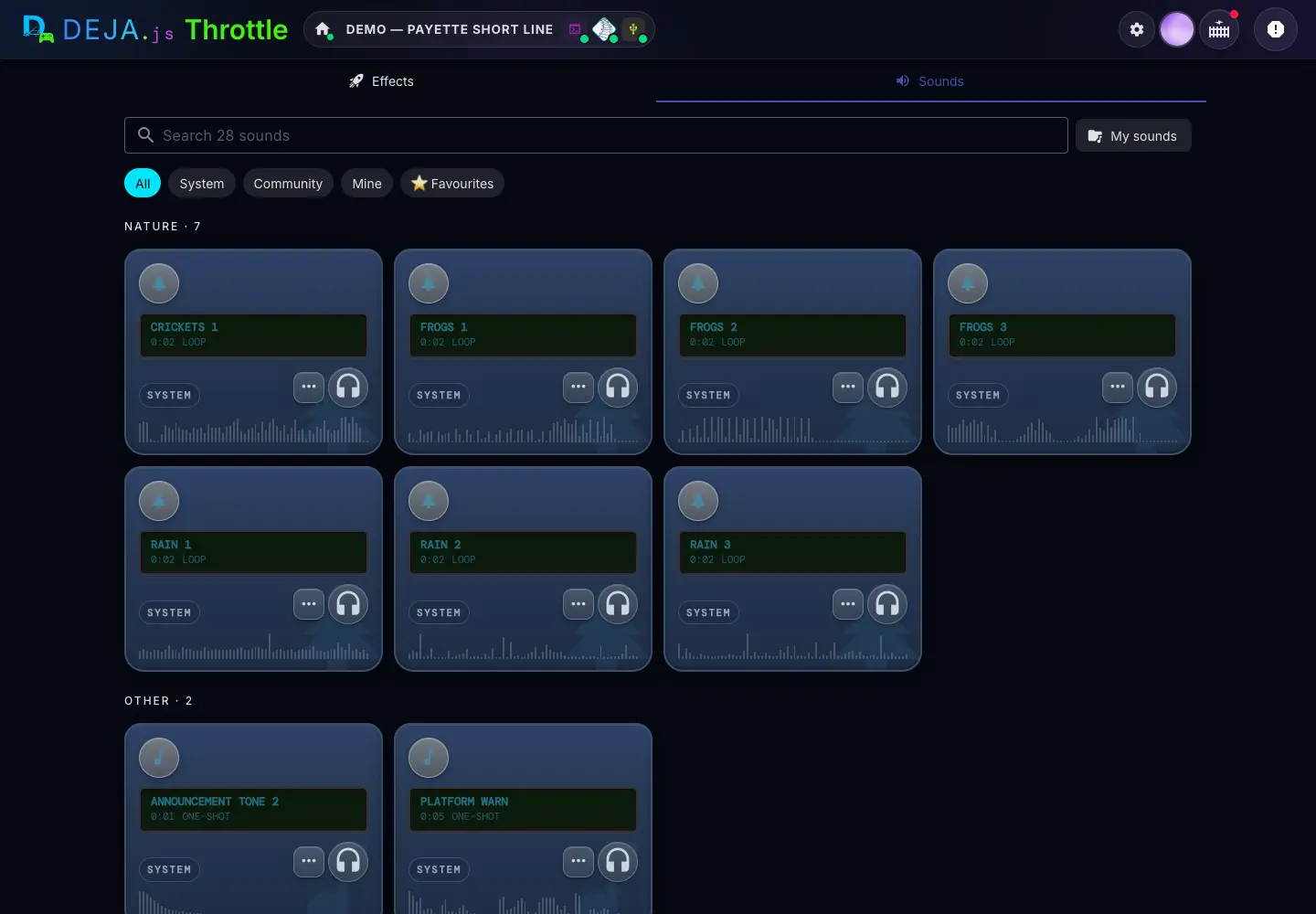
Toolbar
- Search soundsText field
- Reads “Search 28 sounds” with your library's size. Matches names and categories.
- All · System · Community · Mine · FavouritesChips · pick one
- Narrow the library by where sounds come from, or to the ones you've starred.Default: All
- Recently playedChips
- Your last 8 sounds. Tap one to play it again on the layout. Only shown once you've played some.
Each sound card
Cards sit under category headings like Nature · 7, A to Z: train, station, announcements, city, nature, ambient and other.
- Name, length and kindDisplay
- E.g. “0:02 loop”. While it plays, the time counts up.
- System · Community · MineChip
- Where it came from. Your own unshared sounds also show Private, Pending review or Not approved, and a Guest chip means guests can play it.
- PreviewHeadphones button
- Plays it in this browser only, not on the layout. Hidden on narrow screens, where it's in the ⋯ menu instead.
- More optionsMenu (⋯)
- Add to favourites, Audition, and for the layout owner Open to guests. Your own sounds add Manage in My sounds. Long-press or right-click a card to open it too.
- PlayRound button
- Plays it on the layout. It shows Sending… until the server starts it, then lights up with a progress bar. Tap it again to stop that sound.
- WaveformDisplay
- The sound's shape, filling as it plays. Loops pulse.
NOW PLAYING
A bar along the bottom while anything is playing on the layout, whoever started it.
- Playing soundsChips
- Each sound playing, with its time (∞ for a loop). The ✕ stops just that one.
- Stop allButton
- Stops every sound on the layout, including ones started from other devices and automations.
“Still loading on the layout — give it a moment, then try again” means the server is downloading the sound for the first time. “Layout server didn't respond” means your DEJA Server isn't running.
The screenshot is the demo account, where there's no real layout: the round button previews in your browser instead. On your own layout it's a play button.
My sounds
WhereSounds → My sounds /sounds/mine
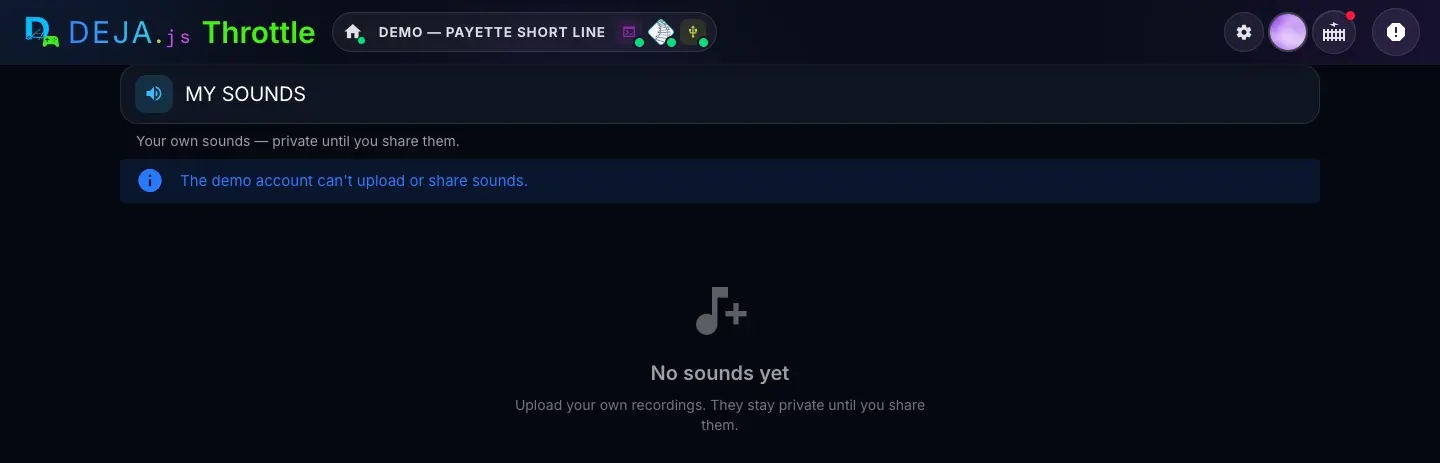
- UploadButton
- Opens Upload a sound. With no sounds yet, the empty state has Upload a sound too. The demo account can't upload or share, as the screenshot shows.
Each sound
- PreviewHeadphones button
- Plays it in this browser.
- Name and kindDisplay
- E.g. “Loop · 0:42”, with its waveform on wider screens.
- Private · Pending review · Shared · Not approvedStatus chip
- Private: only you see it. Pending review: sent for review. Shared: approved and in everyone's library. Not approved: the reviewer's note shows underneath.
- ActionsMenu (⋮)
- Rename…, Category…, Make loop or Make one-shot, and Delete…, always. Plus, by status: Share… (Private or Not approved), Cancel request (Pending review), Un-share (Shared) and Keep private (Not approved).
Rename sound · Change category
- NameText field
- Up to 60 characters.
- CategorySelect
- Which heading it sits under in the library.Options: train · station · announcements · city · nature · ambient · other
- Cancel · SaveButtons
- Save keeps the change.
Share this sound
- I made this recording or have the right to share it…Checkbox
- Confirms it's yours to share and contains no copyrighted material. Shared sounds are reviewed before other users can see them.
- Send for reviewButton
- Sends it to the DEJA team. It shows Pending review until they answer.
Delete sound
- DeleteButton
- Removes it. This can't be undone. If it was ever shared, people already using it keep it.
Renaming or recategorising a shared sound sends it back for review. Switching it between loop and one-shot doesn't.
Upload a sound
WhereSounds → My sounds → Upload /sounds/mine
- Audio fileFile picker
- Drop an MP3, WAV, OGG, M4A, FLAC or AAC file here, or tap to choose one. Up to 25 MB.
- PreviewHeadphones button
- Once the file is checked: play it here, see its waveform and its length.
- NameText field · required
- Filled in from the file name. Up to 60 characters.
- CategorySelect
- Which heading it sits under in the library.Options: train · station · announcements · city · nature · ambient · otherDefault: other
- One-shot · LoopSegmented buttons
- Loops repeat until stopped. Anything longer than 20 seconds is suggested as a loop.Default: One-shot
- Share with everyoneSwitch
- Shared sounds are reviewed before other users see them. Turning it on shows the same checkbox as Share this sound, which you must tick.Default: Off
- Cancel · UploadButtons
- Upload reads Upload & request review when you're sharing. It waits for the file to be checked and a name. The new sound just appears in your list.
“Unsupported file type”, “That file is empty” and “That file is too big — the limit is 25 MB” mean just what they say. A file name with no letters or numbers needs renaming before it'll upload.
Guest sounds
WhereGuests → Effects /guests/effects
Guest sounds
- Guests can playSwitch per sound
- One row for every sound in your library, your private ones included. Guests tap to play on the layout, one play at a time per sound.
- Unlisted soundRow
- A sound you opened that has since left your library. Guests can still play it until you switch it off.
Guest stops
- Sounds guests can play at this stopChips · multi-select
- In a stop's editor under Guests → Explore: which of your open sounds play at that stop. Only shown once you've opened at least one sound to guests.
On a visitor's phone each sound is a button: Tap to play, then Playing… tap to stop. Guest plays are always one-shots, a loop plays once, and each guest waits a few seconds between plays.
Sound profiles
WhereSounds → Sound profiles /sounds/profiles
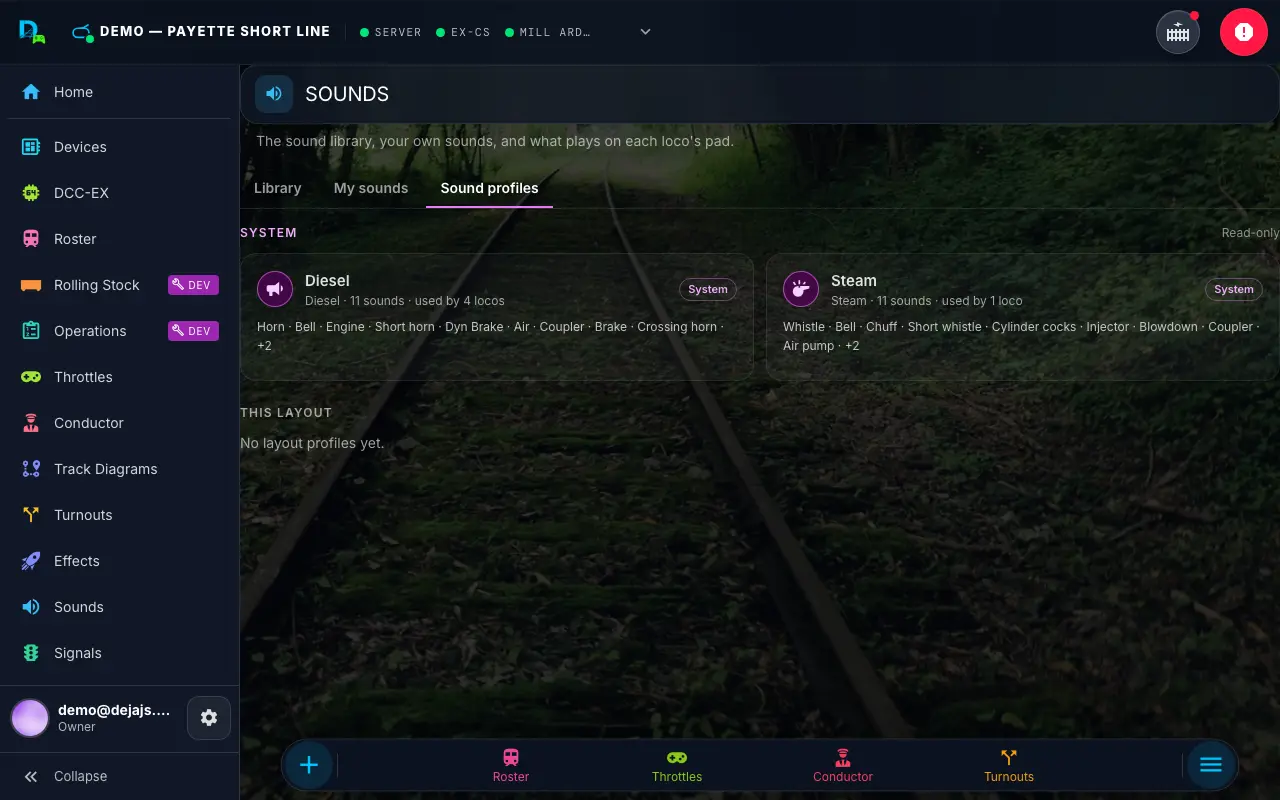
System
DEJA's own profiles. Read-only.
- Profile cardDisplay
- Its name and loco type, how many sounds it has, how many of your locos use it, and its sounds in pad order.
- DuplicateButton
- Copies it into your layout as “Steam copy” or “Diesel copy” and opens the copy to edit.
This layout
Profiles your layout's members made.
- New profileButton
- Opens an empty profile in the editor.
- EditButton
- Opens the profile in the editor.
- DuplicateButton
- Makes a copy and opens it.
- DeleteIcon button
- Asks first and says how many locos use it. Those locos go back to their type's default, Steam or Diesel.
The demo account can look at profiles but can't make, copy, change or delete them, so the screenshot shows no buttons.
Editing a sound profile
WhereSounds → Sound profiles → New profile or Edit /sounds/profiles/new
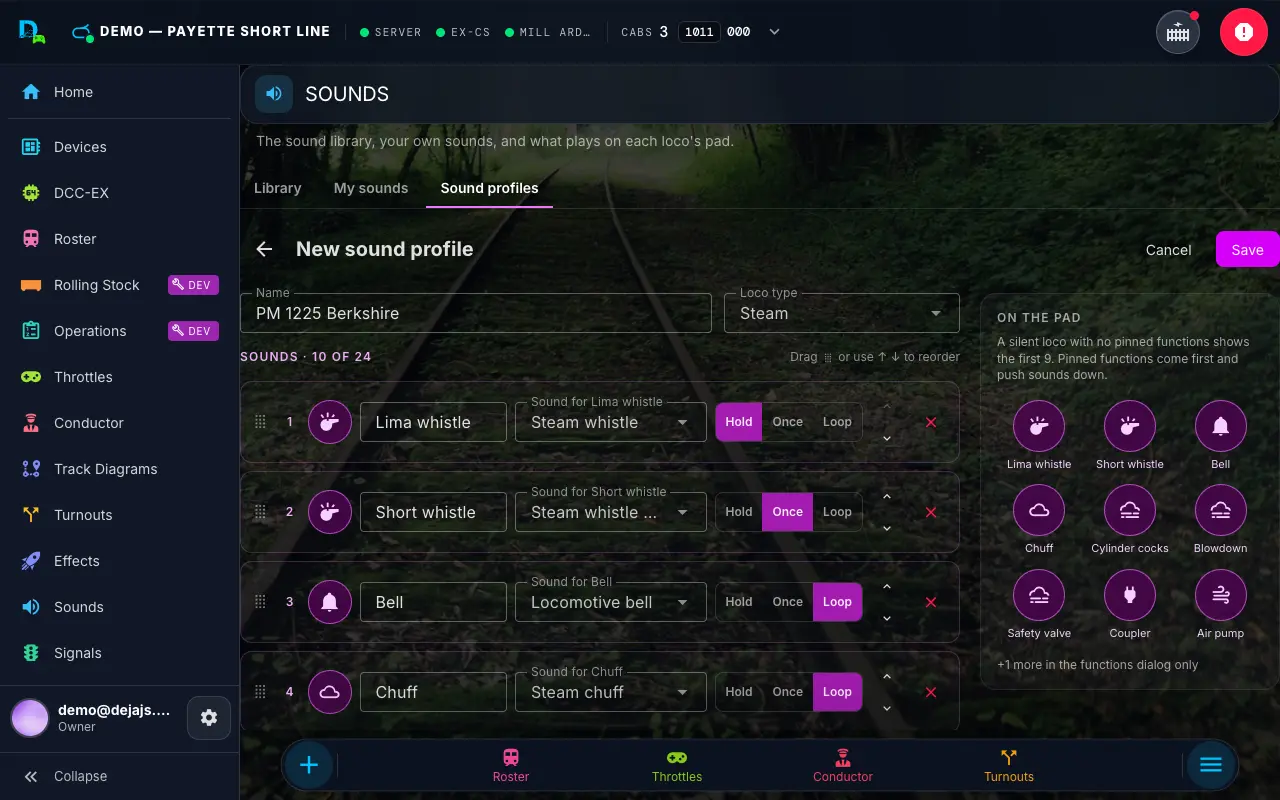
- NameText field · required
- Up to 60 characters.
- Loco typeSelect
- Profiles of a loco's type are listed first when you pick one for it.Options: Any type · Steam · Diesel · Electric · OtherDefault: Any type
Sounds
1 to 24 sounds. The first ones fill the pad.
- Drag handle · ↑ ↓Buttons
- Reorder the sounds.
- IconButton → icon picker
- The icon on the pad key.
- LabelText field
- The key's name, up to 24 characters.
- Sound for …Sound picker
- Any sound you can see in the library, with a preview.
- Hold · Once · LoopSegmented buttons
- Hold plays while the key is held (a whistle). Once plays to the end (a coupler). Loop toggles on and off (a bell or a chuff).
- RemoveIcon button
- Takes the sound out of the profile.
- Add a soundButton
- Adds a row at the end.
On the pad
- PreviewDisplay
- The keys a silent loco with no pinned functions would show: the first 9. Pinned functions come first and push sounds down. The rest are in the loco's All functions list.
- Cancel · SaveButtons
- Save stays off until the profile is complete, with a note on what's missing, e.g. “Give the profile a name” or “Choose a sound”.
A loco’s system sounds
WhereA cab → All (More functions on a phone) → System sounds
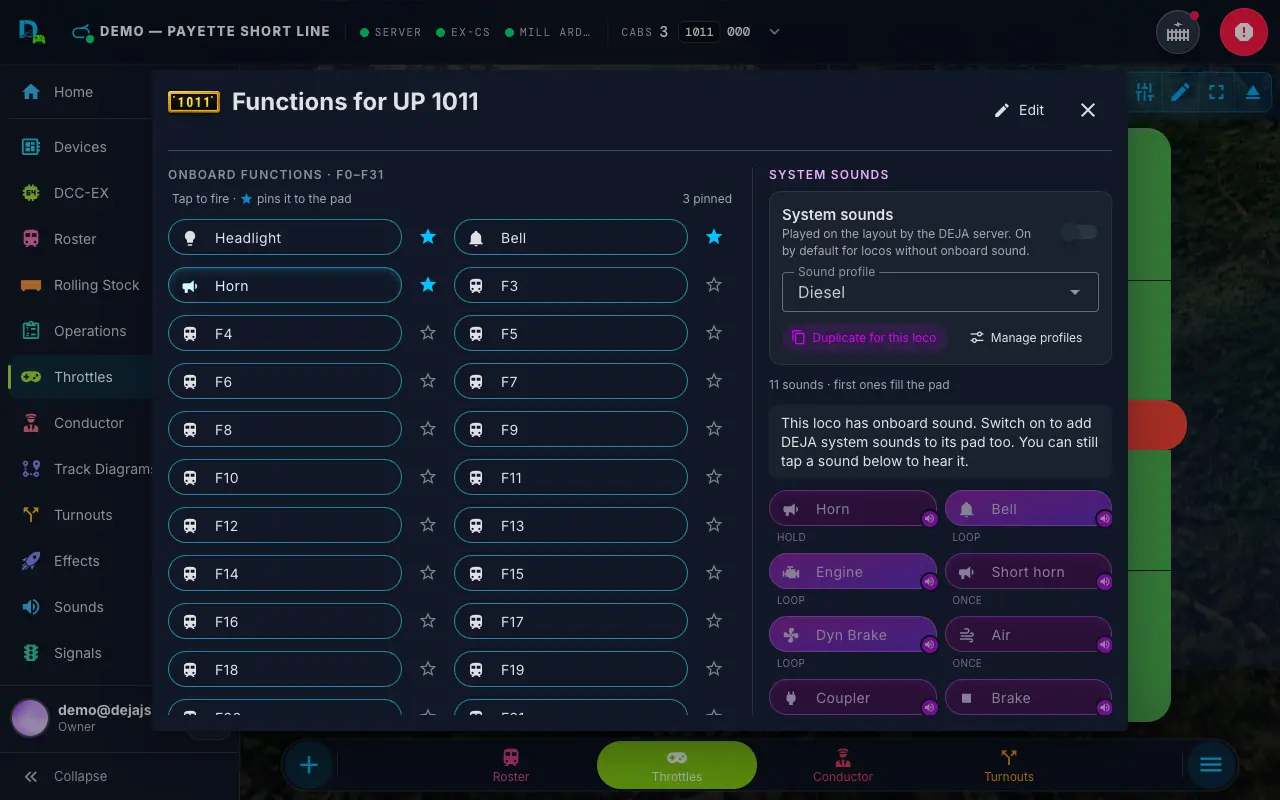
System sounds
- System soundsSwitch
- Adds the profile's sounds to this loco's pad.Default: On for locos without onboard sound
- Sound profileSelect
- Any system or layout profile.Default: Steam for steam locos, Diesel for the rest
- Duplicate for this locoButton
- Copies the current profile into a new layout profile named after the loco, and picks it.
- Manage profilesButton
- Opens Sounds → Sound profiles.
- SoundsButtons
- Every sound in the profile, playable here. Dimmed with a note while the switch is off.
The ☆ beside each onboard function pins it to the pad. Pinned functions come before system sounds.
Picking a sound elsewhere
WhereAutomations, Hunts
Automations
- SoundStep block
- The Play a sound step: pick one in Pick a sound. It plays on the layout when the automation runs. See the Automations guide.
Hunts
- Sound on the layoutSound picker
- In When found and the Finale, once you've chosen a layout action: a sound for the layout's speakers.
- Found it! sound · Finale soundSelect + preview
- Sounds that play on the finder's phone, not the layout. Only shared (System and Community) sounds can be picked, because they go out to every player. Leave blank for the built-in sound.
A sound that later leaves the library stays picked as Unlisted sound. Nothing is cleared behind your back.
The sound keys on a loco's throttle come from its sound profile, so change them on the Sound profiles tab. Sounds aren't effects, so there's no sound field in the effect editor.