
A track diagram is a drawing of your track plan that comes alive. Turnouts and signals show their real state, and you tap them to throw them. Tap one station, then another, and DEJA lines the whole path for you.
You build it from your real turnouts: drag them from a palette onto the canvas, join them with track, then add stations, waypoints and labels. Signals hang on turnout legs. Routes aren't drawn on the diagram; it finds them by their two ends. Sensors don't appear on diagrams. Only the layout owner draws and edits diagrams. Everyone in the layout can view and operate them.
The Track Diagrams page
WhereMenu → Track Diagrams /track-diagrams
Three ways it can look
- One diagramState
- It opens straight away in the live viewer.
- Several diagramsState
- A card for each: its name, a count like “42 nodes • 38 track segments” and a still preview. Tap one to open it. Once one is open, switch with the name buttons in the header.
- No Track Diagrams YetState
- None drawn yet. The owner gets an Add Track Diagram button; members are asked to have the owner draw one.
Header
- Diagram namesButtons
- With two or more diagrams, one button each to switch between them.
- EditButton
- Opens the open diagram in the editor. Also on each card. Owner only.
- Add track diagramButton (+)
- Opens New Track Diagram. Owner only.
The live diagram
WhereTrack Diagrams, with a diagram open /track-diagrams
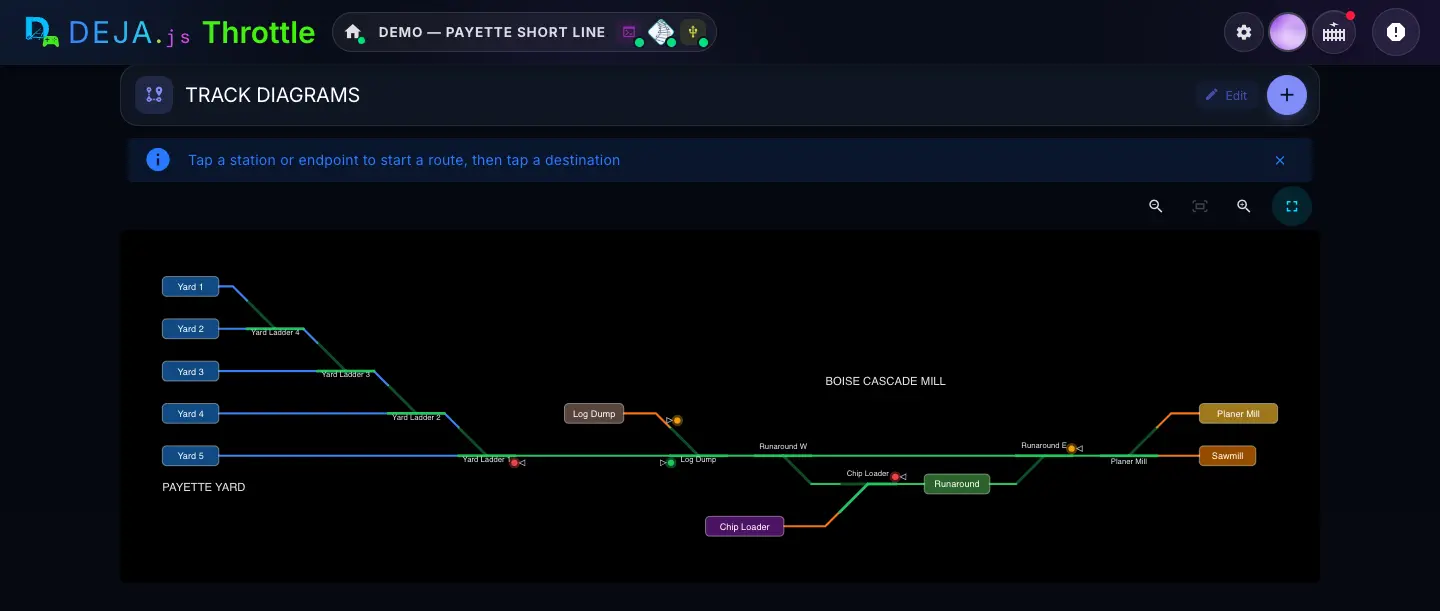
Above the diagram
- Tap a station or endpoint to start a routeHint
- Shown the first time on diagrams that have stations. Close it with ✕; it stays closed in this browser.
- Zoom out · Fit to screen · Zoom inIcon buttons
- Fit to screen shows the whole plan. You can also pinch, use Ctrl or ⌘ with the scroll wheel, and drag to pan. Double-tap flips between fit and 2× zoom.
- Enter full screenButton
- Fills the screen with the diagram. See Full screen, below.
What you can tap
- TurnoutTap
- Throws it. A crossover throws all its turnouts together. It pulses until the turnout confirms; after ten seconds with no answer you'll see “No confirmation from … — check connection”. A turnout that isn't linked to a real one does nothing.
- Signal headTap
- Steps it red → yellow → green → red. A head that isn't linked to a real signal does nothing.
- Station or waypointTap
- The start or end of a route. See Lining a route, below.
- Text labelsDisplay
- Just words on the plan.
Lining a route
Tap where the train is, then where it's going. DEJA throws every turnout on the way, two seconds apart, then sets the signals along it.
- OriginChip
- The first station you tapped. Its ✕ clears the whole selection. Nothing more within 30 seconds and it times out.
- Select destination…Prompt
- Tap the destination. It waits two seconds before lining, so you can tap more stations on the way to add them as via points (each has its own ✕).
- Lining route…Timeline card
- While it lines, one row per turnout: it pulses while being thrown and turns green once confirmed.
- Origin → DestinationChip
- The lined route. Its ✕ releases it and sets the signals it cleared back to red. Throwing one of its turnouts by hand releases it too.
- Save routeButton → dialog
- Saves the lined path as a Route. Only shown when it isn't one already. Saving routes is owner-only.
Tapped two stations a saved route was made between? It uses that route's turnouts, in its order. Otherwise it works the path out from the track you drew. If it can't find one, it says “No route between … and …”.
Turnouts on the path that aren't linked to a real turnout can't be thrown for you. It tells you how many need switching by hand.
Full screen
WhereThe live diagram → Enter full screen
- Diagram nameDisplay
- At the top left.
- Diagram namesButtons
- With two or more diagrams, switch between them without leaving full screen.
- EditButton
- Opens the editor. Owner only.
- Close full screenButton (✕)
- Back to the page.
Save route
WhereThe live diagram → Save route
- Route nameText field
- Filled in as “Origin → Destination”. Give each route its own name.
- Cancel · SaveButtons
- Save stores the route with its two stations as Point 1 and Point 2 and the turnouts it just threw. You'll see “Route … saved”.
Fine-tune a saved route on the Routes page: reorder its turnouts or change a position. Leave Point 1 and Point 2 as they are, or the diagram won't recognise it.
New Track Diagram
WhereTrack Diagrams → + /track-diagrams/new
Identity
- Diagram NameText field · required
- e.g. “Main Yard”. Give every diagram its own name.
- Cancel · Create & EditButtons
- Create & Edit makes an empty diagram and opens it in the editor.
Add your turnouts first: the diagram is built from them. See the Turnouts guide.
The editor
WhereTrack Diagrams → Edit /track-diagrams/<id>/edit
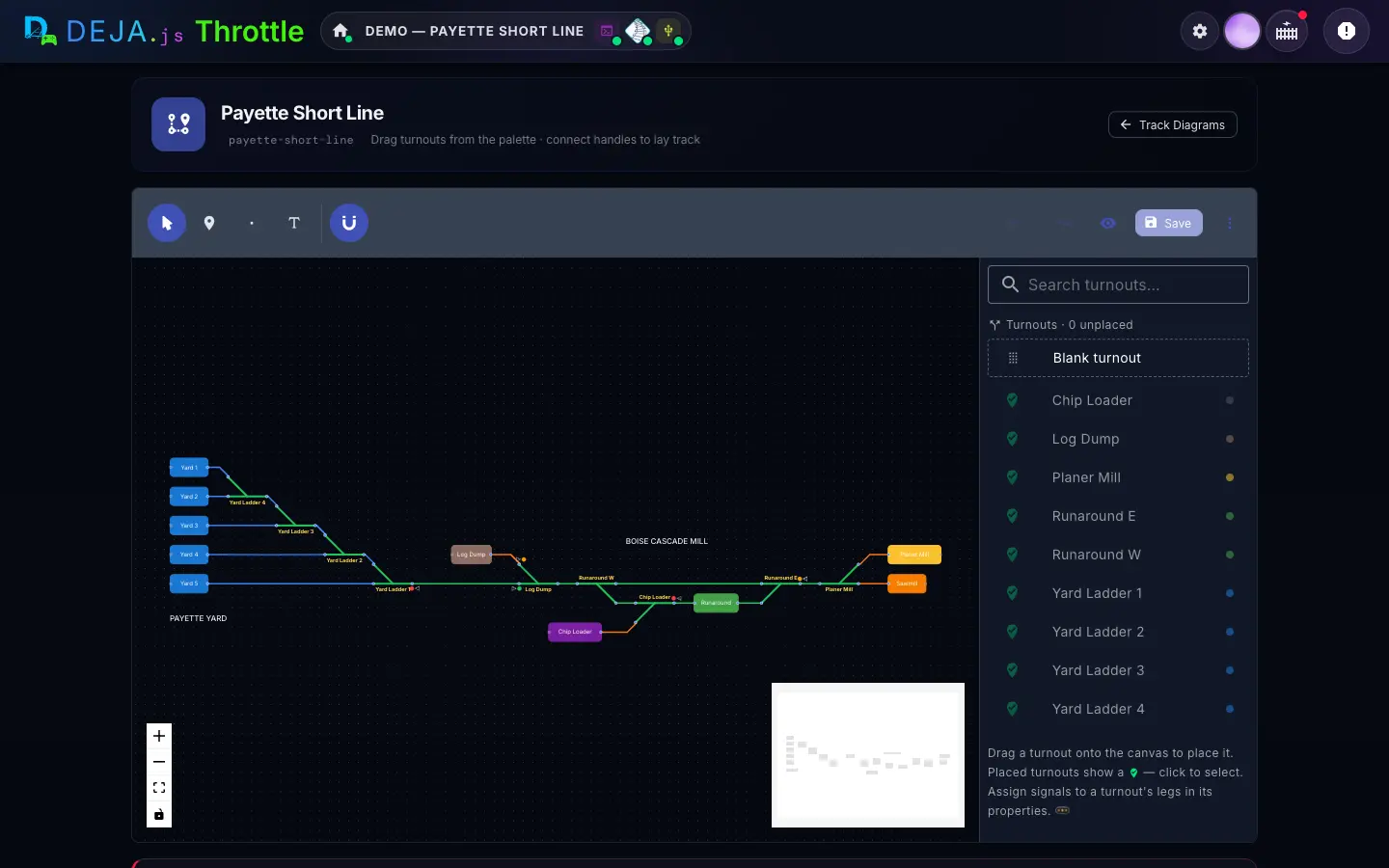
Tools
Icon buttons at the top left. A tool stays picked until you pick another.
- SelectTool
- Pick, move and connect things. Double-click empty canvas to drop a station.Default: Picked
- StationTool
- Click the canvas to place a station: a named end of the line, like a yard track or a mill. Keep clicking to place more, each joined to the last by track. Esc ends the chain.
- WaypointTool
- A small point on the line, for bends and via points. Chains like Station.
- Text LabelTool
- Click to place free text, like “PAYETTE YARD”.
- Grid snapToggle (magnet)
- Snaps everything to a 20 px grid. Hold Alt while dragging to place freely.Default: On
Top right
- Broken connectionsChip
- An orange count of track that isn't joined properly. The same icons are drawn on the canvas.
- Undo · RedoIcon buttons
- Step back and forward through your changes.
- Toggle PreviewIcon button (eye)
- Shows the diagram as it will look to drivers. Tap again to keep editing.
- SaveButton
- Saves the diagram. Greyed out when there's nothing new to save.
- Save & ExportMore actions (⋮)
- Saves, and also makes a standalone SVG snapshot for embedding elsewhere. The live diagram doesn't need it.
Canvas
- HandlesDrag
- Drag from a dot on one piece to a dot on another to lay track between them. New track is straight.
- RenameDouble-click
- Double-click a station, waypoint, turnout or label to rename it in place. Enter keeps it, Esc cancels.
- Zoom and lockIcon buttons
- Bottom left: zoom in, zoom out, fit the plan, and lock the canvas against accidental moves.
- MinimapDisplay
- Bottom right: the whole plan in miniature.
Keyboard
Ignored while you're typing in a field.
- Ctrl/⌘ + SShortcut
- Save.
- Ctrl/⌘ + Z · Shift + Ctrl/⌘ + ZShortcut
- Undo · Redo.
- Delete or BackspaceShortcut
- Delete what's selected.
- Arrow keysShortcut
- Nudge the selection 1 px; with Shift, 20 px.
- EscShortcut
- Clear the selection and go back to Select.
Palette
On the right when nothing is selected.
- Search turnouts…Text field
- Find a turnout by name.
- Turnouts · unplacedDisplay
- How many of your turnouts aren't on this diagram yet.
- Blank turnoutDrag row
- A turnout not linked to anything yet. Link it in its properties.
- Your turnoutsDrag rows
- Every turnout on the layout, with a dot for its state. Drag one onto the canvas and it's placed already linked. Each turnout goes on a diagram once: placed ones are dimmed with a green ✓, and clicking one selects and zooms to it.
Below the editor
- Delete track diagramButton → confirm
- Scroll down for it. It asks once: Cancel or Delete. Your turnouts, signals and routes stay. This can't be undone.
Node Properties
WhereThe editor → select a turnout, station, waypoint or label
Every piece
- LabelText field
- Its name on the diagram.
- RotationButtons · pick one
- Turns it. Turnouts, signals and labels only; stations don't rotate.Options: 0° · 90° · 180° · 270°
- Delete NodeButton
- Removes it, and the track joined to it.
Turnout
- ShapeTiles · pick one
- Right or Left for an ordinary turnout. Crossover joins two parallel lines with two turnouts; Double is a double crossover with four.Options: Right · Left · Crossover · Double
- TurnoutPicker
- The real turnout this one throws. Clear it to leave the piece unlinked.
- Point A · Point B · Point C · Point DPickers
- In place of Turnout on a crossover (A and B) or double crossover (A to D): one real turnout for each. They're ganged and thrown together.
- Divergent legButtons
- Which way the diverging route leaves.Options: Up · Down
- DiagonalButtons
- On a crossover: which way the crossing track runs.Options: ╲ · ╱
- Input leg signal · Straight leg signal · Divergent leg signalPickers
- Hang a real signal on each leg of the turnout. The head appears on that leg in the live diagram. A signal can only be used once per diagram.
- Signal — main A, left (and right, and main B)Pickers
- The same on a crossover: a signal at each end of each line.
- GapDrag handle
- On a crossover, drag its bottom edge to set the space between the two lines.
- Lit Leg ColorColour field
- The colour of the leg the turnout is set for, on the live diagram.Default: Amber
Station, waypoint and label
- Station ColorColour field
- A station's box colour.
- Label (Hidden · Shown)Buttons
- Whether a waypoint's name shows on the diagram.Default: Hidden
- Font SizeNumber field
- A text label's size.Default: 13
- Text ColorColour field
- A text label's colour.
Older signal pieces
Diagrams drawn before signals moved onto turnout legs can still have standalone signals. They work and can be edited, but you can't add new ones.
- SignalPicker
- The real signal it shows.
- Facing directionButtons
- Which way the traffic it protects runs.Options: A · B
Signals first need to exist on the layout. See the Signals guide.
Track Segment Properties
WhereThe editor → select a piece of track
- Track LineCombo box
- Which line it belongs to. Pick a suggestion, each with its own colour, or type your own.Options: Mainline · Yard · Storage · your ownDefault: Mainline
- Segment NameText field
- Left blank, it uses the track line's name.
- LabelButtons
- Whether the name shows at the middle of the segment on the live diagram.Options: Hidden · Shown
- Line ColorColour field
- Overrides the track line's colour.
- Straight · CurveButtons
- The shape of the track between its two ends.Default: Straight
- Stroke WidthNumber field
- How thick the line is.Default: 3
- Delete Track SegmentButton
- Removes this piece of track.
Unsaved changes and Changed elsewhere
WhereThe editor
Unsaved changes
When you leave the editor with changes not saved. Closing or reloading the tab warns you too.
- CancelButton
- Stay in the editor.
- DiscardButton
- Leave and throw away your changes.
- SaveButton
- Save, then leave.
Changed elsewhere
When you save but the diagram was changed somewhere else after you opened it, say on another tablet.
- CancelButton
- Don't save yet; decide later.
- ReloadButton
- Load the latest version. Your unsaved changes are dropped.
- OverwriteButton
- Save yours over the other changes.
Running trains from the Conductor? The track diagram is one of its panels, so you can drive and line routes on one screen.