
An automation is a little program for your layout: when this happens, do that. A train trips a sensor, so stop it, wait, sound the horn and pull away. A turnout goes divergent, so set the signal to red. You build them from coloured blocks in Automation Studio. There's no code to write.
Automations run on your DEJA Server, not in the app. They keep going when you close Throttle, and nothing runs unless a server is attached to the layout. Only the layout owner builds and edits automations. Everyone in the layout can run them, stop them and watch them.
The Automations page
WhereMenu → Automations, or the Automations button on Sensors /automations
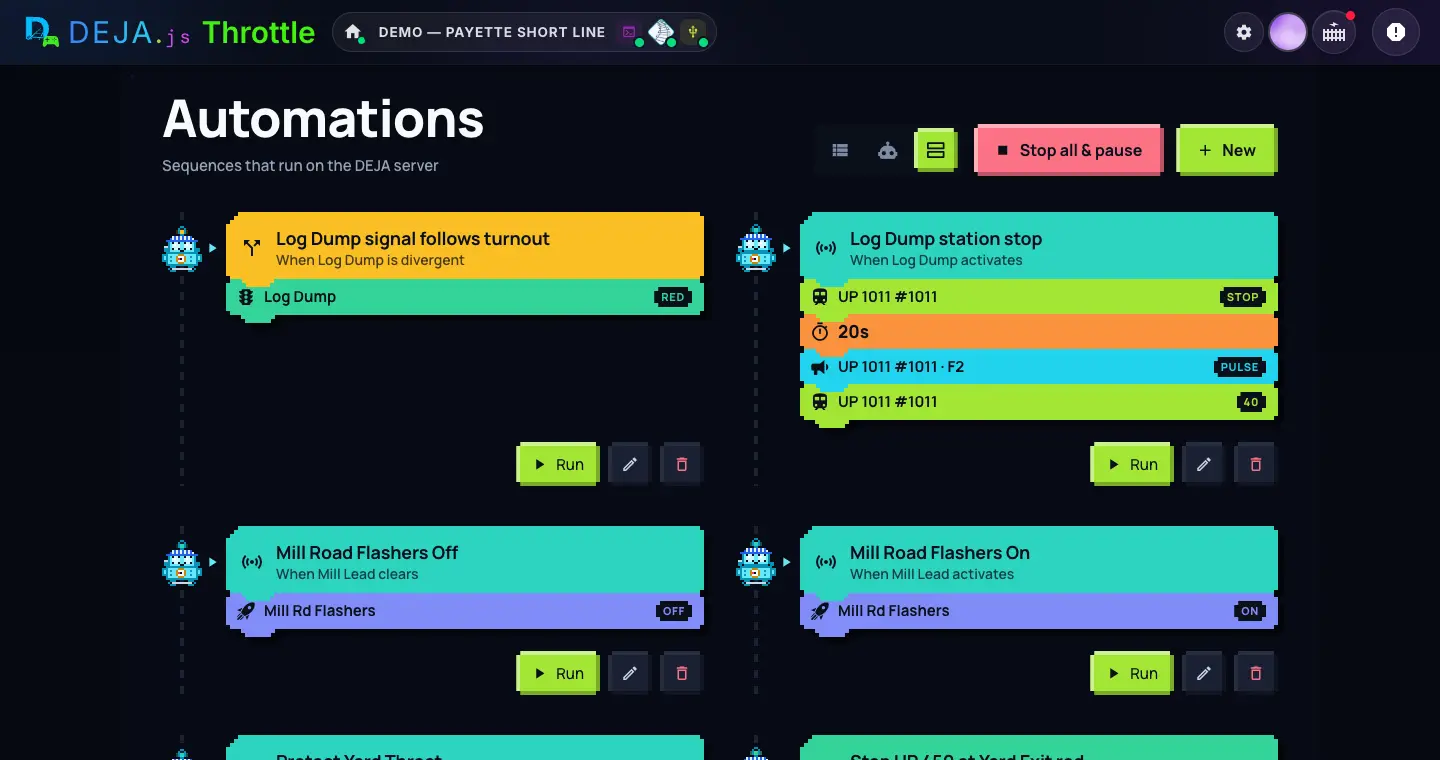
Top of the page
- DensitySegmented buttons
- How each automation is drawn. List is one row each. Compact cards are little DejaBots holding up the name. Comfy cards show the blocks. Remembered on this device.Options: List · Compact cards · Comfy cardsDefault: Comfy cards
- Marker 1Stop all & pauseButton
- Stops every running automation and pauses them all, so nothing new starts. Everyone sees it: it's your panic button.
- Marker 2NewButton
- Opens a blank Automation Studio. Owner only.
- ResumeNotice + button
- While automations are paused you'll see “Automations are paused after E-stop. Nothing starts until you resume.” Tap Resume to let them start again. Stop all & pause and an Emergency stop step both pause them.
Each automation
- DejaBotDisplay
- Its eyes show how the automation is doing. It sleeps when the automation is disabled or paused.
- Top blockDisplay
- The name, and what starts it: “When Log Dump activates”.
- StepsDisplay
- Comfy cards show up to six step blocks with their values (STOP, PULSE, 40, RED, ON). Compact cards show the step icons; List shows them as small tiles.
- StatusPill
- Disabled, Needs update (made before the studio; open and save it), or the live run: “Running · 12s”, “Running · lap 2 · 12s”, “Waiting … · 12s”. Tap a live pill to watch the run. A run that ends badly shows for about ten seconds: Timed out, Failed, Taken over, Interrupted or E-stopped.
- Run · Run with… · StopButton
- Starts it on the server. Run with… means it asks you something first, such as which loco. While it's running the button becomes Stop. Greyed out when the automation is disabled or automations are paused. Everyone can run and stop automations.
- EditPencil button
- Opens it in Automation Studio. In List it's in the ⋮ menu. Owner only.
- DeleteBin button → confirm
- Asks in place: Cancel or Delete (Esc cancels). In List it's Delete… in the ⋮ menu. Gone for good once confirmed. Owner only.
Tapped Run and nothing happened? Automations run on the DEJA Server, so check the server is running and attached to this layout.
Every enabled automation is also in the quick menu as “Run …”, along with “Stop all automations & pause”.
Your first automation
WhereAutomations, before you have any /automations
Start from
- Signal follows a turnoutRecipe tile
- When the turnout goes divergent, set the signal to red.
- Stop a loco when a signal goes redRecipe tile
- A signal turning red brings a loco to a stop.
- Station stop: arrive, wait, departRecipe tile
- A train trips a sensor, stops, waits 20 s, sounds the horn and pulls away. The blocks: Throttle at 0, Delay 20 s, Loco function F2 pulse, Throttle at 40.
- Shuttle between two sensorsRecipe tile
- A loco runs back and forth between two sensors until you stop it. Started from its Run button, it's a Repeat holding: forward at 40, wait for the far sensor, stop, wait 10 s, reverse at 40, wait for the near sensor, stop, wait 10 s.
- Blank automationRecipe tile
- An empty studio: build it block by block.
Members see “No Automations Yet” and a few ideas instead. The layout owner builds automations.
Run with…
WhereAutomations → Run with… on an automation
- One field per parameterPickers
- Labelled with what the automation asks for. A loco shows your roster as buttons, plus a # field for any DCC address 1–10239. Turnouts, signals and the rest show as buttons. Defaults are filled in already.
- Cancel · RunButtons
- Run starts it with your answers. It stays greyed out until every field has a valid value.
Watching the run
WhereRun, or tap a live status pill
- Name and statusDisplay
- The automation, and what it's doing now, such as what it's waiting for.
- The blocksDisplay
- Read-only. The step running now is lit, finished steps are ticked, a Repeat shows its lap, and DejaBot narrates.
- Show the run viewer when I press RunCheckbox
- Untick it to run without this window popping up. Remembered on this device.Default: On
- HideButton
- Closes the viewer. The run carries on.
- StopButton
- Stops the run. It reads “Stopping…” while it does.
Automation Studio
WhereAutomations → New, a recipe, or Edit /automations/new
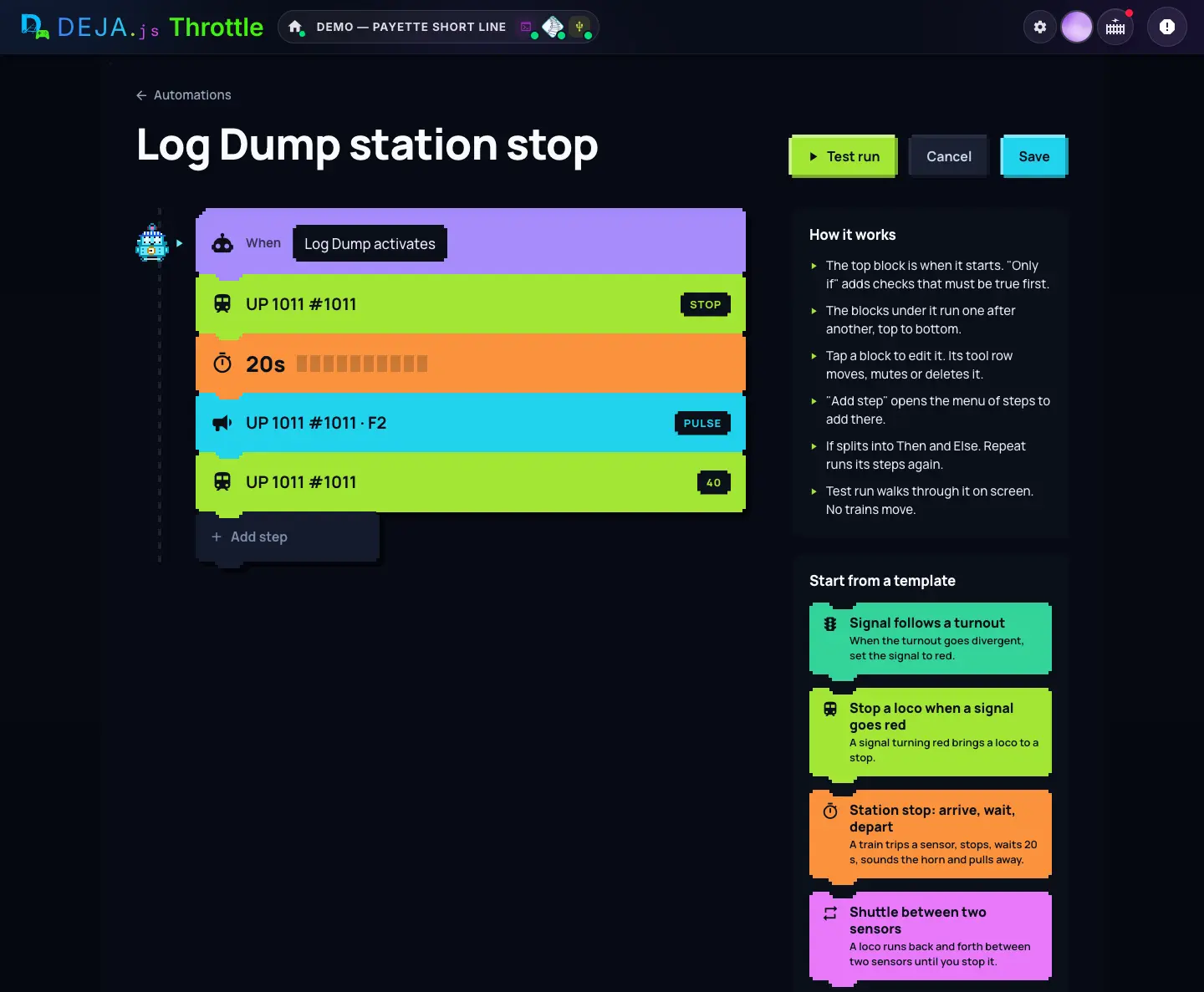
Top of the studio
- ← AutomationsLink
- Back to the list. Like Cancel, it doesn't save.
- NameText field
- The big title. Type straight into it. Empty, it reads “Untitled automation”.
- Test runButton
- Walks DejaBot through the blocks on screen, about a step every two-thirds of a second. It's a preview only: nothing is sent and nothing moves on the layout. Tap Stop to end it; any edit ends it too.
- CancelButton
- Leaves without saving. It doesn't ask first.
- SaveButton
- Checks the automation, saves it and returns to the list with “Automation saved”. If something's missing it says what, under the block concerned.
Notes above the blocks
- Needs updateNotice
- An automation made before the studio. It has been converted for you; Save finishes the upgrade. Any action the studio can't do is listed as dropped.
- This automation is runningNotice
- Changes apply to the next run, not the one going now.
- Loco is also driven byNotice
- Another automation drives the same loco. The last command wins, so make sure they won't clash.
The blocks
- WhenTop block
- What starts it, and any only if checks. Pills show Disabled, Guests and how many parameters it has. Tap it to edit (next section).
- Step blocksBlocks
- One per step, in order, each in its own colour with its value at the right. Tap one to open its editor right under it. Tap again, or press Esc, to close it without keeping changes.
- If and RepeatC-shaped blocks
- These wrap their own steps. If has a Then lane and an Else lane; Repeat has one lane with a loop at its foot. Each lane has its own Add step. You can nest them three deep.
- Add stepButton → menu
- Opens the menu of steps. Your pick lands at the end of that lane, with its editor open.
- Move up · Move downTool row buttons
- Shown on the selected block (and always on a touch screen). Shuffle the step in its lane.
- Disable step · Enable stepTool row button
- Mutes a step without deleting it. It's struck through and skipped when the automation runs.
- Delete stepTool row button
- Removes the step.
Help and templates
- How it worksPanel
- Six lines on how the studio works. With a block open, it shows that block's help instead, the current choice marked Now.
- Start from a templateRecipe tiles
- The same starting points as an empty layout: Signal follows a turnout, Stop a loco when a signal goes red, Station stop, and Shuttle. If you already have steps it asks “Replace the current steps?” first, with Replace or Cancel. Your name is kept.
When Save says no
The common messages, shown under the block they belong to. Once you've tried to save, they update as you fix things.
- Give the automation a nameMessage
- Type a name in the title.
- Choose what starts itMessage
- Open the top block and pick under Start it when.
- Pick a targetMessage
- A block that needs a sensor, turnout, loco or other item doesn't have one yet.
- Add at least one stepMessage
- An automation needs something to do.
- A repeat needs a wait or a delayMessage
- Put a Wait for… or a Delay of at least a quarter second inside every Repeat, so the layout can breathe.
- Steps can only nest 3 deepMessage
- Flatten an If or Repeat that sits inside two others.
- An automation cannot run itselfMessage
- Pick a different automation in that step.
- Parameter needs a defaultMessage
- Started by a sensor, turnout, signal or the server, nobody is there to answer, so every parameter needs a default.
Test run never touches the layout. To try it for real, Save, then tap Run on the Automations page with your DEJA Server attached.
The top block: what starts it
WhereAutomation Studio → tap the When block
- NameText field
- The same name as the title, e.g. “Station stop”.
- DescriptionText field
- Optional: what it is for, in a line.
Starts
- Start it whenPills · pick one
- What starts the automation. Each one is a row below.Options: Button in the app · Sensor · Turnout · Signal aspect · Server startDefault: Button in the app
- Button in the appTrigger
- Runs from the Run button on its card, the quick menu, or another automation.
- SensorTrigger
- Which sensor, then When it: activates (the default), clears, or train has passed (it went clear and stayed clear for half a second).
- TurnoutTrigger
- Which turnout, then When it: is straight (the default) or is divergent.
- Signal aspectTrigger
- Which signal, then When it goes to one of its aspects, or Off. Red by default.
- Server startTrigger
- Runs once, each time the DEJA Server attaches to this layout. Good for setting the layout up.
Only if
- ConditionsList
- Checks made at the moment it starts. With none, it reads “Always”. Add some and all of them must be true, or it does nothing. See Conditions, below.
- Add conditionButton → menu
- Pick what to check.
Parameters
Run it with a different loco or turnout each time: add a parameter, then pick it in a step instead of a fixed one.
- Add parameterButton → menu
- “Ask for a…”: Loco, Turnout, Signal, Effect, Sensor or Route.
- Asks forText field
- The question the Run with… prompt shows, e.g. “Loco”. It also sets the parameter's key, which stays fixed once made.
- KindPills · pick one
- What sort of thing it asks for.
- DefaultPicker
- Filled in when you tap Run. Ask each time leaves it blank. If a sensor, turnout, signal or the server starts the automation, every parameter needs a default.Default: Ask each time
- Remove parameterBin button
- Deletes it. Any step still using it is flagged when you Save.
Below Parameters.
- EnabledSwitch
- Disabled automations never start, and switching one off stops it if it's running.Default: On
- Guest accessSwitch
- Lets visitors run it from the guest app — it appears beside your guest effects with Run and Stop. Adds a Guests pill to the top block. Automations that ask for parameters can't be opened to guests, and nothing runs while automations are paused after an emergency stop.Default: Off
Advanced
A folded section; tap it to open.
- CooldownNumber field (s)
- The shortest gap between starts, in seconds. Empty means none.
- If triggered while runningPills · pick one
- What happens when it's set off again before it has finished.Options: Ignore it · Start overDefault: Ignore it
- DoneButton
- Closes the top block.
Add step: every step
WhereAutomation Studio → Add step
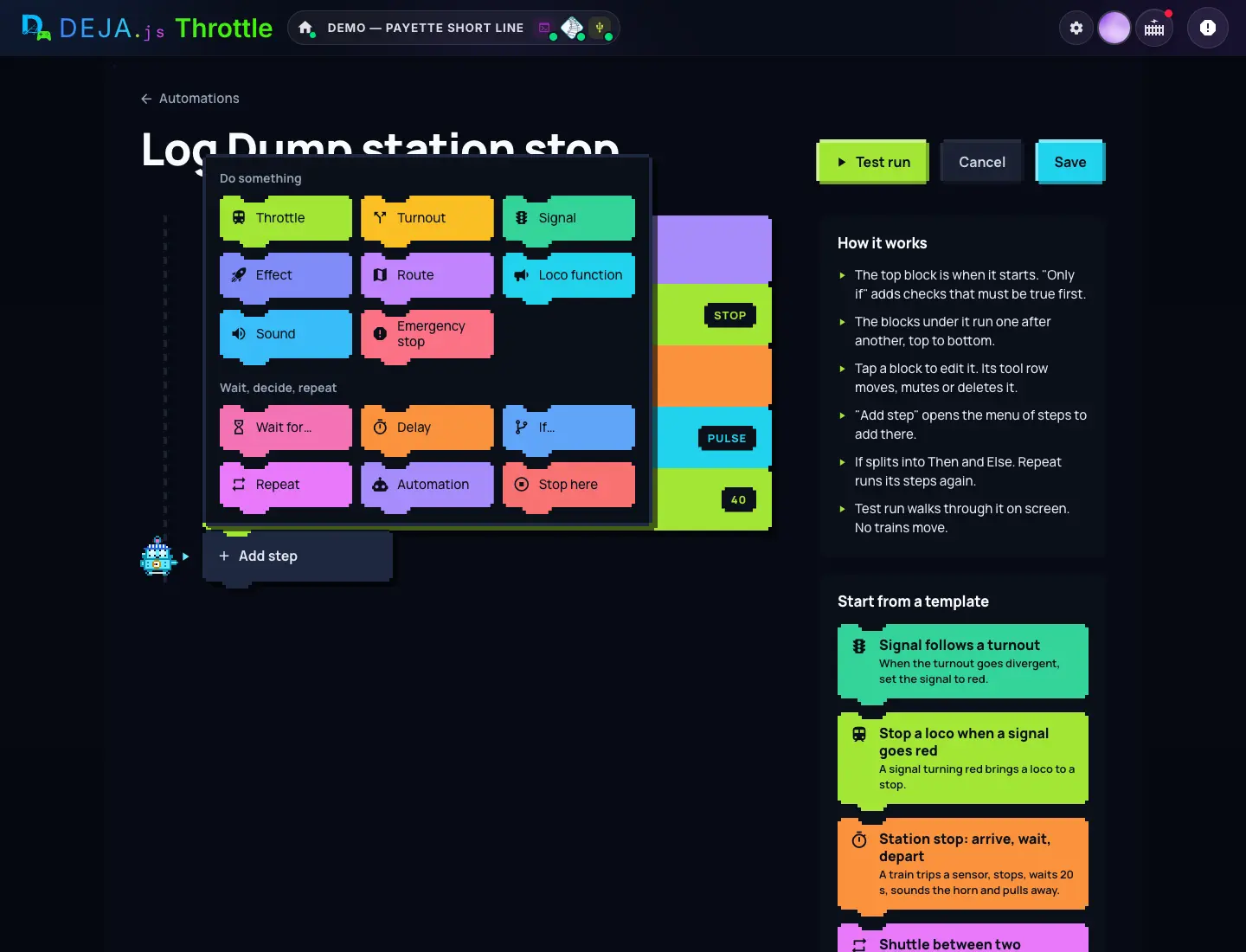
Every step
- DoPills
- On a Do something step: switch it to another action without starting again.
- Use parameterPills
- Shown when the automation has a parameter that fits. Pick it to be asked when it runs, or pick a fixed item below.
- NoteText field
- Optional: why this step is here. It shows on the block.
- Remove step · DoneButtons
- Remove step deletes it. Done keeps your changes. Closing the editor any other way drops them.
Do something
- ThrottleStep
- Sets a loco's speed and direction. Which loco: pick from the roster (“Search roster…”) or type any DCC address; a Speed from 0 to 126 (speed 0 stops the train); Forward or Reverse.
- TurnoutStep
- Which turnout, then Set it to: Straight (the default) or Divergent.
- SignalStep
- Which signal, then Show: one of its aspects, or Off. Red by default.
- EffectStep
- Which effect, then Turn it: On (the default) or Off.
- RouteStep
- Which route. The step runs it.
- Loco functionStep
- Horn, bell, lights. Loco from the roster or any DCC address; Function F0 to F68 (F2 by default); Mode: Pulse, On or Off; and for a pulse, Pulse length: on for this long, then off.Default: F2 · Pulse · 800 ms
- SoundStep
- Plays a sound from your library through the DEJA Server. See the Sounds guide.
- Emergency stopStep
- Stops every loco and pauses all automations until someone taps Resume.
Wait, decide, repeat
- Wait for…Step
- Holds the run until something happens. Wait for a Sensor (the default), Turnout, Signal or Loco, pick Which one, then Until it. For a sensor: activates (next time), is active (now or next), clears, or train has passed, with Clear for: how long it must stay clear before the train counts as passed (500 ms by default). For a turnout: is straight or is divergent. For a signal: is one of its aspects (green by default). For a loco: has stopped.
- Give up after · On timeoutWait for… settings
- How long to wait, in seconds, before giving up; Forever waits until stopped. Then Stop this run (the default) or Carry on.Default: 300 s (5 minutes) · Stop this run
- DelayStep
- Waits a set time, in seconds (tenths allowed). Random extra adds up to that much more, picked fresh each run, so things don't look mechanical.Default: 5 s
- If…Flow
- Checks All of its conditions as it gets there. All true: it runs the Then lane. Otherwise: the Else lane. A true/false switch on the block picks which lane Test run walks; it doesn't change the real run.
- RepeatFlow
- Runs its lane again and again. Until stopped (the default), A number of times (Times, 2 by default), or Until conditions hold (its Until list). It needs a Wait for… or a Delay inside.
- AutomationFlow
- Runs another automation. Start or stop: Start (the default) or Stop, then Which automation. It can't pick itself.
- Stop hereFlow
- Ends this run here. Steps after it never run. Handy inside an If.
The menu greys out If and Repeat in a lane that's already three deep: steps can only nest 3 deep.
Conditions
WhereOnly if, an If… step, or Repeat until conditions hold
What to check
Add condition opens this menu. Then pick Which one, and what It must be.
- SensorCondition
- It must be is active (the default) or is clear.
- TurnoutCondition
- It must be is straight (the default) or is divergent.
- SignalCondition
- It must be is one of its aspects (red by default) or is off.
- EffectCondition
- It must be is on (the default) or is off.
- LocoCondition
- Pick from the roster or type an address. It must be is stopped (the default) or is moving.
- AutomationCondition
- It must be is idle (the default) or is running. Good for keeping two automations apart.
In the editor
- CheckPills
- Switch the condition to another kind.
- Use parameterPills
- Check whatever was picked for a parameter instead of a fixed item.
- Remove condition · DoneButtons
- Done keeps it, once you've picked an item.
Automations pair naturally with sensors: a sensor can start one, and a Wait for… step can wait on one. Each sensor's editor lists the automations it starts under Used by. See the Sensors guide.